
You’re in the middle of baking, you tap the OXO scale to zero it—and nothing happens. Or worse, the display flickers on and off, or shows “ErrP” for no reason. You replaced the batteries yesterday. It worked perfectly last week. Now it’s useless. You’re not alone. Thousands of OXO scale users report sudden display failures, including intermittent power, mysterious error codes, or total blackouts, often within a year of regular use. While OXO scales are praised for their large, readable displays and intuitive tare function, their reliability has drawn widespread frustration. The good news? Many display problems stem from a single, repairable component: the power switch. This guide walks you through diagnosing and fixing common OXO scale display issues, including “ErrP,” flickering, and on/off cycling.
Diagnose Common OXO Scale Display Symptoms
Your OXO scale display can fail in several distinct ways. Identifying the exact symptom helps you determine whether repair is possible or if replacement is necessary.
Intermittent Power Cycling
Your OXO scale powers on, displays a weight for a split second, then shuts off, only to turn back on and repeat the cycle. This behavior is one of the most common display issues, especially in the OXO 11-lb model. The cycle continues until you remove the batteries. Even fresh AAA batteries won’t stop it. This isn’t a battery issue; it’s a sign of unstable power delivery, usually due to a failing internal switch. The microcontroller receives inconsistent voltage, triggering repeated resets. You may notice the display stabilizes temporarily after removing and reinserting the batteries, but the cycling returns within seconds.
“ErrP” Error Code
The display shows “ErrP” instead of a weight reading. This error appears suddenly, often after normal use. It persists after battery replacement and reset attempts. Unlike calibration errors on other brands, “ErrP” cannot be cleared with a tare or button hold. Users report this on both 5-lb and 11-lb OXO models. The code likely indicates a firmware fault, memory corruption, or sensor communication breakdown. There is no published factory reset procedure from OXO, and forums confirm no user-accessible recalibration method. If your scale shows “ErrP,” it may be unrecoverable without PCB replacement.
Blank or Flickering Display
The screen is dim, partially lit, or completely black. Sometimes, tapping the scale briefly lights the display. This can follow a drop, moisture exposure, or occur with no obvious cause. While users often blame dead batteries, the problem usually persists after replacement. Flickering may precede total failure. In some cases, the load cell still works—the scale beeps or responds to tare—but the display fails to update. This symptom overlaps with power cycling but may also point to PCB connection issues or display module detachment.
Test the Power Switch on Your OXO Scale
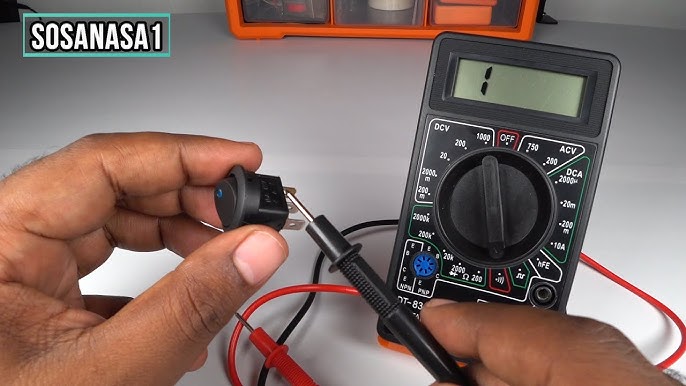
The root cause of intermittent power cycling is often a degraded power switch. Testing this component requires basic electronics tools and can confirm whether replacement is needed.
Measure Switch Resistance
To test the power switch, you’ll need a multimeter. Remove the four screws from the base (two hidden under adhesive foot pads), open the case, and locate the tactile switch connected to the PCB. Set your multimeter to resistance (ohms) mode. Place probes on the switch’s solder terminals while it’s still installed.
Normal readings include near 0 Ω when pressed and infinite (open) when released. Faulty readings show any resistance above 1 kΩ, such as 40 kΩ, 300 kΩ, or even 2 MΩ, indicating internal leakage or partial conductivity. In confirmed cases, faulty switches showed fluctuating high resistance, allowing just enough current to partially power the microcontroller, causing reset loops. After desoldering the switch, the circuit tested normal, proving the switch was the culprit.
Replace with Modified Switch
OXO does not sell replacement switches, and generic tactile switches often have longer actuator shafts that prevent the case from closing. The fix involves using a standard momentary switch and trimming the shaft to sit flush with the PCB. Desolder the old switch, install the new one, and solder the connections. Test before reassembly. Ensure the shaft is short enough to allow the top cover to press it fully without binding. This repair has restored functionality in multiple OXO 11-lb units.
Inspect Battery Contacts and PCB

Before replacing components, rule out simpler issues like dirty battery contacts or visible PCB damage.
Clean Battery Contacts
Even if batteries are new, corroded or loose contacts can cause display instability. Remove the batteries and inspect the terminals. Use a cotton swab dipped in isopropyl alcohol to clean any residue. Check the spring tension in the negative terminal; weak springs cause intermittent contact. If the coil is flattened, gently stretch it to improve pressure. Reinsert batteries and test. While this won’t fix switch-related cycling, it rules out a simple power source issue.
Check for PCB Damage
Open the scale and inspect the printed circuit board. Look for corrosion near battery terminals, cracked solder joints, disconnected traces, and loose display ribbon or connector. In tested units, the PCB appeared clean with no visible corrosion, even in models that failed after two years. This suggests environmental damage isn’t the primary cause; component failure is. However, if your scale was exposed to moisture or spills, clean the board with electronics cleaner and let it dry fully before testing.
Reassemble Your OXO Scale Correctly
Proper reassembly prevents future display problems and maintains calibration accuracy.
Reinstall Internal Magnets
Two small magnets are part of the load cell mechanism. If you disassembled the scale, ensure both magnets are repositioned correctly. Misalignment can cause calibration errors or prevent the scale from powering on. Use tweezers to place them back in their original locations. Mark their positions with a pen before disassembly if possible. One magnet is typically near the center of the base, the other under the weighing platform.
Secure the PCB
During reassembly, the PCB can shift, causing connectors to loosen. To prevent vibration-induced disconnections, apply a small dab of non-conductive glue or double-sided tape under one edge of the PCB. Avoid covering components or traces. This keeps the board stable and maintains contact with the display module and switch.
Tighten Screws Evenly
Four screws secure the load-cell plate to the base. Tighten them evenly in a crisscross pattern. Over-tightening can stress the PCB or misalign the load cell. Under-tightening may allow movement, leading to unstable readings. Once assembled, power on the scale and place a known weight (like a 500g calibration weight or a full water bottle) to verify stability.
Troubleshoot OXO Scale “ErrP” and Firmware Errors
The “ErrP” error presents unique challenges since it cannot be cleared through standard reset methods.
No User Reset for “ErrP”
Unlike other scales, OXO does not provide a recalibration or reset sequence for “ErrP.” Holding the tare button, removing batteries, or pressing buttons during startup has no effect in reported cases. The error likely stems from corrupted firmware, a failed memory chip, or a broken sensor signal. Since OXO doesn’t release firmware tools or service manuals, there is no known user fix. If your scale shows “ErrP” and switch testing is normal, the PCB is likely faulty.
When to Replace the Scale
If the switch tests fine, battery contacts are clean, “ErrP” persists, and there’s no response to power input, then the PCB or microcontroller has failed. No third-party repair services offer OXO PCB replacements. At this point, replacement is the only option. Some users report replacing their OXO scale up to five times in two years due to repeated failures.
Prevent Future OXO Scale Display Failures
Extend the life of your scale with proper care and usage habits.
Minimize Switch Wear
The power switch wears out from repeated pressing. To extend life, press the button gently instead of slamming it. Use the tare function instead of turning the scale on/off between uses. Leave it on during short cooking sessions to reduce actuation cycles.
Store Properly
Keep the scale in a dry, cool place. Avoid storing it near sinks, stoves, or dishwashers where humidity or heat can affect internal components. Remove batteries if storing long-term to prevent corrosion from battery leakage.
Consider Alternative Models
If reliability is critical, consider scales with mechanical power switches (not tactile), user-accessible calibration, or modular designs. Brands like MyWeigh and Escali offer more serviceable options. Some users have switched to non-digital scales for consistency, though they lose precision and tare functionality.
Repair vs. Replace: Cost-Benefit Guide
| Issue | Repairable | Tools Needed | Time Required | Success Rate |
|---|---|---|---|---|
| Intermittent power cycling | Yes (switch fix) | Soldering iron, multimeter, screwdrivers | 30–60 mins | High |
| “ErrP” error | No (firmware fault) | None | N/A | Very low |
| Blank display (switch-related) | Yes | Screwdrivers, multimeter | 20–40 mins | Medium |
| Flickering after impact | Maybe (PCB realignment) | Screwdrivers, tape | 15–30 mins | Medium |
If you’re comfortable with basic electronics, repairing a cycling OXO scale is cost-effective, saving $30 per replacement. But if you lack tools or time, and the scale shows “ErrP,” replacement is more practical.
Key Takeaways for Fixing Your OXO Scale Display

OXO scale display problems, especially power cycling and “ErrP,” are widespread but often stem from a single faulty component: the power switch. Multimeter testing confirms high resistance in degraded switches, and replacing them with modified units can restore full function. However, firmware-related errors like “ErrP” remain unresolved without manufacturer support. While OXO excels in design, its long-term reliability falls short for frequent users. By diagnosing the switch first, cleaning contacts, and reassembling with care, you can extend the life of your scale or decide when it’s time to switch brands.
Frequently Asked Questions About OXO Scale Display Problems
Why does my OXO scale keep turning on and off?
This intermittent power cycling is typically caused by a faulty power switch with degraded internal contacts. The switch allows enough current to partially power the microcontroller, triggering repeated resets. Replace the switch to resolve this issue.
Can I fix the “ErrP” error on my OXO scale?
No. The “ErrP” error indicates a firmware or hardware fault that cannot be resolved through user resets or recalibration. If your scale displays “ErrP” and the power switch tests normal, the PCB likely needs replacement.
How do I test my OXO scale power switch?
Set a multimeter to resistance mode and measure across the switch terminals while installed. Normal readings are near 0 Ω when pressed and infinite when released. Any reading above 1 kΩ indicates a faulty switch.
Are OXO scales worth repairing?
For intermittent power cycling caused by switch failure, yes. The repair costs little and can extend the scale’s life significantly. However, if the scale shows “ErrP” or has PCB damage, replacement is more practical.
How long do OXO scales typically last?
Many users report failures within 6 months to 2 years of regular use. Some have replaced their scales up to five times in two years, indicating reliability issues with certain models.
What causes display flickering on an OXO scale?
Flickering can stem from a failing power switch, loose PCB connections, or display module issues. After battery replacement, test the switch and ensure all connectors are secure during reassembly.



