
If you’ve just purchased a WW Scale by Conair UK, you might feel unsure about where to start. This smart body composition monitor goes beyond simple weight tracking, measuring body fat, muscle mass, water percentage, and more using bioelectrical impedance analysis. However, getting accurate results requires proper setup, correct foot placement, and app synchronization. This guide walks you through everything from installing batteries and pairing with your phone to taking your first measurement and troubleshooting common issues.
Power On and Install Batteries in Your WW Scale
Your WW Scale needs three AAA alkaline batteries to function. Proper battery installation is critical for both power and Bluetooth connectivity.
Insert AAA Batteries Correctly
The battery compartment is located on the underside of the scale. Use a small Philips screwdriver to remove the screw, then open the compartment door. Insert the batteries according to the plus and minus symbols molded inside the compartment.
Before closing the door, check that the white battery isolator tab has been fully removed. This plastic tab prevents the scale from activating during storage and must be pulled out completely.
Activate the Scale
Once batteries are installed, firmly tap the scale with your foot to power it on. The LCD display should illuminate with a blue backlight.
If the blue backlight stays on continuously even after removing the batteries, you likely haven’t removed the blue static cling sticker from the display. This protective sticker must be peeled off before first use.
Pair Your WW Scale with the App

The WW Scale connects to your smartphone through the WW Scales by Conair UK app. Proper pairing ensures your measurements sync automatically.
Enable Bluetooth and Location Services
Before pairing, turn on Bluetooth in your device settings. Android users must also enable Location Services, as the Bluetooth pairing relies on GPS functionality.
Connect Automatically Through the App
The WW Scale pairs automatically without manual Bluetooth selection. Open the app, tap “Connect to Scale,” then step onto or tap the scale to power it on.
Watch for these connection indicators:
• Blinking Bluetooth icon on the scale display
• Blinking dots around the Bluetooth symbol in the app
When successfully connected, the Bluetooth icon becomes solid and the app displays a checkmark.
Fix Connection Problems
If pairing fails, force quit the app and restart the process. Weak batteries often cause connection issues, so replace them with fresh AAA alkalines. Android users can clear the Bluetooth cache through Settings, Apps, Bluetooth Share, then Storage to clear data and cache.
Take Accurate Body Measurements with WW Scale
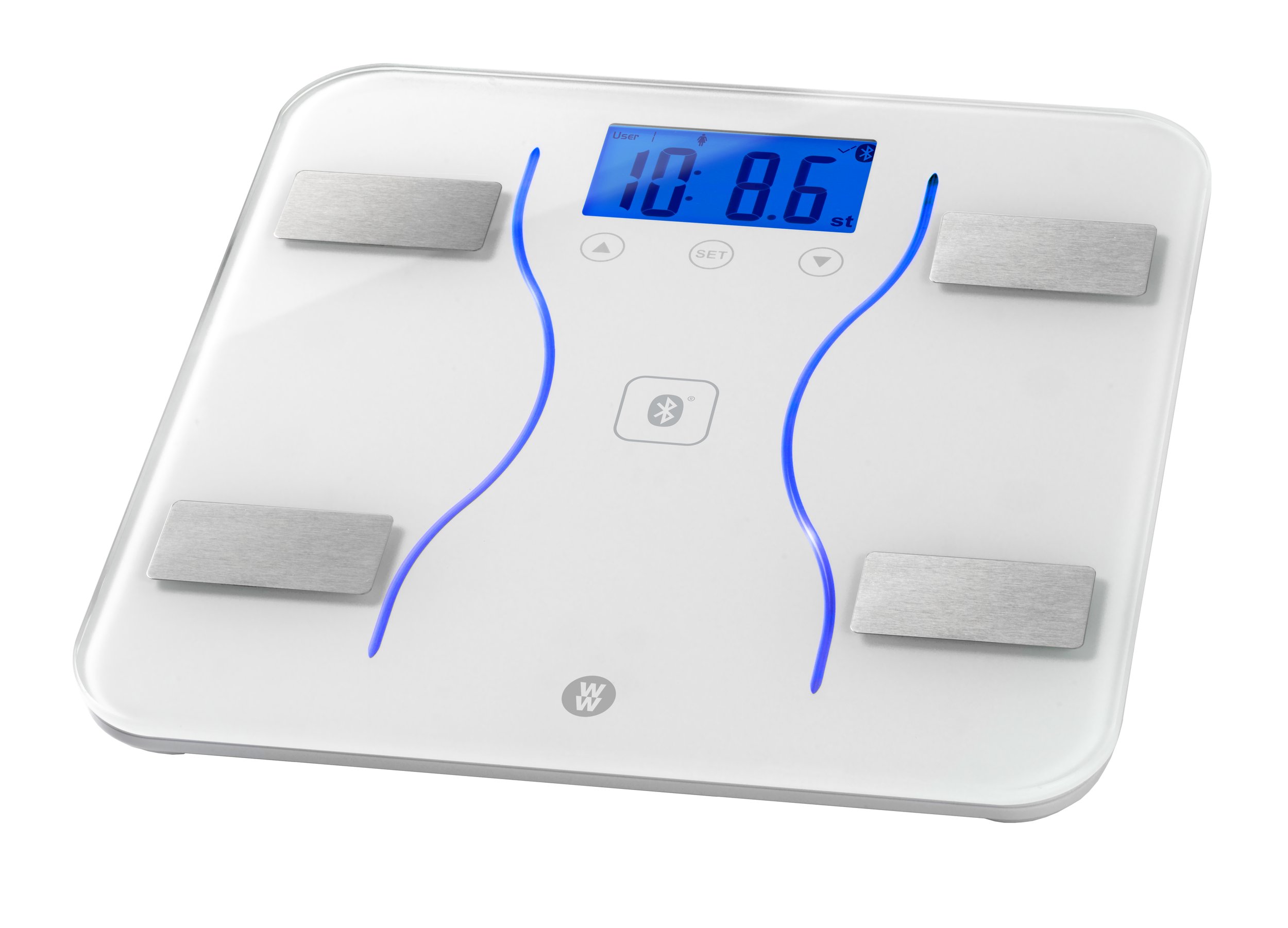
The WW Scale uses bioelectrical impedance analysis to measure body composition. Proper foot placement is essential for reliable readings.
Stand Barefoot on the Electrodes
You must stand with bare feet completely covering the metal electrode strips on both sides of the scale. Socks, tights, or shoes will block the electrical signal and prevent accurate measurements.
If readings fail despite correct placement, dry soles may be the problem. Lightly dampen or moisturize your feet to improve conductivity, but be careful not to slip on the glass surface.
Wait for Complete Data Transfer
Step on the scale and remain perfectly still while it performs its analysis. Do not step off until all measurements appear in the app and the app confirms data receipt.
Stepping off too early often results in missing body composition data, with only weight and BMI showing up.
Manage Multiple Users on One WW Scale
The WW Scale supports up to nine user profiles, making it suitable for families or shared households.
Add Users to Your Scale
During setup, the first user can select any available slot. Subsequent users are automatically assigned the next available number, as the app recognizes occupied slots. All users share the same physical scale without needing to re-pair.
Use Multiple Devices
Data does not sync automatically between devices. Measurements taken on your iPhone stay on that device unless you manually export them. To manually add readings from another device, tap the plus button in the app and enter the data.
Understand Your Body Composition Results
The WW Scale provides six key measurements: weight, BMI, body fat percentage, body water percentage, muscle mass, and bone mass.
Why Percentages Exceed One Hundred Percent
You may notice that body fat plus water plus muscle plus bone percentages exceed one hundred percent. This is completely normal and not an error.
Water exists in all body tissues, including fat, muscle, and bone. The scale calculates water as a percentage of lean body mass, but since water is also present in fat tissue, the totals naturally exceed one hundred percent.
Get Consistent Results from Your WW Scale
Body composition fluctuates throughout the day based on hydration, food intake, and activity levels. Following consistent practices improves tracking accuracy.
Weigh at the Same Time Daily
Weigh yourself first thing in the morning before eating or drinking. Wear the same clothes or weigh nude, and stand in the same position each time.
Place Scale on a Hard, Level Surface
Carpet, rugs, and uneven floors can cause inaccurate readings or error messages. Place your scale on tile, hardwood, or concrete for best results.
Safety Warnings for WW Scale Users
Certain medical conditions require caution when using body composition features.
Avoid BIA with Pacemakers
Do not use body composition mode if you have a pacemaker or implanted electronic medical device. The electrical current, though harmless to most people, may interfere with these devices. Weight-only mode remains safe.
Pregnancy Considerations
Body composition analysis is not recommended during pregnancy due to increased body water and shifting composition that skews algorithm results. Weight-only tracking is safe and useful for monitoring pregnancy weight gain.
Metal Implants Are Safe
Users with metal joints, screws, or prosthetics can safely use the scale. These may slightly alter resistance readings, potentially showing lower body fat percentage, but trend tracking remains reliable when using the same scale consistently.
Maintain and Reset Your WW Scale
Regular maintenance keeps your scale functioning accurately.
Replace Batteries Regularly
Replace batteries when the scale won’t turn on, pairing fails repeatedly, or the display appears dim or flickering. Use three fresh AAA alkaline batteries and dispose of old ones at designated recycling points.
Reset When Necessary
To erase all user data or troubleshoot persistent issues, locate the small reset button on the bottom of the scale. Use a paperclip to press and hold it until the display shows “Clr.”
Resetting permanently deletes all data for every user, so only perform this when preparing for a new owner or when troubleshooting has failed.
Fix Common WW Scale Problems
No Display After Battery Insertion
Check that the isolator tab is fully removed and battery polarity matches the symbols. Try new batteries if needed.
Only Weight Shows Without Body Metrics
Ensure feet are bare and making full contact with electrodes. Lightly moisturize dry feet and wait until the app confirms data receipt before stepping off.
App Shows No Scale Detected
Confirm Bluetooth is enabled. Android users must have Location Services turned on. Force quit and restart the app, then try again with fresh batteries.
Key Takeaways for Using Your WW Scale

The WW Scale delivers accurate body composition data when used correctly. Removing the battery isolator tab and blue static sticker before first use prevents display issues. Bare feet with full electrode contact are essential for BIA measurements. Weighing at the same time daily on a hard, level surface ensures consistent tracking results.
For multiple users, the scale supports nine profiles with auto-assigned slots. Remember that data does not sync across devices unless manually entered or connected to Apple Health or Google Fit. Replace batteries every three to six months and reset only when necessary.
Contact Conair UK at 0345 2 668951 or ukinfo@conair.com for additional support with your WW Scale.
Frequently Asked Questions About WW Scale
How do I connect my WW Scale to my phone?
Open the WW Scales by Conair UK app, tap “Connect to Scale,” and then power on the scale by stepping on it or tapping it. The app will automatically detect and pair with the scale once Bluetooth is enabled.
Why does my WW Scale only show weight and not body fat?
Body composition data requires bare feet making full contact with the metal electrodes. Dry skin can block the electrical signal, so lightly moisturize your feet or dampen the soles slightly to improve conductivity.
Can I use the WW Scale if I have a pacemaker?
Weight-only mode is safe, but body composition analysis using bioelectrical impedance is not recommended. The electrical current may interfere with pacemaker function. Consult your doctor before using body analysis features.
How many users can the WW Scale support?
The WW Scale supports up to nine user profiles. Each user is automatically assigned the next available slot during setup, and all users share the same physical scale.
Why do my body composition percentages add up to more than one hundred percent?
This is normal. Water exists within all body tissues, including fat, muscle, and bone. Since the scale calculates water percentage separately from lean body mass while also accounting for water in fat tissue, the totals naturally exceed one hundred percent.



