
Is your Renpho scale not syncing, showing incorrect readings, or failing to connect to the app? You’re not alone. Many users encounter glitches that make the scale unresponsive or inaccurate. The good news is that resetting your Renpho scale usually fixes these issues in under a minute. This guide walks you through every step to get your smart scale back on track.
Whether you need a simple power cycle or a Bluetooth reconnection, you’ll learn how to perform a hardware reset, fix pairing problems, and troubleshoot common failures. No tools required.
Perform a Hardware Reset

A hardware reset clears temporary errors and reboots your Renpho scale’s internal system. This should be your first step whenever the scale isn’t turning on, shows erratic numbers, or behaves unpredictably.
Turn Off and Remove the Battery
Step off the scale and wait for the display to turn off completely. Flip the scale over and locate the battery compartment on the bottom. Open the compartment and remove one battery to cut power completely.
Wait five seconds before reinserting the battery. This ensures any residual charge drains fully. Reinsert the battery firmly into place, close the compartment, and place the scale on a flat surface. Now step on it lightly. If the display lights up normally, the reset succeeded.
Fix Bluetooth Pairing Issues
If your Renpho scale won’t connect to the RENPHO Health app, a Bluetooth reset is likely needed. This commonly happens after phone updates, app glitches, or when switching to a new device.
Enable App Permissions
Before resetting, confirm your phone allows full connectivity. On iOS, go to Settings and ensure Bluetooth is turned on. On Android, turn on Bluetooth and Location or GPS, as this is required for Bluetooth scanning. Open the RENPHO Health app and grant all permissions if prompted.
Pro tip: Restart your phone if Bluetooth seems sluggish, as this often clears deeper connection blocks.
Wake and Tap to Reconnect
This four-step method forces the scale to re-pair with your device. Place one foot on the scale to power it on. Wait for the display to show weight or dashes while syncing. Tap the model number shown in the app when the scale wakes up. Step on again to complete pairing, and your data should sync within seconds.
Make sure the scale is within three feet of your phone during this process for the best connection.
Clear Old Device Pairings
If the scale connects to the wrong phone or won’t release old pairings, you need to start fresh. Open the RENPHO app, go to Profile, then Scales, select your scale, and choose Unpair. Perform the hardware reset by removing the battery. Re-add the scale from scratch using the Add New Device option.
This clears outdated connections and gives you a clean slate to work with.
Troubleshoot Common Reset Failures
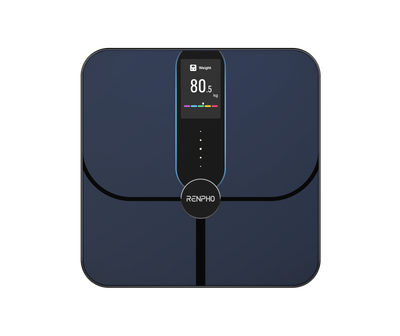
Sometimes, even after resetting, the scale still doesn’t work. Here is what to check and how to resolve persistent issues.
No Display After Battery Reinsertion
If the screen stays blank after putting the battery back in, check the battery orientation first. Ensure the positive side faces up correctly. Try replacing the batteries with fresh AAA alkaline batteries. Clean the battery contacts with a dry cloth, as dirt can block power flow.
Avoid using rechargeable AAA batteries, as they often output lower voltage and cause startup failures.
App Shows Connecting But Never Syncs
When the app hangs during pairing, close the RENPHO app completely and relaunch it. Toggle your phone’s Airplane Mode on and off to refresh wireless signals. If issues persist, delete and reinstall the RENPHO Health app, as your data is cloud-backed and will be restored upon logging back in.
Scale Reads Error Codes
If your scale displays “888” or “Err,” these codes indicate a sensor or calibration issue. “888” means there is interference, so move the scale away from carpets, rugs, or metal surfaces. “Err” means you should step off and retry on a hard, level floor, avoiding tile grout lines or uneven surfaces.
After clearing the error, perform a hardware reset to stabilize the system.
Prevent Future Connection Problems
Keeping your Renpho scale running smoothly requires some basic maintenance habits. Follow these tips to minimize issues down the road.
Recalibrate Weekly
Smart scales auto-calibrate, but manual recalibration helps maintain accuracy. Step on briefly and wait for “0.0” to appear. Step off and wait for the display to shut down. Repeat this process once a week, especially if multiple people use the scale.
Update the App Regularly
App updates often include Bluetooth stability fixes and bug patches. Check the App Store or Google Play monthly for updates. Enable auto-updates to stay current without manual checking.
Use a Dedicated User Profile
If multiple people use the scale, ensure each user has a separate profile in the RENPHO app. Have each person step on the scale with bare feet, as socks can interfere with body composition readings.
When to Contact Support
If you have tried all resets and the scale still fails, it may be time to reach out for professional help. Contact Renpho if the scale won’t turn on with new batteries, displays repeated error messages on proper surfaces, or if the app won’t detect the scale despite correct settings.
Visit support.renpho.com or contact Renpho through their Facebook, Instagram, YouTube, or TikTok pages for live assistance. Include your scale model number and a brief video of the issue for faster resolution.
Frequently Asked Questions About Resetting Your Renpho Scale
How do I reset my Renpho scale to factory settings?
To perform a factory reset, remove the battery from the scale, wait five seconds, and reinsert it. This clears temporary errors and restores default settings. For Bluetooth issues, unpair the scale from the app and re-add it as a new device.
Why won’t my Renpho scale connect to the app?
This usually happens due to Bluetooth issues or outdated app permissions. Enable Bluetooth and Location on your phone, then try the wake-and-tap reconnection method. If that fails, reinstall the app and attempt pairing again.
What does it mean when my scale displays “Err”?
“Err” indicates a sensor problem, typically from using the scale on an uneven surface. Step off and place the scale on a hard, level floor. Avoid tile grout lines, carpets, and rugs. Perform a hardware reset after clearing the error.
Can I use rechargeable batteries in my Renpho scale?
No, rechargeable AAA batteries often output lower voltage and can cause startup failures. Use AAA alkaline batteries for reliable performance.
How often should I reset my Renpho scale?
Reset only when you encounter issues like syncing problems, inaccurate readings, or connection failures. Weekly recalibration is recommended for accuracy, but a full reset is not necessary unless problems arise.
Key Takeaways for Resetting Your Renpho Scale
Resetting your Renpho scale doesn’t have to be complicated. A five-second battery reset fixes most glitches, and the tap-to-pair method restores stubborn Bluetooth connections. Always use fresh AAA alkaline batteries and keep your app updated for the best performance.
For optimal results, place your scale on a hard, level surface away from interference sources. Perform a hardware reset whenever the scale behaves erratically, and use the Bluetooth reconnection steps when pairing issues arise. By following these steps, you will keep your health tracking accurate and seamless for years to come.



