
You step on your digital scale, but it won’t turn on, shows inaccurate readings, or fails to sync data. A reset might be the fix you need. Knowing how to reset a scale correctly is essential, especially for smart scales that connect to health apps. A proper reset clears glitches, restores responsiveness, and ensures accurate measurements. But if done incorrectly, you could lose unsynced data or damage functionality. This guide walks you through the exact steps to safely reset your digital scale, avoid common mistakes, and get reliable results every time.
Remove and Reinsert Batteries
The core of any scale reset is a full power cycle. This clears temporary errors and resets internal memory.
Take Out All Batteries
Turn the scale over and open the battery compartment. Remove all batteries. Don’t leave even one in. Most digital scales use three to four AAA or AA batteries. Use a small screwdriver if the compartment is secured.
Wait 10 Minutes Minimum
Leave the batteries out for at least 10 minutes. This drains residual power stored in internal capacitors. Skipping this step may result in an incomplete reset.
Pro Tip: Use this time to clean the compartment and inspect for corrosion.
Check Battery Polarity Before Reinserting
When placing batteries back, match the positive and negative symbols inside the compartment. Reversing polarity can damage the circuitry or prevent the scale from powering on.
Inspect and Clean Battery Contacts

Dirty or corroded contacts are a leading cause of power failure and erratic behavior.
Look for Corrosion or Debris
Check for white or greenish residue on metal terminals. This buildup blocks electrical flow and mimics battery failure.
Clean With Rubbing Alcohol
Dip a cotton swab in isopropyl alcohol and gently wipe each contact point. Let it dry completely before reinserting batteries. Avoid using water or abrasive tools.
Place Scale on a Hard, Flat Surface
Even after resetting, your scale won’t calibrate properly if it’s on an uneven or soft surface.
Avoid Carpets and Rugs
Soft flooring compresses under weight, causing inaccurate readings. Always use the scale on hard flooring like tile, wood, or concrete.
Ensure Level Ground
Tilted or wavy surfaces throw off sensor accuracy. If your floor is uneven, find a better location. Some users place a rigid cutting board under the scale to create a flat base.
Activate and Calibrate the Scale
After resetting, the scale must recalibrate before use.
Step On to Power It Up
Stand on the center of the scale with one foot. Most models activate with minimal pressure. The display will light up and show a series of dashes.
Wait for “0.0” to Appear
Let the scale complete its calibration cycle. This usually takes two to five seconds. When it shows “0.0”, it’s ready for accurate measurement.
Warning: Don’t step off and back on repeatedly. This interrupts calibration.
Use Correctly for Accurate Readings
Once reset, proper usage ensures consistent results.
Stand Still With Both Feet
After the scale reads “0.0”, step on with both feet, centered. Hold still until your weight appears. Movement skews readings.
Wait for Confirmation Signal
Many smart scales beep or flash when measurement is complete. For connected models, dashes may reappear as data processes.
Confirm Data Transmission
If your scale syncs to an app, watch for “Sent” on the screen. This means your weight has been transmitted successfully.
Don’t Reset for Transmission Errors
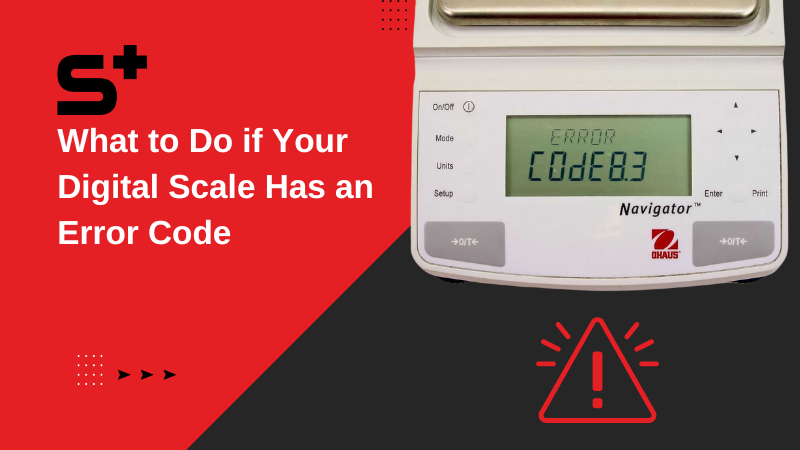
Resetting isn’t always the right move, especially when data fails to sync.
Recognize Sync Error Codes
If your scale displays Er4, Er5, or Er6, it’s a wireless transmission issue, not a hardware fault. These codes mean:
- Er4: Bluetooth connection failed
- Er5: Network timeout
- Er6: Data upload interrupted
Resetting Erases Unsynced Data
Performing a reset with these errors wipes all stored but unsent weights. Even if connectivity returns, that data is gone forever.
Wait for Automatic Sync First
Weight data typically transmits within 5 minutes of stepping off. If it doesn’t appear in your app, wait 24 hours before contacting support. Do not reset during this window.
When to Contact Support
Some issues can’t be fixed with a reset.
Persistent Error Codes
If Er4, Er5, or Er6 keep appearing after 24 hours, contact the manufacturer. There may be a firmware or server-side issue.
Scale Won’t Power On
After battery replacement and 10-minute wait, if the display stays blank, confirm batteries are fresh and correctly inserted. Clean contacts again and test with a different set of batteries. If still unresponsive, the internal circuitry may be damaged.
No “0.0” Display After Stepping On
If the scale lights up but doesn’t show “0.0”, the calibration sequence is failing. Possible causes include damaged load cells, internal software freeze, or moisture damage. Try the battery reset again. If it fails a second time, seek technical support.
Maintain Accuracy With Regular Care
A reset fixes immediate problems, but maintenance prevents future issues.
Clean Contacts Monthly
Dust and oxidation build up over time. Wipe battery terminals every four to six weeks with an alcohol swab.
Replace Batteries Proactively
Don’t wait for complete failure. Replace batteries every six to 12 months, depending on usage. Weak power causes slow startup and sync failures.
Store in a Dry Environment
Moisture damages internal electronics. Keep the scale in a low-humidity area, away from showers or sinks.
Avoid Dropping or Impact
The load sensors underneath are delicate. Dropping the scale, even from a short height, can misalign or break them.
Model-Specific Considerations
While reset steps are similar across digital scales, smart models have extra features.
Applies to Smart Scales
This reset method works for most Bluetooth or Wi-Fi-enabled scales. However, smart models are especially sensitive to resets during sync errors.
Basic Digital Scales May Not Show “Sent”
Non-connected scales skip transmission steps. After reset, they should still power on when stepped on, display dashes then “0.0”, and show weight steadily. If not, follow the same battery and calibration steps.
Final Reset Checklist Before Contacting Support
Before calling support, verify you’ve completed all steps. Remove all batteries and wait at least 10 minutes. Clean battery contacts and reinsert batteries with correct polarity. Place scale on hard, level surface and step on to activate. See “0.0” appear. Do not reset with Er4, Er5, or Er6 errors. If all boxes are checked and the scale still fails, contact customer service with your model number and error details.
Frequently Asked Questions About Resetting a Scale
How do I reset a digital scale to factory settings?
Remove all batteries, wait at least 10 minutes, clean the contacts, and reinsert the batteries properly. Place on a flat surface, step on to activate, and wait for “0.0” to appear. This process restores default settings.
Why does my scale show “0.0” after stepping on it?
The “0.0” display indicates the scale has completed its calibration cycle and is ready to measure. This is the expected behavior after a proper reset or when the scale activates.
Will resetting my scale delete my weight history?
Resetting the scale itself does not delete history stored in a connected app. However, any weight data stored on the scale that hasn’t synced to your account will be erased if you reset during transmission errors.
What does Er4 mean on my scale?
Er4 indicates a Bluetooth connection failure. This is a wireless transmission problem, not a hardware issue. Don’t reset the scale when you see this error, as you may lose unsynced data.
How long should I wait before reinserting batteries?
Wait at least 10 minutes to ensure all residual power drains from internal capacitors. This ensures a complete reset of the internal memory.
Why does my scale give different readings each time?
This usually happens when the scale is placed on soft or uneven surfaces. Always use your scale on hard, flat flooring. Also ensure you’re stepping on the center and standing still during measurement.
Key Takeaways for Resetting Your Scale
Resetting a scale is simple when done right, but risky if misapplied. Follow the battery removal and reinsertion steps precisely, including the 10-minute wait period. Clean contacts regularly and always place the scale on a hard, level surface for accurate readings. For smart scale users, never reset during sync errors like Er4, Er5, or Er6, as this permanently deletes unsynced weight data. Instead, wait 24 hours for automatic sync. With proper care and correct reset procedures, your scale will deliver accurate, reliable measurements for years.



