
You’ve decided to switch fitness apps, give your Omada scale to someone else, or troubleshoot a sync issue. Whatever your reason, you need to disconnect your Omada scale from its current account. Unlike some smart devices with a simple unpair button in the app, the Omada scale does not offer a direct software-based disconnect. Instead, the most reliable way to fully sever the connection is through a complete hardware reset.
This process removes all stored data and network settings, effectively wiping the device clean and preparing it for a fresh start. In this guide, we will walk you through the exact steps to disconnect your Omada scale, explain what happens during the reset, and help you avoid common pitfalls.
Perform a Full Scale Reset

Resetting your Omada scale is the only guaranteed method to disconnect it from an account. This clears Bluetooth pairing, user profiles, and stored measurements. It is essential when transferring ownership or resolving persistent sync errors.
Remove All Batteries Completely
Turn the scale over and locate the battery compartment on the back. Open the cover and take out all batteries. Set them aside in a safe place.
Warning: Do not skip this step. Partial power can prevent a full reset.
Wait 10 Minutes for Memory Clear
Leave the batteries out for at least 10 minutes. This allows any residual charge in the internal circuitry to dissipate, ensuring the device memory is fully cleared.
During this time, the scale loses all temporary data and pairing information. Skipping the wait period may result in an incomplete reset.
Inspect Battery Contacts Before Reinserting
Before putting the batteries back in, check for corrosion, dirt, or moisture in the compartment. Clean contacts gently with a dry cloth or cotton swab. Ensure correct polarity as marked inside the compartment.
Poor contact can cause startup failures or erratic behavior after the reset.
Reinstall Batteries and Power On
Insert fresh or fully charged batteries with proper alignment. Replace the battery cover securely. Place the scale on a hard, flat surface such as tile, wood, or concrete.
Avoid carpets or rugs, which can interfere with calibration.
Activate and Calibrate the Scale
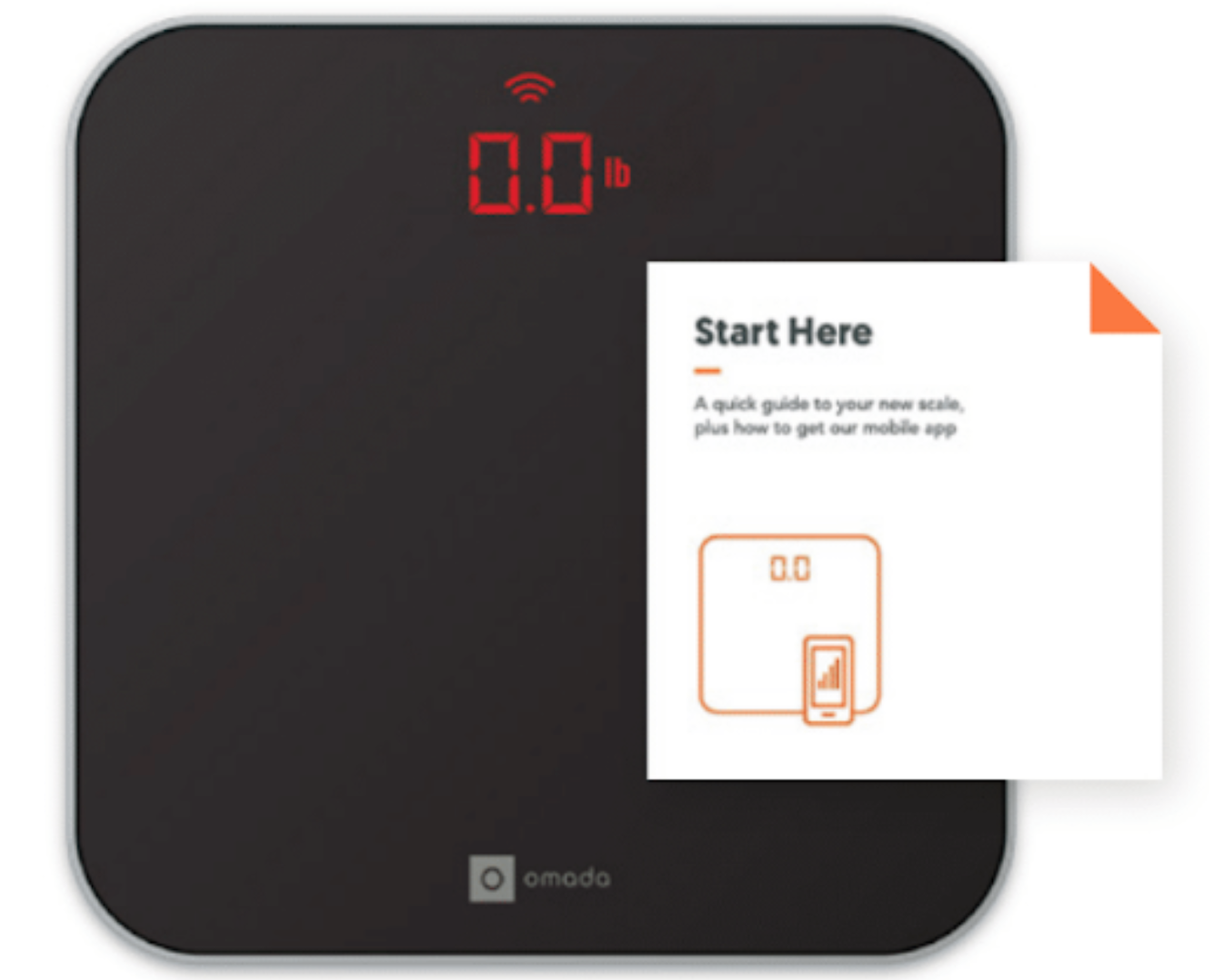
Step lightly on the center of the scale with one foot to wake it up. The display will show a series of dashes as it calibrates. Wait until it stabilizes at 0.0, which confirms readiness.
Do not move or touch the scale during calibration.
Complete a Test Weigh-In
Step back onto the scale with both feet centered. Stand still until your weight appears. A short beep indicates successful measurement.
After stepping off, look for moving dashes across the screen. If previously connected to Wi-Fi or Bluetooth, Sent will appear once data is transmitted successfully.
Success Signal: Seeing 0.0 and completing a weigh-in confirms the reset was effective and the scale is now operating independently.
Why a Reset Disconnects the Scale
Omada scales store user profiles and network credentials internally. There is no app-based forget device option, so a hardware reset is required to erase this data.
Clears All User Data
The reset deletes unsent weight entries. It removes stored body metrics including body fat and muscle mass. It also erases user ID associations.
Once reset, the scale has no memory of prior accounts.
Breaks Bluetooth and Wi-Fi Pairing
The reset wipes saved Wi-Fi network names and passwords. It also clears Bluetooth pairing history with phones or hubs.
This ensures the device cannot auto-sync to the old account after reboot.
Prepares for New Setup
After reset, the scale behaves like a factory fresh unit. It is ready to pair with a new Omada account. It can be used by a different household. It is ideal for resale or gifting.
Note: To reconnect, you must go through the initial setup process again in the Omada app.
When to Disconnect Your Omada Scale
Knowing when to reset helps avoid accidental data loss or unnecessary troubleshooting.
Transferring Ownership
Planning to sell or gift your scale? A reset is essential.
It protects your privacy by removing all personal health data. It prevents the new user from syncing to your account. It is required for them to register the device under their profile.
Fixing Sync Problems
Persistent connection issues may require a clean slate.
Common signs include weight data not appearing in the app, repeated error codes such as Er4, Er5, or Er6, and being stuck on dashed lines after weighing.
A reset can resolve corrupted pairing states, but only if the hardware is functional.
Switching Accounts or Apps
If you are moving to a different fitness platform, reset ensures no cross-sync risks. It allows clean integration with a new ecosystem.
Note: Omada scales work primarily within the Omada app. Third-party integrations are limited.
Risks and Warnings Before Resetting
While resetting effectively disconnects the scale, there are important consequences to consider.
Permanent Data Loss
Any unsent weight measurements stored on the scale will be permanently deleted. No recovery is possible after battery removal.
Pro Tip: Step on the scale near your phone or hub before resetting to push pending data to the cloud.
No Partial Disconnect Option
There is no way to unpair without erasing data. You cannot disconnect one user while keeping others. You cannot temporarily disable syncing.
Reset equals full wipe. Plan accordingly.
Error Codes May Persist After Reset
If the scale showed Er4, Er5, or Er6 before resetting, these may return after reset if the root cause is not fixed.
Possible causes include weak Wi-Fi signal, router compatibility issues, and outdated firmware.
Resetting will not fix hardware or network problems. Only reconfiguration.
Troubleshoot Post-Reset Issues
Even after a proper reset, you might encounter issues when trying to reconnect.
Scale Will Not Turn On
Check battery polarity and ensure correct plus/minus alignment. Check battery charge and use new or fully charged batteries. Check contact cleanliness and wipe terminals if corroded.
Replace batteries if needed.
Display Shows Dashes But No Weight
Ensure the scale is on a level, hard surface. Avoid movement during startup. Wait for 0.0 before stepping on.
Uneven flooring often causes calibration failure.
Sent Never Appears
After weighing, if Sent does not show, verify your Omada app is open and running. Confirm Bluetooth is enabled on your phone. Ensure the scale is within 10 feet of your device. Check Wi-Fi signal strength if using a hub.
Retry syncing with the app nearby.
Data Not Showing in App After 24 Hours
Wait up to 24 hours for delayed syncs. If still missing, force-close and reopen the Omada app. Reboot your phone. Check account login and ensure you are in the correct profile.
If problems persist, contact Omada Support for device diagnostics.
Prevent Future Connection Issues
After successfully disconnecting and reconnecting your Omada scale, keep it running smoothly.
Maintain Clean Battery Contacts
Dirt or corrosion can interrupt power flow. Clean every three to six months. Use a dry cloth or lightly dampened cotton swab. Let dry completely before inserting batteries.
Use High-Quality Batteries
Low-power batteries cause failed startups, incomplete transmissions, and false error codes. Opt for alkaline or lithium batteries. Avoid rechargeables with lower voltage.
Keep App and Firmware Updated
Ensure the Omada app is updated via App Store or Google Play. Ensure your phone OS supports current app version. Ensure firmware updates are applied automatically when connected.
Outdated software can block sync functionality.
Place Scale Near Wi-Fi or Hub
For best results, keep the scale within range of your router or Omada hub. Avoid thick walls or metal objects between devices. Use 2.4 GHz Wi-Fi network. Omada scales do not support 5 GHz.
Key Takeaways for Disconnecting Your Omada Scale

Disconnecting your Omada scale requires a full hardware reset since there is no app-based unpairing option. This process involves removing the batteries for at least 10 minutes to clear all stored data and network settings.
The essential steps are:
Remove all batteries from the back compartment. Wait 10 or more minutes to ensure complete memory clear. Inspect and clean battery contacts before reinserting. Place the scale on a hard, level surface. Step on to activate and calibrate. Complete a test weigh-in to confirm functionality.
After reset, the scale shows 0.0 and functions like new. All user data and pairings are erased. Sent appears only if successfully reconnected to a network.
Important reminders:
Unsent data is lost permanently. Sync your weight data before resetting. Reset only when necessary, such as transferring ownership, fixing sync issues, or switching accounts. If errors persist after reset, contact Omada support for further assistance.
By following these steps, you can securely and effectively disconnect your Omada scale and prepare it for a new user or troubleshooting path. Whether you are upgrading, sharing, or solving sync problems, this reset method gives you full control over your device and data.
Frequently Asked Questions About Disconnecting Omada Scale
How do I disconnect my Omada scale from the app?
There is no app-based disconnect option for Omada scales. You must perform a full hardware reset by removing all batteries for at least 10 minutes to clear all stored data and network pairings.
Will resetting my Omada scale delete all my weight data?
Yes. Resetting erases all stored weight data, body metrics, and user profiles from the scale. Any unsent measurements will be permanently deleted and cannot be recovered.
How long does it take to reset an Omada scale?
The actual reset takes about 10 minutes of battery removal time. The entire process including calibration and testing takes approximately 15 to 20 minutes.
Can I reconnect my Omada scale after resetting it?
Yes. After a full reset, the scale behaves like a factory fresh device. You can set it up again by following the initial pairing process in the Omada app.
What should I do if Sent does not appear after weighing?
Ensure your Omada app is open and running. Verify Bluetooth is enabled on your phone. Keep the scale within 10 feet of your device. Check your Wi-Fi signal strength if using a hub.
Why does my Omada scale show error codes after resetting?
Error codes such as Er4, Er5, or Er6 indicate Bluetooth or Wi-Fi connectivity problems. These may persist if the underlying network issues are not resolved. Contact Omada support if problems continue after 24 hours.



