If your Etekcity scale is not syncing, you are facing a frustrating but common problem. Many users struggle to send weight and body composition data from their Etekcity smart scale to the VeSync app, Apple Health, or fitness platforms like Zwift and Strava. The issue usually stems from a broken link in the multi-step sync chain that relies on Bluetooth connectivity, app permissions, and correct configuration. This guide provides a proven roadmap to restore seamless data flow so your measurements reach every app you use.
You will learn how to reset your scale, enable Apple Health integration, fix missing app permissions, and use workarounds like Withings to bridge gaps. By the end, your Etekcity scale will sync reliably every time you step on it.
Enable VeSync to Apple Health Sync
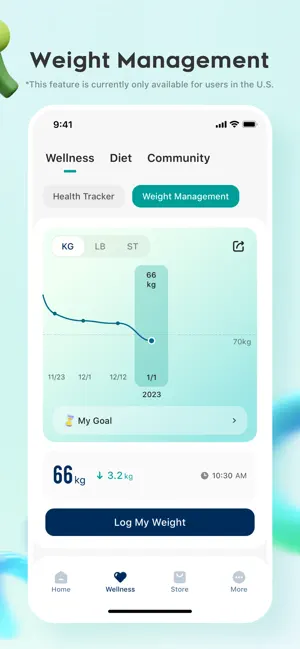
The first and most critical step is ensuring your Etekcity scale data flows from the VeSync app into Apple Health. Without this connection, syncing with third-party apps becomes impossible.
Turn On Health App Integration
- Open the VeSync app on your iPhone.
- Tap your profile icon in the top-left corner.
- Navigate to Health App Integration or Apple Health, depending on your app version.
- Toggle Sync with Apple Health to ON.
- When prompted, allow VeSync to write weight and body data to Apple Health.
If no prompt appears, manually check Apple Health permissions by going to Settings > Privacy > Health > Apps > VeSync. After enabling, perform a manual weigh-in. Data should appear in VeSync within seconds and push to Apple Health within one to two minutes.
Verify Data Source in Apple Health
- Open the Apple Health app.
- Tap Browse > Body Measurements > Weight.
- Check recent entries for the source label VeSync.
If entries show Manual Entry or another app, the sync is not active. Re-enable the connection in VeSync and retry with a new measurement.
Fix Apple Health to Third-Party Sync

Even with VeSync pushing data correctly, third-party apps like Zwift and Strava will not receive updates unless they are explicitly granted read access to Apple Health.
Sync With Zwift via Apple Health
Zwift does not pull weight data automatically. You must trigger its permission request by starting an activity.
Start a Ride to Enable Access
- Open Zwift on your iPhone, not on an iPad used for display only.
- Begin any activity, even a one-minute ride.
- When prompted, tap Allow Zwift to Read Weight from Apple Health.
This works because Zwift only registers in Apple Health app list after initiating an activity. Until then, it will not appear in sharing settings.
Manually Check Permissions
If no prompt appears, check permissions manually:
- Go to Settings > Privacy > Health > Weight.
- Tap Zwift under apps.
- Ensure Read is enabled.
Once set, Zwift will update weight from Apple Health at the start of each session.
Connect Strava to Apple Health
Strava supports direct Apple Health sync for weight tracking.
- Open Strava app.
- Go to Profile > Settings > Health & Fitness Data > Apple Health.
- Toggle Weight to ON.
- Confirm in Apple Health > Data Access & Devices > Strava that Weight is enabled under Read.
Strava pulls data periodically, not in real time. Allow up to 24 hours for updates to appear.
Use Withings as a Sync Bridge

When direct syncing fails, use Withings as a workaround even without owning a Withings scale.
Set Up Withings Import
- Download the Withings app and create an account.
- Open Settings > Connected Services > Apple Health.
- Enable Import weight from Apple Health.
Withings will pull weight data from Apple Health, including entries that originated from VeSync.
Link Withings to Zwift
- In Zwift, start a ride.
- When prompted, allow Zwift to read data from Withings.
- Alternatively, go to Apple Health and ensure Zwift has read access to Withings-linked data.
One tester confirmed seeing Zwift update weight after 48 hours using this path: Etekcity → VeSync → Apple Health → Withings → Zwift. This method works because Withings has stronger Apple Health integration than VeSync alone.
Reset Etekcity Scale for Reliable Sync
A simple reset clears Bluetooth glitches and firmware hiccups that block syncing.
Perform Battery Reset
- Flip the scale over.
- Open the battery compartment.
- Remove both batteries.
- Wait 10 seconds, or two to three minutes for stubborn issues.
- Reinsert fresh batteries.
- Place scale on a hard, flat surface.
- Step on briefly to power on.
- Wait for 0.0 to appear.
After reset, VeSync may require re-pairing. Open the app and follow prompts if the scale does not appear automatically.
Recalibrate After Movement
If you have moved, tilted, or dropped the scale, recalibrate before syncing.
- Place on hard flooring, not carpet or rugs.
- Step on lightly to wake the display.
- Step off and wait for 0.0 to stabilize.
- Do not skip this step. 0.0 means ready to measure.
Always let the scale auto-zero before each use. Skipping this causes inaccurate data and failed syncs.
Use Reset Button If Available
Some Etekcity models have a physical reset button.
- Use a paperclip to press the recessed button.
- Hold for three to five seconds.
- Release and wait for reboot.
- Recalibrate by stepping on, stepping off, and waiting for 0.0.
Not all versions include this button. Refer to your manual if unsure.
Troubleshoot Common Sync Failures
Even with correct setup, syncing can fail due to overlooked settings or device conflicts.
No Data in Apple Health
Check these common causes:
Sync disabled in VeSync. Re-enable under profile settings.
Outdated VeSync app. Update via App Store.
Bluetooth off. Turn on and ensure phone is nearby.
Data delay. Wait five minutes after weigh-in.
Weigh in, open Apple Health immediately. If data does not appear in two minutes, restart VeSync and try again.
Zwift Still Not Syncing
Zwift may not appear in Apple Health unless triggered through app activity.
Force App Visibility
- Open Apple Health > Data Access & Devices.
- Search for Zwift.
- If missing, open Zwift app and start a short ride.
- Return to Apple Health. Zwift should now appear.
Then enable Read Weight permission.
Why Strava or Fitbit Will Not Sync
Strava supports Apple Health sync. Ensure Weight is toggled ON in settings.
Fitbit does not accept external weight data unless measured by a Fitbit scale.
Smartscalesync.com does not work with VeSync or Etekcity. Avoid wasting time on unsupported tools. Focus only on Apple Health as the hub.
Optimize Setup for Long-Term Syncing
Prevent future sync issues with proactive maintenance.
Use Fresh Batteries
Weak power causes Bluetooth dropouts.
Replace every six to 12 months.
Use alkaline batteries from trusted brands.
Clean contacts with a dry cloth if corrosion appears.
If low-battery symbol appears, replace immediately even if scale still turns on.
Place on Hard, Flat Surface
Soft or uneven flooring prevents accurate readings and can stop syncing.
Approved surfaces include hardwood, tile, and concrete.
Avoid carpet, rugs, grout lines, and bathroom mats.
If display flickers or shows Err, the surface is likely the issue.
Keep Apps Updated
Developers patch sync bugs regularly.
- Open App Store.
- Search VeSync.
- Tap Update if available.
- Repeat for Apple Health-connected apps like Zwift and Strava.
A 2023 VeSync update resolved intermittent Apple Health sync timeouts.
When to Contact Etekcity Support
If nothing works, contact support with detailed information.
Contact Steps
- Flip the scale over and find model number and serial code.
- Visit Etekcity.com > Support > Contact Us.
- Provide model number, purchase date, and screenshots of VeSync device screen, Apple Health weight entries, and permission settings.
Mention VeSync not syncing with Apple Health for faster routing.
Signs of Hardware Failure
Seek replacement if scale will not turn on even with new batteries, VeSync never detects the device, or display shows Err or blanks out.
Most Etekcity scales include a one-year limited warranty.
Frequently Asked Questions About Etekcity Scale Not Syncing
Why is my Etekcity scale not syncing to the VeSync app?
The most common reasons include Bluetooth disconnection, outdated VeSync app, disabled Apple Health permissions, or weak batteries. Start by removing and reinserting fresh batteries, then ensure VeSync has permission to write to Apple Health.
How do I sync my Etekcity scale to Apple Health?
Open VeSync app, go to Profile > Health App Integration, and toggle Sync with Apple Health to ON. Grant permissions when prompted. Perform a weigh-in and verify data appears in Apple Health under Body Measurements > Weight with VeSync as the source.
Why does Zwift not see my weight data from Etekcity?
Zwift does not automatically appear in Apple Health permissions. You must start a ride in the Zwift app to trigger the permission request. Once prompted, allow Zwift to read weight from Apple Health.
Can I use Withings to sync Etekcity data to Zwift?
Yes. Set Withings app to import weight from Apple Health, then ensure Zwift reads from Apple Health. This creates a bridge: Etekcity → VeSync → Apple Health → Withings → Zwift.
Does Fitbit work with Etekcity scale data?
No. Fitbit does not accept external weight data unless measured by a Fitbit-branded scale. You cannot sync Etekcity data to Fitbit through any method.
How often should I replace batteries in my Etekcity scale?
Replace batteries every six to 12 months or when the low-battery symbol appears. Use high-quality alkaline batteries and clean contacts periodically to prevent corrosion.
Key Takeaways for Etekcity Scale Syncing
Syncing your Etekcity scale is not plug-and-play. It requires deliberate setup and maintenance of every link in the data chain. The most important principle is using Apple Health as the central hub for all your fitness apps.
Start by resetting your scale with a battery removal, then enable VeSync sync to Apple Health. For third-party apps like Zwift, you must trigger their permission requests by starting an activity. If direct syncing fails, the Withings bridge provides a reliable workaround that many users have verified.
Keep your batteries fresh, place the scale on hard flat surfaces, and maintain app updates for long-term reliability. With these steps, your weight and body composition data will flow smoothly from scale to app, giving you accurate insights for your fitness journey.