
If your Omada scale is not connecting, you are dealing with one of the most frustrating issues in digital health tracking. Many users see dashed lines instead of the reassuring “Sent” message, encounter error codes like Er4 or Er5, or watch helplessly as weight data fails to sync to their Omada account. The Omada wireless scale uses embedded cellular connectivity rather than Wi-Fi or Bluetooth, which means problems often stem from signal strength, battery power, or environmental factors. The good news is that your scale stores up to 16 measurements internally when transmission fails and will automatically retry sending data when conditions improve. This guide walks you through every diagnostic step and fix, from simple adjustments to advanced troubleshooting, so you can restore seamless health tracking.
Decode Common Error Codes
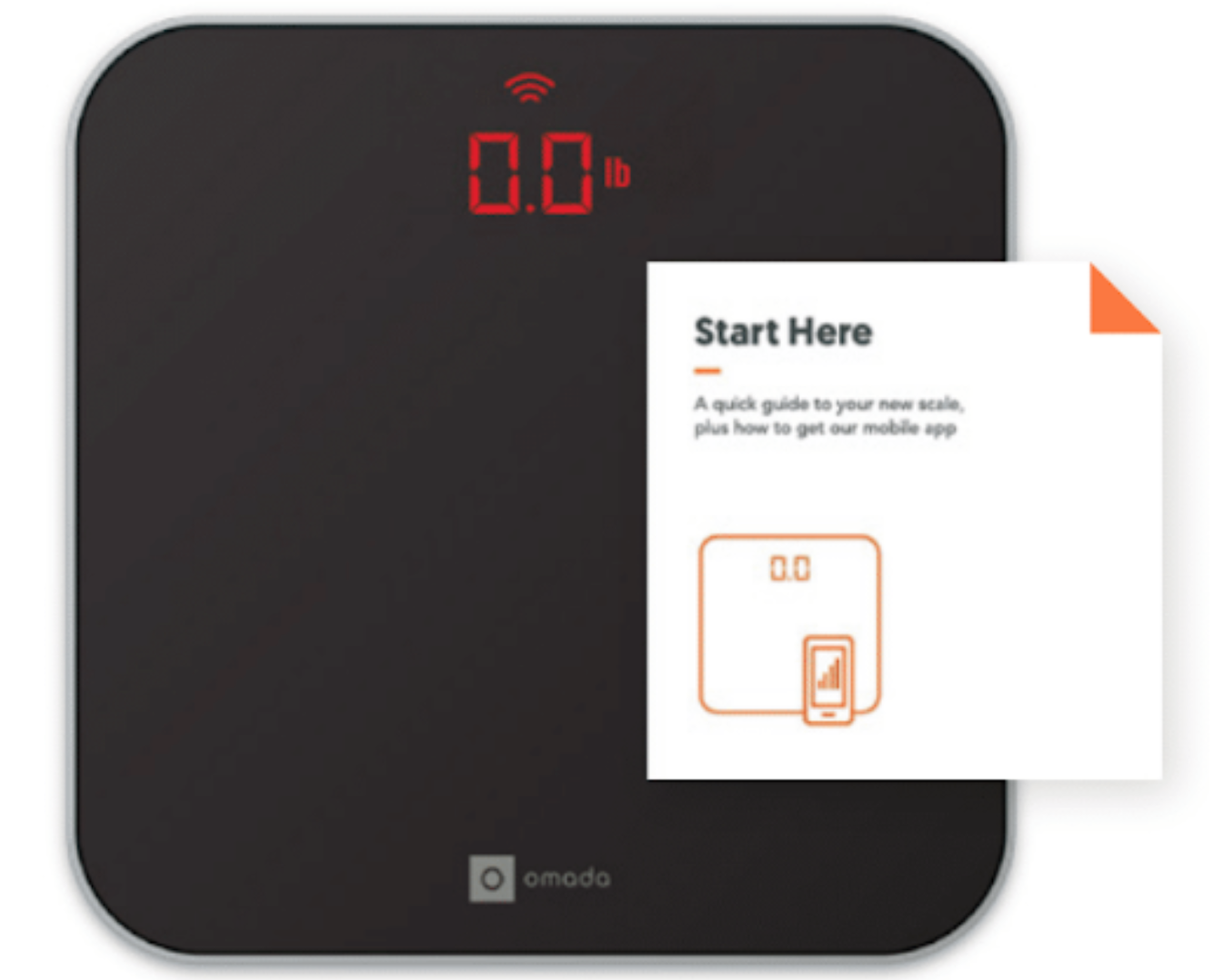
Understanding what your scale is trying to tell you is the first step in fixing connection problems. Each error code points to a specific issue, from weak signal to calibration failure.
Er4: No Cellular Signal
Er4 means the scale detects poor or no cellular signal where it is placed. This is the most common reason the Omada scale is not connecting. The device records your weight but cannot transmit it until a signal returns. Data remains stored and will sync automatically once coverage improves.
What causes Er4?
- Thick walls, basements, or metal structures blocking signals
- Rural or low-coverage areas
- Heavy weather like rain or fog interfering with cellular bands
Quick fixes
- Move the scale near a window or on a higher floor
- Test your phone signal in the same spot. If it is weak, the scale will not connect
- Wait for better weather if storms are present
- Avoid resetting unless absolutely necessary because it erases stored data
Er5 and Er6: Regional Network Outage
These codes indicate a broader disruption in the cellular network, not a problem with your device. Carrier-side maintenance, tower failures, or geographic limitations can trigger Er5 or Er6.
What happens during an outage?
- Weight is saved locally
- Transmission resumes automatically when service returns
- Multiple weigh-ins queue up and send in order
What to do
- Keep using the scale normally
- Relocate it to a better-signal area if possible
- Monitor for resolution over 24 to 72 hours
- Contact Omada Support only if the issue lasts more than three days
Batt: Low Battery Warning
Low power prevents both accurate measurement and data transmission. The Omada scale requires 3 or 4 AA batteries, and performance drops significantly with weak power.
Why battery matters
- Insufficient voltage disrupts calibration and cellular signaling
- Rechargeable or mixed batteries may not provide stable power
- Corroded terminals increase resistance and reduce efficiency
Fix it now
- Remove all batteries
- Insert 4 fresh AA Duracell batteries
- Ensure correct polarity and clean terminals if corroded
- Reinstall firmly and test on a hard surface
Fix Calibration Failures
Even with full signal and power, improper setup can stop the scale from working correctly. Calibration issues often mimic connectivity problems but stem from user environment or behavior.
Step Off: Surface Instability
The Step Off message means the scale cannot calibrate due to an unstable surface. This is one of the top reasons the Omada scale is not connecting, because it never completes a valid measurement.
Common causes
- Carpet, rugs, or mats under the scale
- Uneven flooring or tiles
- Movement during calibration
Fix your setup
- Place the scale on hard, flat, level flooring like tile, hardwood, or concrete
- Ensure all four feet make full contact
- Press the center with one foot to wake it
- Wait for 0.0 to appear before stepping on fully
- Stay completely still during weighing
Er2: Internal Calibration Error
Er2 signals a deeper calibration failure, often caused by physical shock, overload, or repeated use on soft surfaces.
Triggers for Er2
- Dropping the scale
- Weighing over the 440-pound limit
- Frequent use on carpet or uneven ground
Recovery steps
- Perform a full reset
- Recalibrate on a hard, level surface
- If error persists, contact Omada Support because hardware damage may be present
Optimize Signal and Placement

Since the Omada scale uses cellular networks and not your home Wi-Fi, placement directly affects connectivity. Small changes in location can make the difference between Sent and dashed lines.
Best Locations for Strong Signal
- Near windows or exterior walls because glass blocks fewer signals than concrete or brick
- Upper floors since higher elevation improves line-of-sight to cell towers
- Avoid basements and interior rooms where dead zones are common
Pro tip: Use your smartphone as a signal tester. If your phone shows one bar or less in the same spot, the scale likely cannot connect either.
Weather and Environmental Interference
Rain, fog, and high humidity can weaken cellular signals, especially at higher frequencies. Temporary Er4 errors during storms are normal and usually resolve within hours.
What to expect
- Short-term transmission delays
- Dashed lines instead of Sent
- Stored data syncing once weather clears
Action: Wait it out. No reset is needed unless the issue persists for more than 24 hours after conditions improve.
Reset the Scale Safely
Only reset the Omada scale after trying all other fixes. Resetting erases all stored weight data, so use this step only when transmission fails repeatedly and no other solution works.
How to Reset Correctly
- Remove all batteries from the back compartment.
- Wait 10 minutes to ensure full power discharge.
- Inspect terminals and wipe clean with a dry cloth if corroded or dusty.
- Insert 4 new AA Duracell batteries, matching polarity exactly.
- Place on a hard, level surface with no carpet or tilting.
- Wake the scale by pressing the center with one foot.
- Wait for 0.0 to appear before stepping on.
- Step on fully and stand still until you hear a beep.
- Step off and watch for Sent after the dashed lines.
After reset
- Data should appear in your Omada account within 5 minutes
- If not, check the Progress Page after 10 minutes
- Contact support if missing after 24 hours
Restore Data Transmission
Even if the scale shows Sent, data may not appear in your account right away. Understanding transmission timing helps avoid unnecessary resets.
When Sent Appears But No Data in App
This scenario usually means the scale transmitted successfully but there is a sync delay or account issue.
Possible reasons
- Server processing lag
- Duplicate entry from another user
- Account pairing glitch
What to do
- Wait 10 to 24 hours for data to appear
- Check the Progress Page in the app
- If still missing, email support@omadahealth.com with date and time of weigh-in, approximate weight, displayed message, and battery and location details
Stored Weights Sync Automatically
The scale holds up to 16 unsent weights. Once signal returns, it transmits them in chronological order. You do not need to reweigh. Just keep using the scale normally.
How long it takes
- Within 5 minutes under good signal
- Up to 24 hours if connection was down for days
- No manual action required
Use Manual Entry as Backup
If your location has no reliable cellular signal, manual entry keeps your progress tracking intact.
How to Enter Weight Manually
For iPhone and Android
- Open the Omada app
- Go to Progress then Add Weight
- Enter date, time, and weight
- Save
Limitations
- Loses automation benefit
- Requires user consistency
- Does not trigger automatic health insights
Best for
- Basements or rural homes with no signal
- Temporary outages lasting over a week
- Users who prefer control over entries
Prevent Future Connection Issues
Avoid recurring problems with simple maintenance and smart habits.
Battery Best Practices
- Replace batteries every 6 to 12 months, even if they seem fine
- Always use alkaline AA batteries and never rechargeable ones
- Never mix old and new batteries
- Clean contacts every time you change batteries
Surface and Placement Rules
- Always use on hard, flat flooring
- Never place on carpet, rugs, or mats
- Keep away from vibrating appliances or foot traffic
- Test multiple spots in your home for best signal
Monitor Error Trends
Track when errors occur. During storms suggests weather-related issues. Every morning could mean network congestion. After battery changes means check polarity or battery quality.
Contact Omada Support When Needed
Some issues require expert help. Do not wait too long if problems persist.
When to Reach Out
Contact support if weight is missing for over 24 hours after Sent, if Er4 Er5 or Er6 lasts more than 3 days, if scale will not turn on with new batteries, if Er2 repeats after reset, or if weight exceeds 440 lbs and readings are off.
How to Get Help Fast
Email support@omadahealth.com or use the Contact Us button in the app or website.
Include in your message
- Most recent weigh-in date and time
- Displayed message or error code
- Battery replacement history
- Scale location in your home
- Any recent storms or outages
Support typically responds within 24 hours with troubleshooting steps or replacement options if hardware is faulty.
Frequently Asked Questions About Omada Scale Not Connecting
Why does my Omada scale show dashed lines instead of Sent?
Dashed lines indicate the scale is attempting to transmit but cannot establish a cellular connection. This typically means weak signal strength in your location. The scale stores your weight data and will send it automatically once connectivity improves. Try moving the scale near a window or on a higher floor to improve signal.
How do I fix Er4 error on my Omada scale?
Er4 means no cellular signal is detected. Move the scale to a location with better reception, such as near a window or upstairs. Test your phone signal in the same spot. If your phone also has poor signal, the scale will likely show Er4. Wait for weather to improve if storms are present, and avoid resetting unless the problem persists for days.
Does the Omada scale use Wi-Fi or Bluetooth?
No, the Omada scale uses embedded cellular connectivity to transmit data. It does not connect to your home Wi-Fi or pair via Bluetooth. This is why placement and cellular signal strength are critical for proper function. If you have no cellular coverage in your home, you may need to use manual weight entry.
How many weights can the Omada scale store when offline?
The scale can store up to 16 weight measurements when it cannot transmit data. Once cellular signal returns, it automatically sends all stored weights in chronological order. You do not need to reweigh. Simply continue using the scale normally and data will sync when possible.
Why is my Omada scale not connecting after battery change?
This usually happens if batteries are not fresh, polarity is incorrect, or terminals are corroded. Remove all batteries, insert 4 new AA Duracell batteries with correct polarity, and clean the terminals if they show residue. Place the scale on a hard surface and try again. Low-quality or rechargeable batteries can also cause connectivity issues.
How long does it take for weight data to appear in my Omada account?
Under good signal conditions, weight data typically appears within 5 minutes of measurement. If signal was weak or absent, allow up to 24 hours for data to sync. If Sent appears but data is missing after 24 hours, contact Omada Support with your weigh-in details.
Key Takeaways for Fixing Your Omada Scale Not Connecting
Most Omada scale not connecting issues stem from three main causes: poor cellular signal, low batteries, or improper placement on soft surfaces like carpet. Start troubleshooting by moving the scale to a window or upper floor, then replace batteries with fresh AA Duracells, and always place the scale on hard, flat flooring. The Omada scale stores up to 16 measurements when offline, so avoid resetting unless absolutely necessary since doing so deletes all stored data. Error codes like Er4 Er5 and Er6 are normal during signal disruptions or storms, and data will sync automatically once conditions improve. If problems persist beyond three days or error codes repeat after troubleshooting, contact Omada Support at support@omadahealth.com with details of your issue for personalized assistance.



