Is your FitDays smart scale showing inconsistent body fat readings, failing to connect, or not turning on? You’re not alone. Thousands of users rely on the FitDays scale to track weight and 13 body composition metrics, from body fat and muscle mass to BMR and visceral fat, using bioelectrical impedance analysis. But when the scale displays only weight, won’t pair with the app, or gives error codes like LO, Err, or C, it can derail your health tracking. The good news: most problems are fixable in minutes. This guide cuts through the confusion with proven troubleshooting steps, clear solutions for error messages, and expert tips to ensure accurate, reliable readings every time.
Fix FitDays Scale Not Turning On
A dead or unresponsive FitDays scale is usually a power issue, but quick fixes can revive it fast.
Check Battery Installation and Charge
Start by inspecting the power source. Most FitDays scales use 4×AAA batteries, while newer models feature a built-in rechargeable battery with USB-C. If the scale does not light up, try these steps:
• Remove and reinsert batteries, ensuring correct polarity (+/-)
• Replace with new alkaline batteries, even if LO is not displayed
• For USB-C models, connect to a 5V power source using the included cable
• Charge for up to 2 hours before testing
Pro Tip: Low power can cause silent failure. Always replace or recharge batteries if the scale has been unused for weeks.
Clean Corroded Battery Contacts
Over time, battery leakage or moisture can corrode contacts. Use a dry cloth or cotton swab to gently wipe the terminals. Avoid liquids or metal tools that could damage the circuitry.
Wake the Scale With One Foot
After replacing batteries or charging, step lightly with one foot to activate the display. Some models require this to wake from deep sleep mode.
Resolve Inconsistent or Unstable Readings

Fluctuating numbers or drifting weight values point to environmental or calibration issues.
Place on Hard, Flat Surface
The FitDays scale must sit on tile, wood, or concrete, never on carpet, rugs, or uneven flooring. Soft surfaces absorb pressure and disrupt sensor accuracy.
Visual Cue: If the scale wobbles, it is not stable. Reposition on a solid floor.
Recalibrate After Moving or Battery Change
Every time you move the scale or replace batteries, recalibrate manually. First, step on lightly with one foot until a number appears. Then, step off completely. Wait for the display to reset to 0.00. This ensures the scale auto-zeros correctly.
Clear Debris From Sensor Feet
Inspect the bottom of the scale. Dust, adhesive residue, or pet hair can block the pressure sensors. Wipe clean with a dry cloth.
Avoid Bluetooth Interference
Wi-Fi routers, microwaves, and other wireless devices emit signals that disrupt Bluetooth. Keep your phone within 3 meters (10 feet) and turn off nearby electronics during weighing.
Restore Missing Body Fat and BIA Data
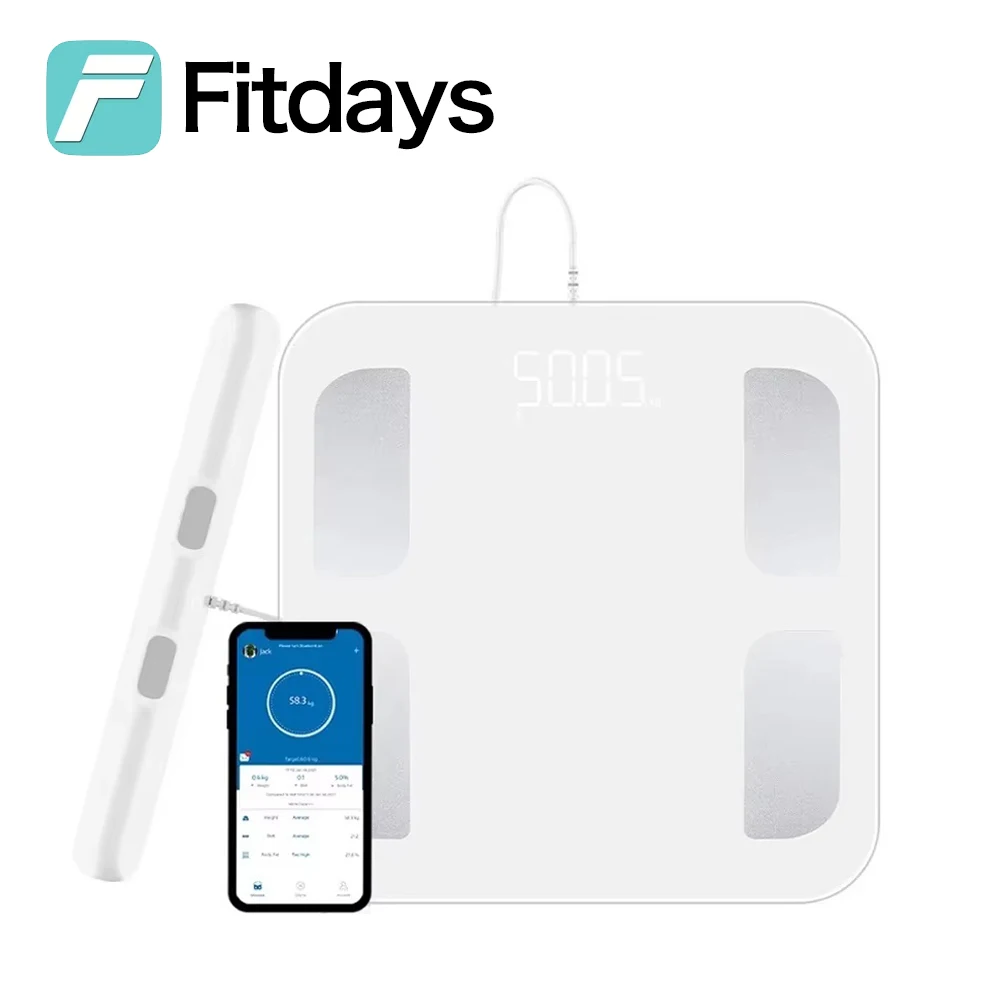
Seeing weight but no body fat, muscle, or water percentage? The BIA signal is being blocked.
Stand Barefoot on Electrodes
BIA relies on a small electrical current passing through your body via barefoot contact with the metal or ITO electrodes. Socks, shoes, or thick calluses block the signal.
Pro Tip: Step directly onto the scale from the bathroom. Slightly damp soles improve conductivity.
Verify User Profile Settings
Incorrect age, height, or gender in the FitDays app skews BIA calculations. Go to Account, select Your Profile, and confirm these details:
• Height (critical for BIA accuracy)
• Age
• Gender
• Activity mode (Athletic vs Standard)
Save changes. Future readings will reflect updated data.
Pair App Before Stepping On
If the FitDays app is not open and connected before you step on, the scale may only record weight. Always open the app first, ensure Bluetooth is active, wait for Connected status, then step on barefoot.
Decode FitDays Error Messages

Error codes like LO, Err, or C appear on the display. Here is what they mean and how to fix them.
LO = Low Battery
Replace batteries immediately or charge via USB-C. A flashing battery icon may also appear.
Warning: Continuing to use the scale on low power risks inaccurate readings and memory loss.
Err = Overload
You have exceeded the 180 kg (400 lbs) limit. Step off and avoid placing heavy objects on the scale.
C = Measurement Error
This occurs when feet are not centered on electrodes, you shift weight during measurement, or the floor surface is unstable. Fix this by stepping off, waiting 10 seconds, and re-weighing with still posture.
Fix Bluetooth Pairing and Connectivity Issues
Cannot connect? The FitDays scale uses Bluetooth Low Energy (BLE 5.0+). Connection problems are common but solvable.
Restart Bluetooth and Re-pair
Turn off phone Bluetooth first. Close the FitDays app completely. Turn Bluetooth back on. Open the app and go to Account, Device, then tap +. Step on the scale to activate it and wait for detection.
Forget and Reconnect in Phone Settings
On your phone, go to Settings, Bluetooth. Find the FitDays device and tap Forget or Unpair. Return to the FitDays app and re-pair. This clears corrupted connection data.
Clear App Cache (Android)
If the app crashes or will not detect the scale, go to Settings, Apps, FitDays, Storage. Tap Clear Cache and Clear Data. Reinstall if needed.
Note: Clearing data removes local history. Ensure cloud sync is active.
Disable Battery Saver Mode
Power-saving modes restrict background Bluetooth access. Disable it during setup and daily use.
Sync FitDays with Apple Health, Google Fit, and Fitbit
Want your data in Apple Health or Google Fit? Setup is simple, but sync only happens after each measurement.
Enable Apple Health Access
Open the Health app, go to Profile, Apps, then tap Fitdays. Toggle ON all desired categories like weight and body fat. In the FitDays app, go to Account, Settings, Apple Health, and select data to sync.
Note: Sync delay of 5 to 10 minutes is normal. Historical data may not backfill.
Connect to Google Fit
In FitDays, go to Account, Settings, Google Fit, and tap Enable. Log in to your Google account and grant permissions. Ensure internet and background app refresh are enabled.
Link Fitbit Account
Go to Account, Settings, Fitbit, and tap Enable. Log in and tap Allow. Keep the toggle ON. Data appears in Fitbit under Weight and Body Composition.
Samsung Health Integration
Navigate to Account, Settings, Samsung Health and follow prompts to link and enable data types.
Pro Tip: Sync only triggers after a full measurement. Do not close the app prematurely.
Fix Baby Mode and Visitor Mode Problems
Baby Mode Not Working
Baby Mode calculates infant weight by subtracting the adult weight. To use it, tap +, Baby Mode in the app. The adult steps on first and waits for the reading. Then step off, pick up the baby, and step back on together. The scale computes the baby weight automatically.
Troubleshooting tips include using on a hard floor, keeping still during both steps, and initiating the mode in the app first.
Note: Automatically activates for users under 18 months old.
Visitor Mode Limitations
Visitors can weigh in without saving history, but only weight, BMI, and body fat rate are shown. No long-term tracking or editing is possible.
Change Units: Pounds, Kilograms, or Stone
Switch between kg, lb, or st depending on your model.
Use Hardware Button (If Available)
Find the unit switch on the back of the scale. Press to cycle through kg, lb, and st (if supported). The app syncs automatically.
Change in App (No Button Models)
Open FitDays app. Go to Account, Settings, Unit Settings. Select your preferred unit and save.
Note: Unit change applies to all users unless per-profile settings exist.
Edit, Delete, and Compare Data
Delete Wrong Measurement
Go to Chart, User Date. Swipe left on the entry. Tap Delete and confirm.
Warning: Deletion is permanent.
Remove a User Profile
Navigate to Mine, Select User, swipe left, and tap Delete. The main account holder cannot be deleted.
Compare Two Measurements
Go to Chart, User Date, tap +, then select Contrast. Choose two records and tap Contrast (bottom center) to view a side-by-side comparison of all 13 parameters.
Use Case: Track progress before and after a fitness program.
Maintain and Care for Your FitDays Scale
Clean Without Damaging
Wipe the surface with a dry or slightly damp cloth. Never immerse in water or use harsh cleaners. Avoid steam, aerosols, or abrasive pads.
Warning: The scale is not waterproof. Moisture inside can cause permanent damage.
Store Properly
Keep in a cool, dry place. If storing long-term, remove batteries to prevent leakage.
Charge Rechargeable Models Regularly
Even when unused, charge every 3 to 6 months to preserve battery health.
Optimize Accuracy: Best Practices
For reliable, repeatable results, follow these expert habits.
Weigh at the Same Time Daily
Best time is morning, after using the bathroom, before eating or drinking. Avoid measuring after exercise, showering, eating or drinking, or using the restroom.
Use Bare, Slightly Damp Feet
Dry skin insulates. Lightly moisten soles if BIA fails. Do not apply lotion or oils before weighing.
Assign One Profile Per User
Auto-detection uses a ±2 kg weight range. Overlapping profiles cause misidentification.
Keep App Updated
Enable auto-updates in App Store or Google Play. Updates fix bugs and improve Bluetooth stability.
When to Contact Support
If problems persist after trying all fixes, go to Mine, Settings, Help. Submit detailed feedback and include your email for response.
Response Time: Typically within 3 business days. Warranty: Most models have a 12-month limited warranty.
Frequently Asked Questions About FitDays Scale Troubleshooting
Why does my FitDays scale only show weight and not body fat?
Your scale shows only weight when you are wearing socks or shoes. BIA requires barefoot contact with the metal electrodes to measure body composition. Step on with bare, slightly damp feet for full data.
How do I fix Bluetooth pairing failure on my FitDays scale?
Restart your phone Bluetooth and close the FitDays app. Then turn Bluetooth back on, open the app, and try pairing again. If it still fails, forget the device in your phone Bluetooth settings and re-pair from scratch.
What does the error code LO mean on my FitDays scale?
LO means low battery. Replace the batteries immediately (typically 4×AAA) or charge your USB-C model. A low battery can cause inaccurate readings and data loss.
Why are my FitDays scale readings inconsistent or fluctuating?
Inconsistent readings usually stem from placing the scale on carpet or uneven flooring. Always use a hard, flat surface. Also, recalibrate after moving the scale or changing batteries by stepping on briefly then waiting for 0.00.
Can I sync my FitDays scale data with Apple Health?
Yes. Open the Health app, go to Profile, Apps, tap Fitdays, and toggle ON the data categories you want. In FitDays app, go to Account, Settings, Apple Health, and select which data to sync. Note that sync delays of 5 to 10 minutes are normal.
How do I change units from pounds to kilograms on my FitDays scale?
If your model has a hardware button on the back, press it to cycle through kg, lb, and st. Otherwise, open the FitDays app, go to Account, Settings, Unit Settings, select your preferred unit, and save.
Key Takeaways for Fixing Your FitDays Scale
Most FitDays scale issues come down to four simple causes: power problems, surface placement, barefoot contact, and Bluetooth connectivity. Replace or recharge batteries first when the scale will not turn on or shows LO. Always place the scale on hard, flat flooring like tile or wood, never carpet. For full body composition data, step on barefoot with slightly damp soles. Keep the app open and Bluetooth active before weighing, and restart pairing if connections fail regularly.
The FitDays scale is not a medical device. All data is for reference only and should not replace professional medical advice. Always consult a healthcare provider for health concerns.