
If your FITINDEX scale isn’t syncing with your phone, you’re not alone. Many users struggle with the initial connection, but the process is straightforward once you know the right steps. Pairing your FITINDEX scale happens entirely through the FITINDEX app, not your phone’s Bluetooth settings. This guide covers Bluetooth setup, Wi-Fi configuration, troubleshooting common issues, and tips for maintaining a reliable connection.
This guide works for all major models, including the FTUS-28WBL (Wi-Fi/Bluetooth), FT-26R, and Bluetooth-only versions. You’ll need a smartphone with Bluetooth 4.0+ and the free FITINDEX app installed. Once connected, your scale measures 13 body metrics, including weight, body fat percentage, muscle mass, and BMR.
Enable Bluetooth and Install the FITINDEX App
Before pairing your scale, prepare your phone correctly. Bluetooth must be active for the connection to work.
Turn On Bluetooth and Enable Location
Bluetooth is required, but Android users need an extra step. On Android 6.0 and above, you must enable Location services even if you don’t allow GPS access. This is a system requirement for Bluetooth scanning.
• Android: Go to Settings → Location → Turn On
• iOS: Go to Settings → Privacy → Bluetooth → Enable for FITINDEX app
Ensure your device runs iOS 8.0+ or Android 4.3+. Older OS versions may block app functionality.
Download the Official FITINDEX App
Search for “FITINDEX” in the Apple App Store or Google Play Store. Avoid third-party apps, as only the official FITINDEX app supports full metric tracking and Wi-Fi setup.
After installing:
1. Open the app
2. Create an account using your email
3. Enter your name, gender, birthdate, and height
These details are essential for accurate body fat calculations via BIA (Bioelectrical Impedance Analysis).
Add Your Scale in the FITINDEX App
Now link your scale to your profile through the app’s device management section.
Access Device Management
- Tap the “+” icon in the top-right corner
- Select “Device Management”
- Tap “Pairing Your Devices” or “Pairing Screen”
The app will search for nearby FITINDEX scales. Model numbers start with “FT.”
✅ Pro Tip: Never pair through your phone’s native Bluetooth settings. All pairing must occur inside the FITINDEX app or it won’t work.
Step On the Scale to Complete Pairing

Trigger the connection by activating the scale with your weight.
Activate Bluetooth Pairing
- Place the scale on a hard, flat surface (tile or wood, never carpet)
- Step on with bare, dry feet
- Wait 2–3 seconds until the display lights up
The app should detect the device within seconds. When it appears:
• Tap the model name (e.g., FTUS-28WBL)
• Keep standing for 5–10 seconds
The scale will flash “0.00” twice, then send your full body composition data to the app.
❗ Common Mistake: Stepping off too soon interrupts the BIA signal. Wait until the app confirms the measurement is complete.
Set Up Wi-Fi for Hands-Free Weighing
If you own a dual-mode model like the FTUS-28WBL, you can enable Wi-Fi for automatic syncing without opening the app.
Complete First Bluetooth Measurement
Wi-Fi setup requires one successful Bluetooth weigh-in first. After your data syncs:
• The app prompts: “Do you want to connect the scale to Wi-Fi?”
• Tap “OK”
Enter Your 2.4 GHz Network Details
- Input your Wi-Fi SSID (network name) and password
- Password is case-sensitive, so double-check capital letters and symbols
- Ensure your router broadcasts a 2.4 GHz signal
- 5 GHz networks are not supported
- Avoid mobile hotspots during setup
While connecting:
• The Wi-Fi icon on the scale flashes
• Do not move the scale or step on it
Once done, the app shows “Congratulations! Wi-Fi connected.”
🔄 Missed the prompt? Go to Device Management → Select Wi-Fi-enabled device → Reconfigure Wi-Fi.
Re-Pair After Connection Failure
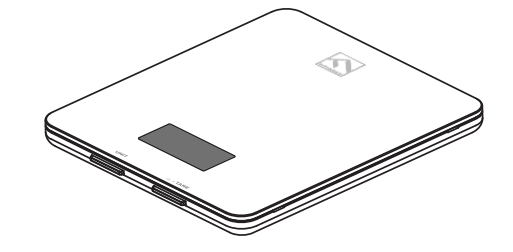
When the scale stops syncing, reset and reconnect using these steps.
Reset the Scale Hardware
- Remove one battery for 5 seconds
- Reinsert and place the scale flat
- Wait for display to show “0.00”
This clears temporary errors caused by power glitches or signal interference.
Remove and Re-Add in App
- Open FITINDEX app → Device Management
- Swipe left on your scale → Delete or Forget
- Restart Bluetooth on your phone (optional)
- Tap “+ → Device Management → Pairing Screen”
- Step on the scale again
✅ This method works 90% of the time for “no detection” issues.
Fix Common Pairing Problems
Solve frequent errors with targeted solutions.
Scale Won’t Turn On
• Replace batteries with fresh AAA alkaline cells
• Try removing one battery for 5 seconds to reset
• Ensure battery polarity (+/-) is correct
“Lo” or “Lo4” on screen means low power. Replace immediately.
App Doesn’t Detect Scale
| Cause | Fix |
|---|---|
| Bluetooth off | Turn on in phone settings |
| Outdated app | Update from App Store or Play Store |
| Android location disabled | Enable Location service |
| Interference | Move closer to scale; avoid metal surfaces |
| Wi-Fi 5G network | Switch to 2.4 GHz during setup |
Wi-Fi Setup Fails
• Confirm your network is 2.4 GHz only
• Re-enter password carefully
• Place scale within 10–15 feet of the router
• Avoid thick walls or microwaves (they disrupt signals)
If it still fails, delete the device in the app and re-pair via Bluetooth first.
Manage Multiple Users on One Scale
Share the scale with family members or roommates.
Add a New User
- Go to My Account → Add Member
- Enter their name, height, birthdate, and gender
- Each user must step on barefoot for recognition
The scale identifies users based on previous weight. The current reading must be within ±2 kg (±4.4 lbs) of the last recorded weight.
Switch Between Profiles
• No manual selection needed
• Stand barefoot and the app matches your weight to the closest profile
• Results sync to the correct account automatically
Enable Guest Mode
For visitors:
• Skip profile creation
• Data saves temporarily but won’t sync to Wi-Fi or health apps
❌ Guest mode does not support Wi-Fi uploads.
Sync With Health Apps
Automatically share your data with fitness platforms.
Connect to Apple Health
- Open Health app → Tap your profile picture
- Go to Apps → FITINDEX
- Toggle on all data permissions
Data syncs in the background after each weigh-in.
Link to Google Fit
- In FITINDEX app → Settings → Google Fit
- Log in to your Google account
- Allow access
- Next measurement uploads automatically
Integrate With Fitbit
- Tap Settings → Fitbit in FITINDEX app
- Log in and tap Allow
- Data (weight, body fat %, BMI) appears in Fitbit dashboard
⚠️ Only new measurements sync. No historical data transfers.
Use FITINDEX With Apple Watch
Measure without touching your iPhone.
Requirements
• FITINDEX app installed on iPhone
• Scale already paired
Steps
- Install FITINDEX Apple Watch app
- Open it → Tap “Measuring”
- Step on scale
- Watch shows: “Connecting” → “Measuring”
Results appear in 5–10 seconds, even if iPhone is disconnected or watch is offline.
🔔 Keep the watch screen on during measurement.
Ensure Accurate Readings
Avoid false data with proper weighing practices.
Weigh at the Same Time Daily
• Best time: First thing in the morning
• Weigh before eating, drinking, or showering
• Consistency matters more than single values
Stand Barefoot and Still
• Socks or shoes block the BIA current
• Move only after “0.00” flashes twice
• Distribute weight evenly
Avoid Post-Exercise Weighing
Hydration shifts affect water percentage and fat percentage readings. Wait at least 30 minutes after workouts.
📈 Focus on weekly trends, not daily fluctuations.
Get Support When Stuck
Reach out if problems persist.
Contact Options
• Email: support@FITINDEX.com (general), Support@smartfitindex.com (US), Help@smartfitindex.com (UK)
• Phone: +1 (714) 602-6510 (US, Mon–Fri, 9 AM–4:30 PM PST), +44 785 5555664 (UK)
• In-App Help: Go to My Account → Help → Submit Request
Include your scale model, phone OS version, error screenshots, and FITINDEX account email.
Frequently Asked Questions About Pairing FITINDEX Scales
Why won’t my phone detect the scale during pairing?
Ensure Bluetooth is turned on and Location is enabled (Android 6.0+). The app must be open during pairing. If still failing, reset the scale by removing one battery for 5 seconds and try again.
Do I need Wi-Fi to use my FITINDEX scale?
No. Wi-Fi is optional and only available on dual-mode models like the FTUS-28WBL. Bluetooth mode works fine for all models and only requires the app to be open.
Why does the scale show “FAIL” after weighing?
“FAIL” appears in Wi-Fi mode when the upload fails due to weak signal. Move the scale closer to your router and ensure stable internet.
Can I use the scale without creating an account?
You can weigh in Guest Mode, but you won’t get body composition metrics or Wi-Fi syncing. Creating an account with your height, birthdate, and gender is required for accurate BIA measurements.
How do I know if pairing is successful?
The scale flashes “0.00” twice, and your body composition data appears in the FITINDEX app. If data doesn’t appear within 10 seconds, the pairing may have failed.
Key Takeaways for Pairing Your FITINDEX Scale
Successfully pairing your FITINDEX scale comes down to three core steps. First, always use the FITINDEX app for pairing, never your phone’s native Bluetooth settings. Second, ensure your phone meets the requirements: Bluetooth on, Location enabled for Android 6.0+, and the official FITINDEX app installed. Third, complete one successful Bluetooth weigh-in before attempting Wi-Fi setup on dual-mode models.
For troubleshooting, the most effective fix is removing one battery for 5 seconds to reset the scale, then deleting and re-adding the device in the app. This resolves approximately 90% of connection issues. Remember to weigh barefoot on a hard surface for accurate readings, and update the app monthly for the best performance.
With these steps, your FITINDEX scale will deliver fast, accurate, and automatic health tracking every day.



