
Is your FitTrack scale not connecting to the Hume app? You’re not alone. Many users face pairing issues with the FitTrack Dara or Dara-1 scale, especially during initial setup or after an app update. The app may stall on “searching for device,” the Bluetooth light might flash briefly then stop, or your phone simply won’t detect the scale at all, even with Bluetooth turned on.
This guide delivers proven, step-by-step fixes directly from verified troubleshooting protocols, user reports, and manufacturer recommendations. Whether you’re setting up a new scale or trying to reconnect a previously working one, you’ll learn how to diagnose the root cause, reset the system correctly, and restore sync between your FitTrack scale and Hume app.
Wake the FitTrack Scale Properly
Before troubleshooting, ensure the scale is fully activated. Many connection failures occur because the scale never enters pairing mode in the first place.
Step on Scale Barefoot
Stand on the scale with bare, dry feet. The BIA (bioelectrical impedance) sensors require skin contact to power up the full system, including Bluetooth. If you wear socks or have wet feet, the scale may display weight but won’t broadcast Bluetooth.
Check Bluetooth Light Behavior
After stepping on, the Bluetooth LED should flash blue for about 30 to 60 seconds. If it flashes briefly (under 10 seconds) and turns off, the scale isn’t staying in pairing mode. A steady or flashing display with no Bluetooth light means incomplete activation.
Reset the FitTrack Scale
A proper reset clears cached connections and restarts the Bluetooth module. This is often the most effective fix for connection issues.
Battery-Powered Models (Dara / Dara-1)
Turn off the scale and remove all AAA batteries. Wait exactly 30 seconds (shorter waits fail). Reinsert batteries, confirming correct polarity. Immediately step on the scale to power it on. Open Hume app and retry pairing.
USB-Charged Models (Hume Body Pod)
Locate the pinhole reset button under the handle or base. Insert a paperclip or SIM eject tool. Press and hold for 5 to 10 seconds until lights flash. Wait 10 seconds, then step on to activate. Open Hume app and attempt pairing.
Fix Phone Bluetooth and App Settings

Many connection issues stem from phone-level restrictions, not the scale itself. Android users especially need to check specific permissions.
Enable Critical Permissions on Android
On Android 10 and later, Location permission is required for Bluetooth scanning. Go to Settings, Apps, Hume, Permissions. Enable Bluetooth, Location, Background data, and Notifications. Disable battery optimization by going to Settings, Battery, Background Usage Limits, finding Hume, and setting it to Unrestricted.
Clear App Cache on Android
Corrupted app data can break pairing. Go to Settings, Apps, Hume, Storage. Tap Clear Cache, then Clear Data. Reopen the app, log in, and retry pairing. Note that clearing data logs you out, so have your credentials ready.
Check iOS Bluetooth and Notifications
Go to Settings, Hume. Enable Bluetooth and Notifications. Ensure Bluetooth is on and not frozen. Restart the app or phone if Bluetooth seems unresponsive.
Re-Pair the Scale in Hume App
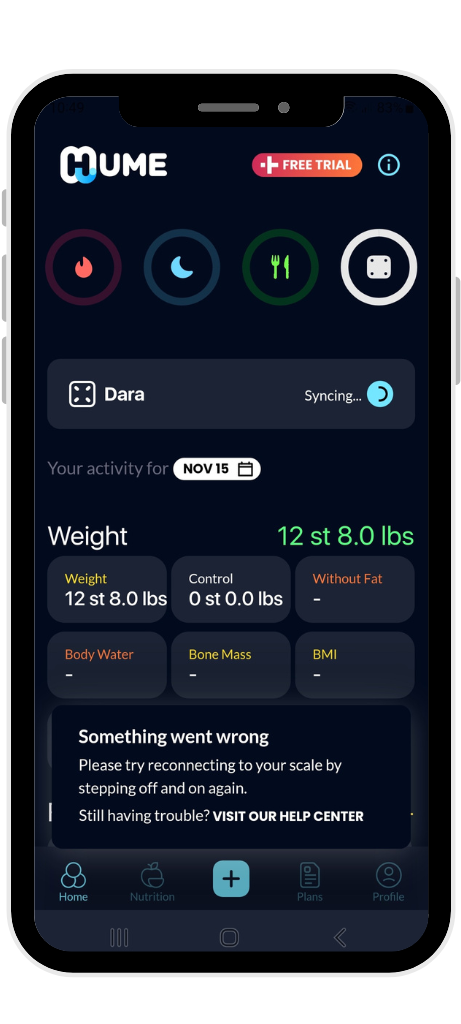
Use the correct in-app process to reconnect after troubleshooting.
Remove Old Connection
Open the Hume app. Tap Me, then Connected Devices. If Dara is listed, tap it and select Disconnect Device.
Start Fresh Pairing
Tap Add New Device. Select Dara Scale. Step on the scale with bare feet. Keep your phone within 1 foot (30 cm) of the scale. Wait up to 60 seconds for detection. Don’t tap Cancel or exit if it says “searching.”
Test Bluetooth Discovery on Your Phone
Verify whether the issue is with the scale or your phone by checking manual Bluetooth discovery.
Manual Bluetooth Scan
Open your phone’s Bluetooth settings. Tap Search or Scan. Look for devices named Dara, FitTrack, or Hume Scale. If none appear, the scale isn’t broadcasting.
If the scale is visible in your phone’s Bluetooth but not in the Hume app, reinstalling the app may resolve the issue. If the scale isn’t visible on any device, the problem is likely the scale hardware or firmware.
Try a Second Phone or Tablet
Isolate the problem by testing with a different device.
Test Steps
Install the Hume app on another phone or tablet. Log in or create a test account. Enable Bluetooth and permissions. Step on the scale to activate. Attempt pairing.
If pairing succeeds on the second device, your original phone has an OS or settings conflict. If it fails, the scale likely has a hardware or firmware defect.
Update App and Phone System
Outdated software breaks compatibility between the scale and app.
Update the Hume App
Open Google Play Store or App Store. Search for Hume Health. Tap Update if available.
Install OS Updates
Check your phone Settings, Software Update. Install any pending system updates. Reboot and retry pairing.
Prevent Bluetooth Interference
Other devices can block or disrupt the Bluetooth signal during pairing.
Reduce Signal Clutter
Turn off unused Bluetooth devices like headphones, speakers, and wearables. Keep Wi-Fi routers and microwaves away from the pairing zone. Avoid metal surfaces, don’t place the scale on steel flooring or near appliances.
Optimize Pairing Environment
Pair in a quiet room. Hold your phone in hand, not in your pocket. Ensure no other apps are using Bluetooth in the background.
Contact Hume Support
If nothing works, the scale may be defective and you need manufacturer assistance.
When to Escalate
Contact support if the scale doesn’t appear in any phone’s Bluetooth list, the Bluetooth light never flashes after reset, multiple devices fail to connect, or you’ve tried three full reset cycles without success.
How to Reach Support
Email support@humehealth.com or use the live chat available in the Hume app or website. Check the official site for regional phone support numbers.
What to Provide
Support will ask for your full name, email, ZIP code, device model (Dara-1 or Hume Body Pod), phone model and OS version, list of steps attempted, and photos or video showing the scale display when stepped on, Bluetooth light behavior, and app error screen.
Warranty and Replacement Options
Defective scales are covered under warranty.
Eligibility
FitTrack scales come with a 1-year limited warranty from the date of purchase. This covers manufacturing defects like a dead Bluetooth module. The warranty excludes water damage, drops, or modified devices.
Replacement Process
Contact Hume support with proof of purchase. Submit video evidence of the failure. After approval, you’ll receive a replacement unit or refund. You may need to return the defective scale.
Key Takeaways for Fixing Your FitTrack Connection
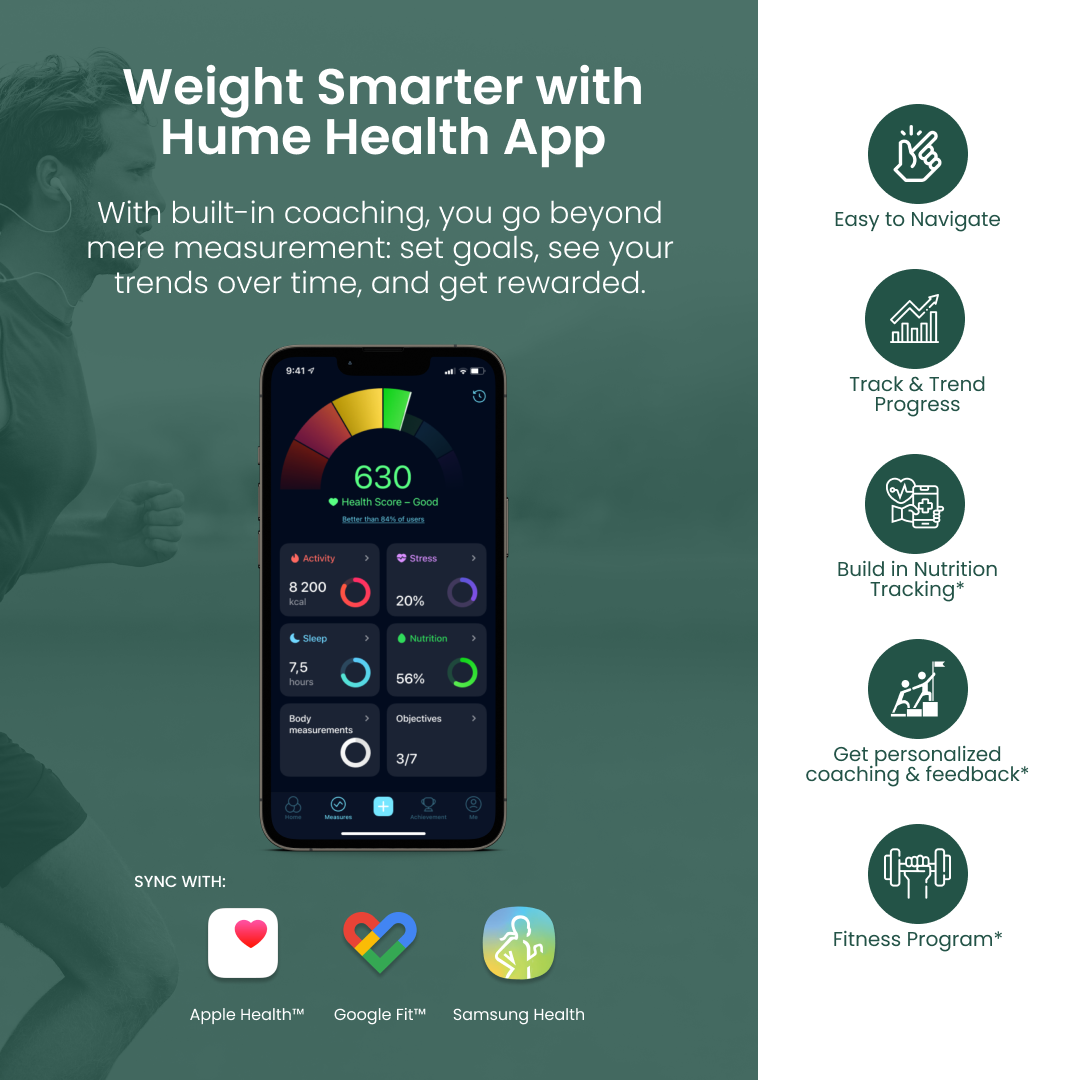
Getting your FitTrack scale to connect to the Hume app requires systematic troubleshooting. Always start by waking the scale properly with bare, dry feet and checking that the Bluetooth light flashes for at least 30 seconds. A 30-second battery reset (or pinhole reset for USB models) clears cached connections and often resolves pairing issues. Android users must enable Location permission, as Android blocks Bluetooth device discovery without it. Test the scale on a second phone to isolate whether the problem is the scale or your phone. If all else fails, contact Hume support with video evidence for a warranty replacement.
Frequently Asked Questions About FitTrack Scale Connection Issues
Why does my FitTrack scale show no Bluetooth light when I step on it?
Your scale may not be fully activating. Step on with bare, dry feet (socks block BIA activation). If the Bluetooth light still doesn’t flash after resetting the scale, the Bluetooth module may be defective.
How long does the FitTrack scale stay in pairing mode?
The scale only broadcasts Bluetooth for about 60 seconds after activation. Keep your phone within 1 foot (30 cm) and attempt pairing immediately after stepping on the scale.
Can I use my FitTrack scale with both the FitTrack MyHealth app and Hume app?
No. The FitTrack MyHealth app is legacy. The current platform is Hume Health. All Dara scales now pair exclusively with the Hume app.
Why does my Android phone not detect the FitTrack scale?
Android requires Location permission for Bluetooth scanning. Go to Settings, Apps, Hume, Permissions and enable Location. Also ensure Bluetooth is on and not disabled by battery optimization.
What should I do before contacting Hume support?
Perform at least three full reset cycles (battery removal or pinhole reset), test on a second phone, update your Hume app and phone OS, and record a 15-second video of you stepping on the scale with the app open. This evidence speeds up the support process.



