
Is your Withings scale acting sluggish, failing to sync, or missing new app features? The fix might be a simple firmware update. Withings smart scales like the Body, Body Smart, Body Scan, Nokia Body+, and WS-30 regularly receive updates to improve accuracy, enhance compatibility with health apps, and patch bugs. This guide shows you exactly how to update your Withings scale using every available method.
Whether you are setting up your scale for the first time or maintaining long-term performance, staying current with firmware ensures seamless syncing, accurate health tracking, and access to the latest features. Let’s walk through each update method, model-specific steps, and troubleshooting tips.
Update Your Scale Using the Withings App
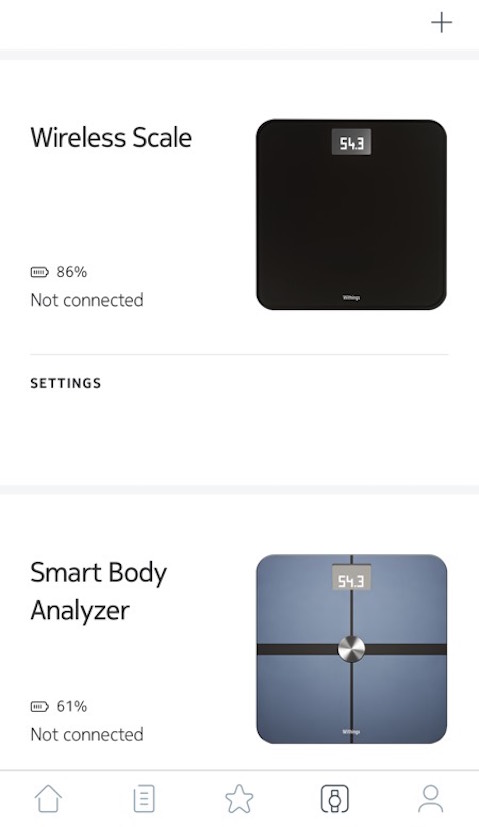
The Withings app provides the most reliable way to update firmware on all compatible scale models. This method works for both Wi-Fi and Bluetooth-connected scales.
Open the Devices Section
Launch the Withings app on your iPhone or Android device. Tap the Devices icon in the top-right corner of the screen. This displays all your connected health devices. Select your scale from the list, such as Body, Body Smart, or Nokia Body+.
Make sure you are logged into the same Withings account used during initial setup. If you have multiple accounts, the scale may not appear in the correct device list.
Access Advanced Settings
After selecting your scale, scroll down to find Advanced Settings. Tap it to open additional options. Here you will find calibration settings, user management, and firmware information.
On some older models, this section may be labeled simply as Settings rather than Advanced Settings.
Check for Firmware Updates
Look for the Check for updates option and tap it. The app will search for new firmware if your scale is powered on and within range.
If an update is available, it downloads and installs automatically. You will see a progress indicator on screen. Once complete, tap Done or Close to finish.
The Check for updates option only appears when the scale is powered on and connected. Step on the scale briefly to wake it before attempting this step.
Verify the Firmware Version
After updating, confirm the installation was successful by checking the firmware version. Return to Advanced Settings and tap Device Info. Compare the current firmware version against your previous version. If the number is higher, the update succeeded.
Update Directly on the Scale Using Buttons
Some newer Wi-Fi-enabled models let you update firmware directly from the scale display using physical buttons. This method skips the app entirely.
Supported Models
This button method works only on Wi-Fi-connected scales. The supported models include Withings Body Smart and Withings Body Scan. Bluetooth-only models like the basic Nokia Body+ cannot use this method.
Check your scale specifications in the app if you are unsure about Wi-Fi capability.
Power On the Scale
Step on the scale briefly to turn it on. Wait for the display to show your weight or a startup screen. Do not step off the scale. Let it stabilize in standby mode.
Enter the Update Menu
For Body Smart models, press and hold the button located on the bottom of the scale. For Body Scan models, press and hold the button on the top edge. Hold for at least 8 seconds.
The screen switches from weight mode to a system menu with three options: Info, Update, and Reset.
Navigate and Confirm the Update
Tap the button to cycle through the options. Stop when Update is highlighted. Press and hold the button again until a progress bar appears or the screen shows Updating with a downward arrow.
Wait 2 to 5 minutes for the installation to complete. Do not step on the scale, move it, or power it off during this process. The scale reboots automatically when finished.
How Automatic Updates Work
Withings scales can receive firmware updates automatically when connected to Wi-Fi. Most users do not need to manually check for updates once initial setup is complete.
Understanding Auto-Update Behavior
The scale checks for updates in the background during overnight periods or when idle. Downloads and installations happen silently without user input. The scale reboots automatically after installing new firmware.
This process ensures your device stays secure and compatible with new health platform integrations without requiring any action from you.
Ensuring Auto-Updates Succeed
Keep your scale on a stable 2.4 GHz Wi-Fi network. Place it within range of your router. Never remove batteries during sync windows.
Confirm Wi-Fi status in the app under Device Settings. If your scale uses Bluetooth only, automatic updates do not apply. You must check for updates manually using the app.
Troubleshooting Update Problems

Sometimes the Check for updates button does not appear or an update gets stuck. Here is how to fix common issues.
Update Option Not Showing
The most common cause is that the scale is powered off, out of range, or not properly paired. Step on the scale to power it on. Bring your phone within 1 to 3 meters of the scale. Ensure Bluetooth is enabled on your smartphone.
Restart the Withings app and try again. If the problem persists, remove the scale from the app and re-pair it from scratch.
Update Fails or Freezes
Poor Wi-Fi signal is the usual culprit for failed updates. Move the scale closer to your router. Avoid thick walls, metal surfaces, and other sources of interference.
If the app shows Updating but nothing happens after 10 minutes, remove the batteries for 30 seconds. Reinsert them and try the update again using the app method.
Reinstalling the Withings app often resolves connectivity issues. Uninstall from your device, download the latest version from the App Store or Google Play, and log back in.
Scale Stuck on Updating Screen
Some updates take longer due to firmware size. Wait at least 10 minutes before taking action. If the scale remains stuck, power cycle by removing and reinserting the batteries.
After rebooting, try the update again using the app method. Confirm your scale model supports over-the-air updates before proceeding.
Model-Specific Update Methods

Not all Withings scales update the same way. Here is what works for each model.
Withings Body
This model supports app-based updates only. Use the Withings app to check for and install firmware. There is no physical button for updates.
Connectivity options include Wi-Fi and Bluetooth. Ensure the scale is powered on before checking for updates.
Withings Body Smart
This model supports both app updates and button updates. For button updates, hold the button on the bottom of the scale for 8 seconds to access the menu.
The button method only works when the scale is connected to Wi-Fi. Bluetooth-only configurations require app-based updates.
Withings Body Scan
This model supports both app updates and button updates. The button is located on the top edge of the scale.
Follow the same menu navigation process as the Body Smart. Hold the top button for 8 seconds, select Update, and confirm.
Nokia Body+
Use the Withings app exclusively for this model. No button-based update method is available.
Keep your firmware current to maintain Apple Health and Google Fit sync functionality.
Wireless Scale WS-30
This legacy model supports only app-based updates. It connects via Bluetooth.
Keep the Withings app updated to avoid sync errors. This model may eventually lose update support as it ages.
Best Practices for Keeping Your Scale Updated
Firmware updates require ongoing attention. Establish a maintenance routine to ensure your scale stays current.
Check for Updates Regularly
Manually verify firmware status every 2 to 3 months. Open the Withings app, go to Device Settings, and check for updates.
Some updates fail silently, especially on weak Wi-Fi connections. Regular checks catch missed updates before they cause problems.
Keep the Withings App Updated
An outdated app can block firmware updates. Install the latest version from the App Store or Google Play regularly.
The app is listed as Withings Health Mate or simply Withings depending on your region.
Maintain Strong Connectivity
Use a 2.4 GHz Wi-Fi network rather than 5 GHz for better compatibility. Place your scale away from metal objects, thick flooring, and other sources of interference.
Avoid Bluetooth congestion from other smart devices. Keep the scale within 3 meters of your phone during updates.
Never Interrupt an Update
Do not step on the scale during an update. Do not move it or remove batteries. Do not close the app mid-installation.
Interrupting an update can corrupt the firmware and require a factory reset to recover.
Record Firmware Versions
Note the firmware version before and after updating. This helps track update success and report issues to Withings support if needed.
Find version information in Device Info within the app.
Frequently Asked Questions About Updating Withings Scales
How do I manually check for firmware updates on my Withings scale?
Open the Withings app, tap Devices, select your scale, scroll to Advanced Settings, and tap Check for updates. The scale must be powered on and within range for the option to appear.
Why does the update option not appear in the app?
The scale is likely powered off or out of range. Step on the scale to wake it. Ensure your phone has Bluetooth enabled and is within 1 to 3 meters of the scale. Restart the app if the problem persists.
Can I update my scale without using the app?
Yes, Wi-Fi-enabled models like Body Smart and Body Scan support button-based updates. Hold the physical button for 8 seconds to access the update menu directly on the display.
How long does a firmware update take?
Most updates complete within 2 to 5 minutes. Some larger updates may take up to 10 minutes. Wait patiently and do not interrupt the process.
What happens if an update is interrupted?
Interrupting an update can corrupt the firmware. You may need to remove batteries for 30 seconds to force a reboot. In severe cases, a factory reset and re-pairing may be required.
Will my scale update automatically?
Wi-Fi-connected scales receive automatic updates when new firmware is released. Bluetooth-only models do not receive automatic updates. You must check manually using the app.
Key Takeaways for Updating Your Withings Scale
Keeping your Withings scale updated ensures accurate measurements, seamless health app syncing, and access to the latest features. Use the Withings app as your primary tool for all update methods, as it works universally across all supported models.
For Wi-Fi-enabled models like Body Smart and Body Scan, the button method provides a convenient alternative when your phone is unavailable. Check for updates manually every 2 to 3 months to catch any missed automatic updates.
Maintain strong Wi-Fi connectivity, keep the Withings app current, and never interrupt an update once it begins. Following these practices keeps your scale running smoothly and your health data accurate for years to come.



