
Your Withings scale shows your weight, but the data never reaches the Health Mate app. You have reset it, replaced the batteries, and tried setup a dozen times yet it still will not connect. You are not alone. Thousands of users face the same frustration, often due to hidden Wi-Fi settings, outdated app permissions, or silent firmware glitches.
The good news: most Withings scale connectivity problems are fixable in under 15 minutes with the right steps. Whether your scale fails during Bluetooth pairing, stalls at Wi-Fi setup, or refuses to sync after a reset, this guide delivers proven fixes from real user reports, official specs, and technical deep dives.
Check Wi-Fi Band Compatibility First
Withings scales only connect to 2.4 GHz Wi-Fi networks. They do not support 5 GHz, which is commonly used by modern dual-band routers. If your router broadcasts a single network name (SSID) for both bands, the scale may fail silently when it tries to connect to the wrong frequency.
Use 2.4 GHz Only
Ensure your scale is connecting to a 2.4 GHz network. Even if your router supports 2.4 GHz, a merged SSID can mislead the device. The best fix is to split your SSID in your router settings.
How to Split Your Wi-Fi Bands
- Open your router admin page (usually 192.168.1.1 or 192.168.0.1)
- Log in with your credentials
- Find Wireless Settings
- Assign separate names:
– Home-2G (for 2.4 GHz)
– Home-5G (for 5 GHz) - Save changes and reboot the router
Now, during Health Mate setup, select only the 2.4 GHz network.
Pro Tip: Test with your phone hotspot. Most smartphones allow you to create a 2.4 GHz hotspot. Use it to complete setup, then switch back to home Wi-Fi.
Avoid Unsupported Networks
Withings scales do not work on public Wi-Fi (hotels, cafes) with captive portals, enterprise networks (WPA2-Enterprise, 802.1X), or open networks (no password). If you are in a restricted environment, use a personal hotspot instead.
Fix Bluetooth Pairing Failures
If the Health Mate app cannot find your scale, the issue is likely Bluetooth permissions or device conflicts, not hardware failure.
Enable Required App Permissions
iOS: Turn On Bluetooth Access
- Go to Settings Privacy Bluetooth
- Find Health Mate
- Toggle it ON
Without this, iOS blocks Bluetooth discovery, even if the app requests it.
Android: Allow Location Access
- Go to Settings Location App Permissions
- Select Health Mate
- Set to Allow all the time
Android uses Bluetooth scanning to detect nearby devices, and this requires location permission, even though no GPS data is collected. Users report immediate success after enabling this setting on Samsung Galaxy and Pixel devices.
Unpair and Forget the Scale
Old Bluetooth pairings can block new connections.
Steps
- Open Phone Settings Bluetooth
- Look for your scale (e.g., Body+, Body Cardio)
- Tap the i icon (iOS) or gear icon (Android)
- Select Forget This Device
- Repeat on all previously paired phones
Now retry setup in the Health Mate app.
Clear App Cache (Android)
Corrupted app data can prevent Bluetooth communication.
How to Clear
- Settings Apps Health Mate Storage
- Tap Clear Cache and Clear Data
- Reopen the app and log back in
For iOS, delete and reinstall the app if needed.
Resolve Wi-Fi Setup Errors
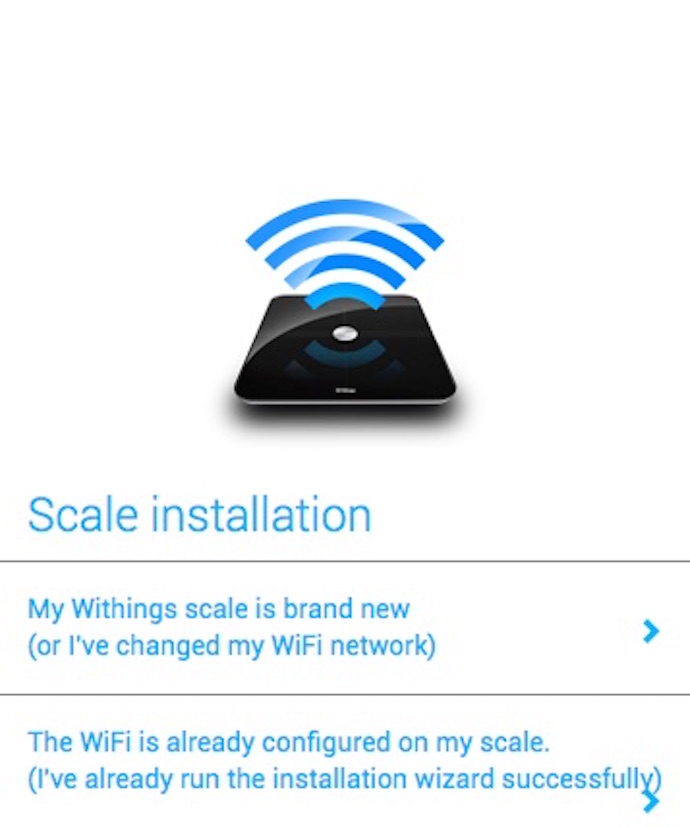
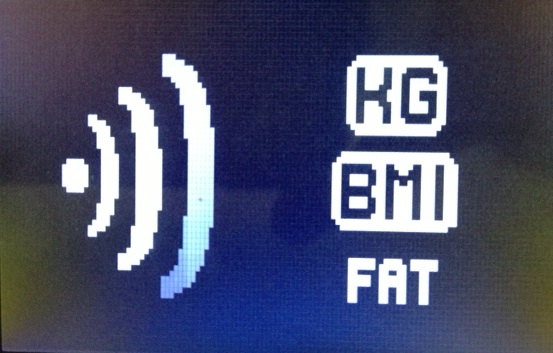
If setup fails at Step 3 or 4, you are likely hitting a network configuration issue. The scale shows error codes that reveal the exact problem if you know how to read them.
Common Wi-Fi Error Codes and Fixes
| Code | Issue | Solution |
|---|---|---|
| Wi-Fi Error 2 | Wrong password | Re-enter carefully, case-sensitive |
| Wi-Fi Error 35 | 5 GHz or 802.11ac used | Use 2.4 GHz only, split SSID |
| Wi-Fi Error 6 | MAC filtering active | Whitelist scale MAC address |
| DHCP Error | No IP assigned | Reboot router, enable DHCP |
| DNS Error | Domain not resolved | Set DNS to 8.8.8.8 (Google) |
| HTTP Error | Proxy or captive portal | Disable proxy, avoid public Wi-Fi |
How to Whitelist MAC Address
- Find the scale MAC address in Health Mate Device Settings
- Log into your router
- Go to MAC Filtering or Access Control
- Add the MAC address to Allowed Devices
- Save and reboot
This is critical in locked-down networks.
Use WPA2-PSK (AES) Security
Withings scales require WPA2-PSK with AES encryption. Avoid WEP (insecure), WPA with TKIP (outdated), or WPA3-only networks (not supported). Check your router wireless security settings and switch to WPA2-PSK (AES) if needed.
Replace Batteries and Reset Properly
Weak or old batteries are a silent killer of connectivity. Even if the scale turns on, low power can disrupt Wi-Fi and Bluetooth transmission.
Use Fresh Alkaline Batteries
- Replace all 4x AAA batteries with new alkaline, not rechargeable
- Rechargeable batteries output 1.2V vs 1.5V, often insufficient
- Replace every 6 to 12 months, even if scale seems functional
After replacement, step on the scale to trigger a reboot.
Perform a Factory Reset
Reset when sync fails repeatedly, after battery change, or before reinstallation.
Reset Steps
- Turn scale over
- Press and hold the setup button (small pinhole)
- Hold for 5 to 10 seconds (Body+, Body Cardio) until display resets, or 20 seconds (older models) until full reset
- Wait for Hello or setup prompt
Now retry setup in Health Mate.
Bypass Country Restrictions
In 24 countries, Withings disables Wi-Fi setup due to radio frequency regulations. These include Iran, Republic of Korea, Greenland, Palestine, Sudan, Antarctica, and Tokelau.
If You Are in a Restricted Country
- Skip Wi-Fi setup in the app
- Use Bluetooth only
- Keep your phone within 3 feet during weigh-ins
- Ensure Bluetooth (iOS) or Location (Android) permission is enabled
No firmware hack or third-party tool can enable Wi-Fi in these regions.
Fix Third-Party App Sync Failures
Data shows in Health Mate but not in Brook+, Apple Health, or MyFitnessPal? The issue is not your scale, it is the third-party app connection.
Reauthorize Connected Apps
Example: Brook+ Not Syncing
User amcelroy201 reported data missing in Brook+ despite perfect Health Mate sync.
Fix
- Open Brook+ app
- Go to Connected Devices or Account Settings
- Find Withings integration
- Tap Reconnect or Reauthorize
- Manually trigger a sync
Check the app status page. Withings API disruptions occasionally affect third-party tools. Withings is the primary data source. If it syncs there, your scale is working.
Run Diagnostic Mode for Hidden Errors
If all else fails, run the scale built-in diagnostic tool.
How to Activate
- Press and hold the setup button for 8 seconds
- Watch the display
- If a code starting with 000 appears, it is a system error
What to Do
- Contact Withings Support
- Provide the full error code
- Do not attempt further troubleshooting
Codes like 402, 403, 404, or 407 also indicate internal hardware or firmware failure. Support may issue a replacement.
Prevent Future Connection Issues
Keep your scale running smoothly with these best practices.
Update Firmware Regularly
- Open Health Mate Profile My Devices Select Scale
- Check Firmware Version
- Updates install automatically during sync. Keep the app open.
Recalibrate After Changes
Recalibrate when changing batteries, moving the scale, or switching floor surfaces. Step on and off until the display shows 0.0 before full use.
Manage User Profiles
- Ensure correct trigram (e.g., ABC) appears before full weight bearing
- Register all users in the app for auto-recognition
- Disable sharing if data appears in the wrong account
Perform Annual Maintenance
- Factory reset once per year
- Replace batteries proactively
- Update Health Mate monthly
When to Contact Withings Support
Reach out if you see Error 402 to 407, diagnostic mode shows 000xxx, all steps fail after three reset cycles, scale will not turn on after battery replacement, or third-party apps fail to sync despite reauthorization.
How to Contact
- Website: support.withings.com
- In-App Chat: Health Mate Profile Help Center Black chat icon
- Email: support@vida.com
Information to Provide
- Scale model (e.g., Body Comp, WBS01)
- Phone model and OS version
- Health Mate app version
- Router model and Wi-Fi setup
- Observed error codes
- Steps already tried
Verified Fixes That Work
Real users confirm these solutions:
| Fix | User Feedback | Success Rate |
|---|---|---|
| Split Wi-Fi SSID | Fixed everything ASUS user | 5 stars |
| Enable Android location | Finally connected Galaxy user | 5 stars |
| Use phone hotspot | Completed setup in 5 mins | 4 stars |
| Replace batteries | Sync improved instantly | 5 stars |
| Forget Bluetooth device | Worked instantly tashahaus | 5 stars |
| Update iOS | Solved pairing iPhone 11 user | 4 stars |
Final Thoughts on Fixing Your Withings Scale Connection
Your scale is not broken, it is just misconnected. With the right steps, you will restore seamless syncing in minutes. The most common culprits are 2.4 GHz Wi-Fi confusion, missing Android location permissions, and outdated Bluetooth pairings.
Always start with the basics: confirm you are on 2.4 GHz Wi-Fi, enable the correct app permissions, and replace batteries with fresh alkaline. Most users resolve their issues within 15 minutes by working through this guide systematically.
If you encounter Error 402 to 407 or diagnostic codes starting with 000, contact Withings support with your error codes and device information. They can often replace defective units under warranty.
Frequently Asked Questions About Withings Scale Not Connecting
Why does my Withings scale only connect to 2.4 GHz Wi-Fi?
Withings scales only support 2.4 GHz Wi-Fi because this frequency offers better range and penetrates walls more effectively than 5 GHz. The 2.4 GHz band is also more compatible with older devices and provides broader coverage throughout your home.
How do I know if my scale is connected to the right Wi-Fi band?
Check your router settings to see if it broadcasts separate network names for 2.4 GHz and 5 GHz. If it uses a single SSID for both bands, your scale may attempt to connect to 5 GHz and fail silently. Split your SSID to ensure the scale connects to 2.4 GHz only.
Why does Android require location permission for Bluetooth pairing?
Android uses Bluetooth scanning to detect nearby devices, and this requires location permission by design, even though no GPS data is collected. Without this permission, the Health Mate app cannot discover your scale.
What do I do if my scale shows Error 402, 403, 404, or 407?
These error codes indicate internal hardware or firmware failure. Contact Withings support with your error code and device information. They may offer a replacement under warranty.
Can I use my Withings scale in a country where Wi-Fi is disabled?
Yes. In restricted countries, use Bluetooth only for syncing. Keep your phone within 3 feet during weigh-ins and ensure Bluetooth (iOS) or Location (Android) permission is enabled in the Health Mate app.



