
You step on your Omada scale, weigh in, and see “Sent” — but hours later, your weight still has not appeared in the app. Frustrating, right? You are not alone. Omada scale not syncing is a common issue affecting users across the country, often due to cellular signal problems, battery issues, or simple placement errors.
The good news: most syncing problems are fixable without replacing the device or contacting support. The Omada scale uses cellular connectivity (LTE-M), not Wi-Fi or Bluetooth, so syncing relies entirely on network strength and proper setup. When it fails, data may be stored but not transmitted, or the scale may display error codes like Er 4, Er 5, or Batt.
This guide gives you a clear, step-by-step plan to diagnose, troubleshoot, and resolve syncing failures. You will learn what “Sent” really means, how to interpret error codes, where to place the scale for best signal, when and when not to reset, and how to avoid losing unsynced data.
What “Sent” Actually Means on Your Omada Scale
Sent Does Not Mean Synced
Seeing “Sent” on your Omada scale confirms the device attempted to transmit data, not that it succeeded. Many users assume the weight is now in their Omada Health account, but delays or failures can still happen.
Data typically appears in the app within 5 to 10 minutes under normal conditions. Delays up to 24 hours can occur during network outages. If weight does not appear after 24 hours, action is needed.
Even with “Sent,” syncing can fail due to weak cellular signal at the time of transmission, temporary regional network disruptions, or duplicate entry detection in shared households.
Pro Tip: Wait at least 10 minutes after seeing “Sent.” If no data appears, check for error codes on your next weigh-in.
Error Codes That Reveal the Problem
Er 4: Cellular Network Failure
Er 4 means the scale detected poor or no cellular signal during transmission. The weight is saved internally and will sync when signal returns. Do not reset the scale, as this erases stored data.
Action required involves moving the scale closer to a window or exterior wall. Avoid basements or interior rooms. If Er 4 persists, enable manual weight entry in the Omada app and contact support.
Er 5 or Er 6: Regional Network Outage
Er 5 or Er 6 indicates a broader service disruption affecting your area. All recent weights are stored and queued for upload automatically.
Keep using the scale normally and relocate to improve signal (upper floor, near window). Wait for service restoration, which usually happens within hours. Contact support only if outages last more than 2 to 3 days.
Batt: Low Battery Warning
Batt appears when battery power is too low for reliable operation or transmission. Weak batteries may allow weighing but block transmission.
Fix this by replacing with 4 new AA Duracell batteries (3 for some models). Clean battery contacts before reinserting and confirm correct polarity alignment.
Warning: Always replace at the first sign of “Batt” to avoid incomplete syncing or failed measurements.
Step Off: Measurement Failure
Step Off is not a sync error, but it prevents data from being generated. Causes include uneven surfaces (carpet, tile gaps), movement during weighing, or scale feet not fully contacting the floor.
Fix this by placing the scale on a hard, flat surface (tile, hardwood). Stand still until you hear the beep, then re-weigh immediately after the error. Check the Progress Page in the app; new weights should appear within 5 minutes.
Er 2: Calibration Failure
Er 2 means internal calibration failed and the scale cannot trust the reading. This is the only error that may require a reset.
To fix Er 2, remove all batteries, wait 10 or more minutes, reinsert fresh batteries, place on a hard level surface, and step on the center to activate. If Er 2 returns after multiple resets, contact Omada Support, especially if weight exceeds 440 lbs.
Why You Should Never Reset During Sync Issues
Resetting Erases Stored Weights
One of the biggest mistakes users make is resetting the scale when Er 4, Er 5, or Er 6 appears. This deletes all unsynced data permanently.
Resetting equals data loss. Waiting equals automatic recovery. The Omada scale stores multiple past weigh-ins internally, and once cellular signal returns, it transmits them in order. Resetting interrupts this process and erases everything.
Only reset for repeated Er 2 errors, when the scale will not turn on, or when measurement instability continues after troubleshooting. For all other issues, especially syncing, leave the scale alone and improve signal instead.
Where to Place Your Omada Scale for Best Signal
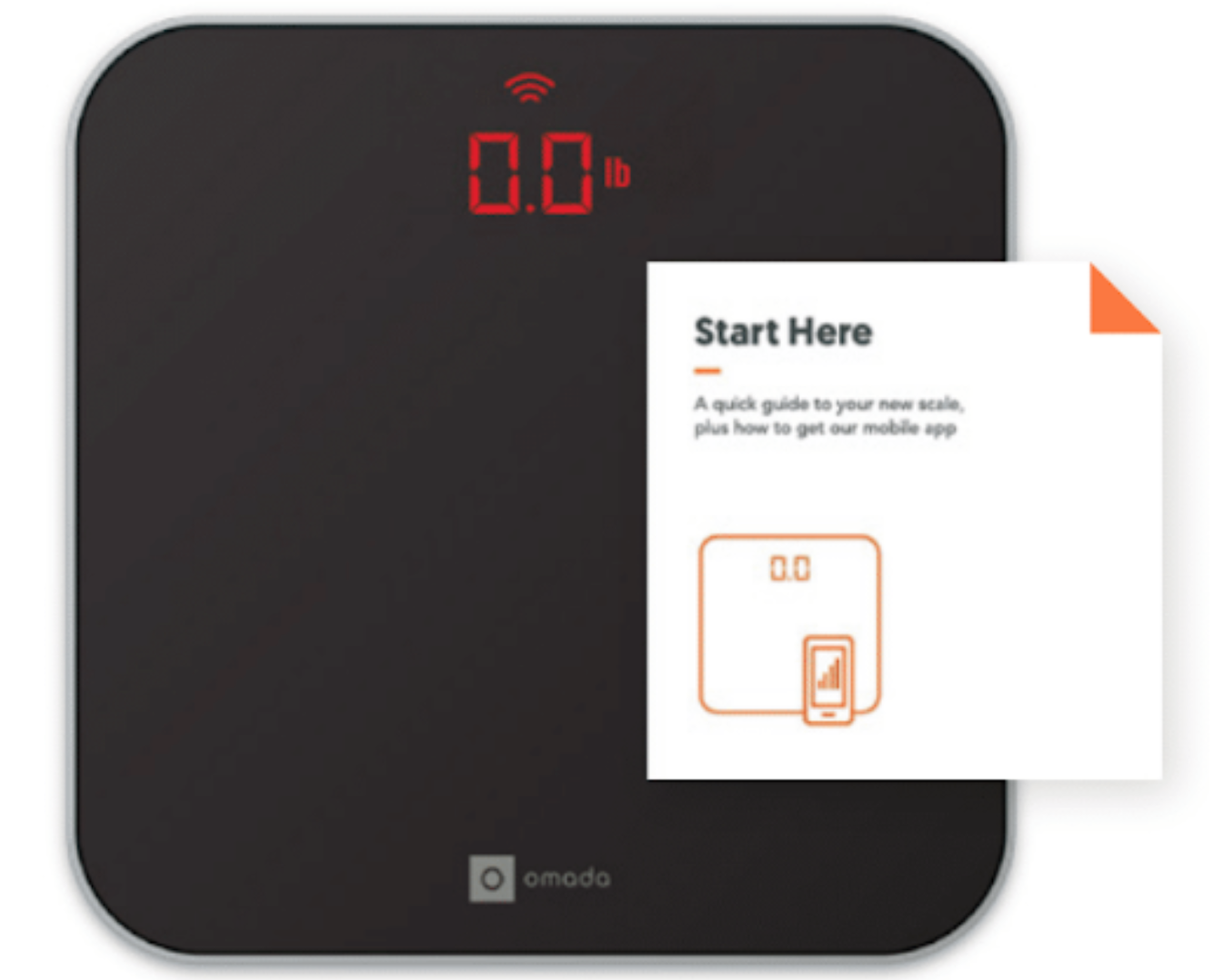
Location Determines Sync Success
Since the Omada scale uses cellular connectivity only, where you place it matters more than you think.
Best locations include near a window or glass door, on an upper floor (better signal penetration), against an exterior wall, and on hard flooring (tile, wood, concrete).
Worst locations include basements or windowless bathrooms, on carpet or rugs, surrounded by large metal objects (fridge, washer), and near Wi-Fi routers or microwaves.
Test: Try a temporary weigh-in near a window. If “Sent” appears and data syncs, your original spot has poor signal.
How to Replace Batteries Correctly
Use Duracell AA for Best Results
Omada recommends Duracell AA batteries for consistent power delivery. Cheap or rechargeable batteries may not provide the stable voltage needed for cellular transmission.
Steps to replace batteries include flipping the scale and opening the battery compartment, removing all old batteries, wiping contacts with a dry cloth, inserting 4 new Duracell AAs (or 3 for some models) with correct polarity, and closing the compartment securely.
Pro Tip: Mark your calendar and replace batteries every 6 to 12 months, even if “Batt” has not appeared. After replacement, perform a test weigh-in and wait 5 minutes for data to appear in the app.
Proper Weigh-In Protocol to Prevent Issues
Small Habits Prevent Big Problems
Most syncing problems start with poor user habits. Follow these steps every time you weigh in.
Stand still until the beep confirms measurement. Wait for “Sent” before stepping off too soon. Weigh at the same time daily (morning, barefoot). Avoid carpet, rugs, or soft flooring. Keep feet centered and motionless.
If you see moving dashes after stepping off, that is normal and means data is being processed. Success looks like “Sent” followed by a beep, with weight appearing in the app within 10 minutes.
Using Manual Entry as a Backup
Bypass Sync Issues Temporarily
If you are in a low-signal area or experiencing prolonged outages, manual weight entry keeps your progress tracked.
On iPhone, open the Omada app, tap Progress, tap Weight, tap the plus icon, enter weight and timestamp, and save. On Android, go to the Progress tab, select Weight, tap Add Manual Entry, input data and save.
Manual entries appear on your Progress Page just like synced data, leaving no gap in your tracking. Use this during Er 5 or Er 6 outages or if you must reset the scale.
When and How to Contact Omada Support
Get Faster Help With Better Information
When troubleshooting fails, contact Omada Support, but do it right to avoid delays.
Email support@omadahealth.com or use the Contact Us button in your account. Include the date and approximate time of your last weigh-in, the weight value recorded (if visible), the error code displayed (Er 4, Batt, etc.), and the steps you have already tried.
Escalate if weight is missing for over 24 hours with “Sent” shown, if Er 5 or Er 6 persists for more than 3 days, if the scale will not turn on after battery replacement, or if weight exceeds 440 lbs and calibration fails.
Preventing Future Sync Failures
Build a Maintenance Routine
Avoid recurring issues with these proactive steps.
Monthly checks include inspecting the battery compartment for corrosion, testing signal strength with a weigh-in near a window, and confirming the app shows the latest weight within 10 minutes.
Environmental awareness means not moving the scale to low-signal areas like basements or garages, keeping it away from large metal appliances, and avoiding extreme temperatures or humidity.
Battery schedule involves replacing every 6 to 12 months, always using Duracell AA batteries, and keeping spares on hand.
Final Rule: If it is not Er 2 or power failure, do not reset.
Quick Reference Fix Guide
| Symptom | Immediate Action | Risk of Data Loss |
|---|---|---|
| “Sent” but not in app | Wait 10 to 24 hours; check next weigh-in | None |
| Er 4 (cellular issue) | Move near window; do not reset | High if reset |
| Er 5 or Er 6 (outage) | Keep using; wait for fix | High if reset |
| Batt warning | Replace with 4 Duracell AAs | None |
| Step Off error | Re-weigh on hard surface | None |
| Er 2 (calibration) | Reset after 10-minute battery removal | Yes |
| Scale will not turn on | Check battery polarity and cleanliness | None |
Frequently Asked Questions About Omada Scale Not Syncing
Why does my Omada scale say “Sent” but not sync?
“Sent” only means the scale attempted transmission, not that it succeeded. Weak cellular signal, network outages, or duplicate entries can cause the weight to not appear. Wait 10 to 24 hours, and if it persists, check for error codes on your next weigh-in.
How do I fix Er 4 on my Omada scale?
Er 4 indicates poor cellular signal. Move the scale near a window or exterior wall, avoid basements, and do not reset the scale. The weight is stored internally and will sync automatically once signal improves.
Can I use any batteries in my Omada scale?
No. Omada recommends Duracell AA batteries for consistent power delivery. Cheap or rechargeable batteries may not provide stable voltage needed for cellular transmission and can cause syncing issues.
Will resetting my Omada scale delete my weight data?
Yes. Resetting the scale erases all stored weights that have not yet synced. Only reset for persistent Er 2 errors or when the scale will not turn on. For sync issues, improve signal instead.
How long does Omada scale sync take?
Under normal conditions, weight data appears in the app within 5 to 10 minutes. During network outages, delays up to 24 hours are possible. If weight is missing after 24 hours, troubleshooting is needed.
What should I do if my Omada scale will not turn on?
Check battery installation first. Remove all batteries, reinsert with correct polarity, and clean the battery compartment. If the scale still will not turn on after fresh batteries, contact Omada Support.
Key Takeaways for Fixing Your Omada Scale Sync Issues
The Omada scale is designed for hands-free operation, but it depends on cellular signal strength and fresh batteries to work properly. Most syncing issues resolve on their own if you avoid resetting and improve placement by moving the scale near a window or on an upper floor.
Always replace batteries at the first sign of the Batt warning, and use Duracell AA batteries for reliable power delivery. If you experience prolonged outages or persistent error codes, use manual weight entry in the app to keep your progress tracked.
Contact Omada Support with detailed information (date, time, weight, error code, and steps tried) only after confirming correct battery installation, attempting placement near a window, and waiting 24 hours for delayed sync. With the right setup, your scale will stay in sync and your progress will stay on track.



