
If your Qardio scale isn’t syncing, you’re not alone. Many users face this frustrating issue when trying to track weight, body composition, or health trends in the QardioApp. When the scale fails to connect, data doesn’t upload, progress gets lost, and motivation dips. The good news: most syncing problems are fixable in minutes. This guide covers every step to resolve a Qardio scale not syncing, whether it’s a Bluetooth hiccup, app glitch, or device conflict.
You’ll learn how to force a sync, reset connections, and prevent future issues across iPhone and Android devices. Each troubleshooting step is simple enough to complete in under five minutes, and we’ll help you identify whether the problem stems from your phone settings, the app, or the scale itself.
Enable Bluetooth and Location Access
Your QardioBase uses Bluetooth Low Energy to send data to your phone. If Bluetooth is off or restricted, syncing fails. Location services are also required on some phones for Bluetooth scanning, even though Qardio doesn’t track your location.
Turn Bluetooth On
Go to your phone’s Settings, then Bluetooth, and ensure it’s enabled. Don’t just check the control center. Open the full Bluetooth menu. If Bluetooth is on but unstable, toggle it off, wait ten seconds, then turn it back on. This clears temporary glitches that may be blocking the connection.
Grant Location Permissions
On Android and some iOS versions, location access must be allowed for Bluetooth devices to pair. Go to Settings, then Privacy, then Location Services, and find QardioApp. Set it to “While Using.” On Android, ensure location is turned on in your system settings and that the QardioApp has location permission granted in App Settings.
Avoid Interference
Keep your phone within three feet of the scale during weighing. Walls, metal surfaces, Wi-Fi routers, and other Bluetooth devices like headphones or smartwatches can interfere with the signal. Step on the scale barefoot. Socks or carpets may reduce conductivity needed for body composition readings and successful syncing.
Restart QardioApp and Your Phone
A frozen app or background crash often stops syncing. Restarting clears memory errors and refreshes connections between your devices.
Force-Close and Reopen QardioApp
Swipe up from the app switcher and swipe the QardioApp away to force-close it. On older iPhones, double-click the Home button. Relaunch the app and step on the scale. The app should detect and sync your latest weigh-in automatically once it opens.
Reboot Your Smartphone
If the app won’t open properly or freezes during use, restart your phone. This resets the Bluetooth stack and clears system-level issues that may be causing the sync failure. After rebooting, open QardioApp before stepping on the scale to ensure it’s active and ready to receive data.
Reset QardioBase Scale

Sometimes the scale itself loses its connection memory or enters a standby loop. Resetting forces it to broadcast its signal again and reestablish communication with your phone.
Perform a Hard Reset
Unplug the QardioBase if using the AC adapter, or remove the batteries for ten seconds. Plug it back in or reinsert the batteries. Wait fifteen seconds for the scale to power up completely. The LED ring will flash briefly when it’s ready. This clears cached connection data and restarts Bluetooth broadcasting.
Reposition the Scale
Place the scale on a hard, flat surface with no carpet or rugs underneath. Ensure all four feet make full contact with the surface. A warped or uneven surface can prevent activation and syncing. Clean the glass and feet with a dry cloth to remove dust or residue that might interfere with the sensors.
Re-Pair QardioBase to Phone
If syncing still fails after resetting, your phone may have lost the pairing record. Re-pairing re-establishes the trusted connection between devices.
Remove and Re-Add Device
In QardioApp, go to Profile, then Devices, then QardioBase. Tap the gear icon and select “Forget Device.” Restart the app completely, then tap “Add New Device” and follow the prompts to reconnect. Make sure Bluetooth is turned on and the scale is active before starting the pairing process.
Check for Multiple Users
If multiple people use the same scale, ensure you’re logged into the correct Qardio account. The app matches users by weight range and foot placement. If another user weighs in first, your data might sync to their profile instead of yours. Confirm your profile is selected before stepping on the scale.
Use One Phone at a Time
Avoid syncing to multiple phones simultaneously. QardioBase pairs to one phone per weigh-in. If a family member’s phone grabs the data first, yours won’t receive it. Disable Bluetooth on unused devices or assign one primary phone for all syncing to prevent conflicts.
Update App and Firmware
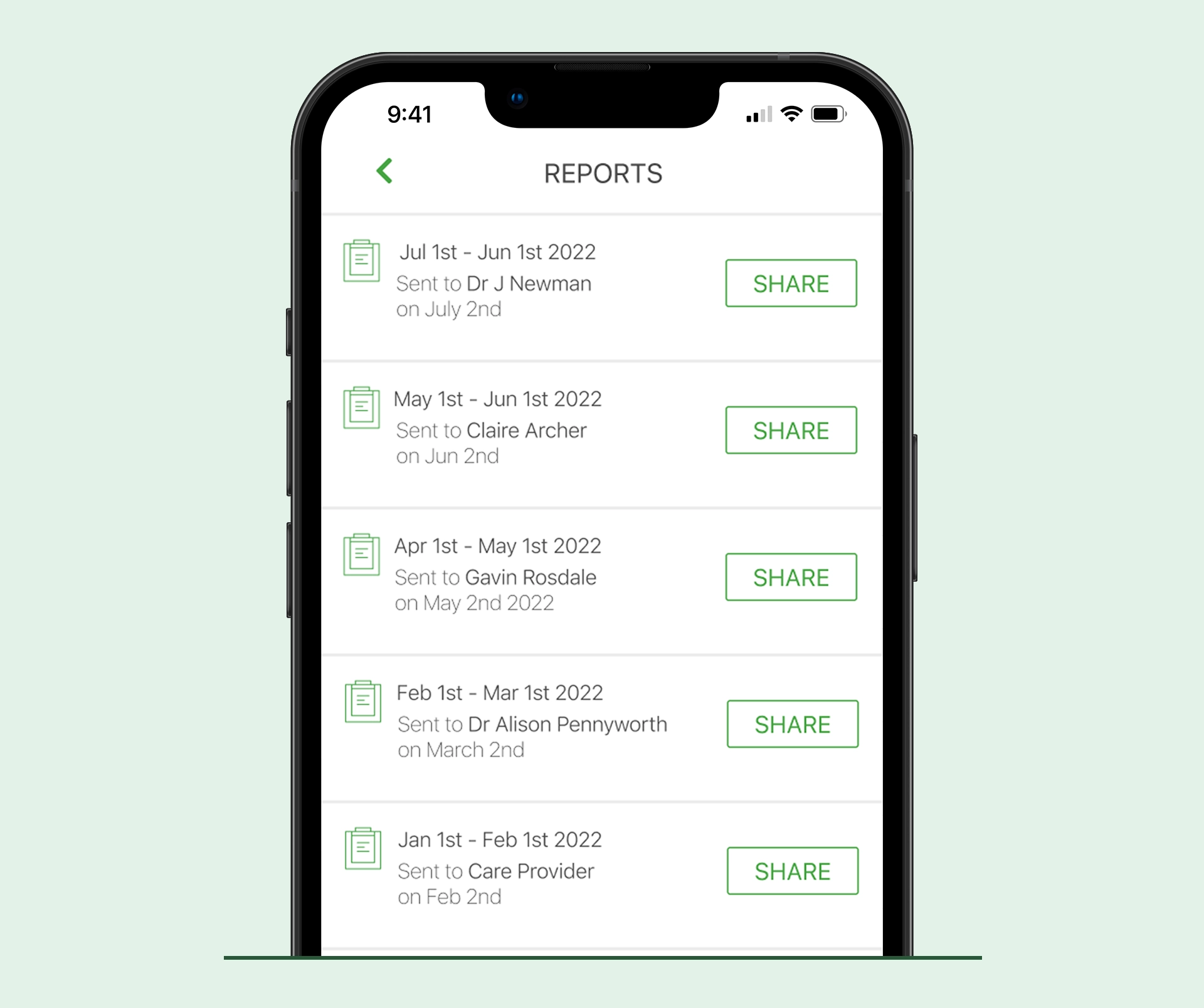
Outdated software is a common cause of syncing failures. Updates often include Bluetooth fixes and stability improvements that resolve connection issues.
Install Latest QardioApp Version
Open the App Store on iOS or Google Play on Android and search for “Qardio.” If an update is available, tap “Update” to install it. After installing, open the app and test syncing with your scale to verify the issue is resolved.
Check for Firmware Updates
When you open QardioApp with Bluetooth on, it automatically checks for firmware updates. Keep the app open and the scale nearby for five to ten minutes after a reset. If an update is pending, it will download and install during this window. Don’t close the app until confirmation appears on the screen.
Test with Another Phone
Isolate the issue by testing the scale with a different smartphone to determine whether the problem lies with your phone or the scale itself.
Borrow a Phone to Diagnose
Install QardioApp on another device, log in with your account, and pair the scale. If it syncs successfully, the problem is with your original phone’s settings. If it still doesn’t sync, the issue may be with the scale’s hardware or firmware.
Compare iOS vs Android Behavior
QardioBase works with both platforms, but Android devices vary widely in Bluetooth performance. If using Android, try a different brand like a friend’s Samsung or Pixel phone. Some budget phones have weak Bluetooth Low Energy support, causing inconsistent syncing behavior.
Clear App Cache on Android
Android apps store temporary data that can corrupt over time and cause syncing issues. Clearing this cache often resolves connectivity problems.
Wipe QardioApp Cache
Go to Settings, then Apps, then QardioApp, then Storage, and select Clear Cache. This removes temporary files without deleting your account or history. Reopen the app and attempt to sync with your scale.
Reinstall QardioApp as Last Resort
If nothing works, uninstall QardioApp completely from your phone. Reinstall it fresh from the app store, then log back in and re-pair your scale. This fixes deep software conflicts but requires re-entering your preferences and settings.
Contact Qardio Support
If all steps fail, the issue may be hardware-related and require professional assistance.
When to Seek Help
Contact support if the scale powers on but no LED flashes during sync attempts. Also reach out if no devices detect the scale even after resetting, if firmware updates fail repeatedly, or if the app crashes every time you open it. These symptoms indicate potential hardware failure.
How to Reach Support
Visit support.qardio.com and submit a ticket. Include your scale model, phone model, operating system version, and the troubleshooting steps you’ve already tried. Qardio’s support team can check server logs and provide advanced troubleshooting tailored to your situation.
Prevent Future Syncing Issues
Keep your setup reliable with these ongoing habits and maintenance practices.
Keep QardioApp Active
Open QardioApp before stepping on the scale. This ensures it’s running and ready to receive data. On iPhones, disable Low Power Mode, which can shut off Bluetooth background activity and prevent syncing.
Sync Daily
Weigh yourself at the same time each day. Frequent use keeps the connection active. If the scale sits idle for weeks, the pairing may degrade and require re-establishing.
Monitor Battery Levels
Low batteries reduce Bluetooth signal strength. Replace batteries every six to twelve months, even if the scale still powers on. Use high-quality alkaline batteries and avoid rechargeables, which often don’t provide stable voltage for consistent performance.
Avoid Network Congestion
Too many smart devices on one network can interfere with Bluetooth connectivity. If your home has ten or more Bluetooth or Wi-Fi devices, consider turning off unused ones during weighing to reduce interference.
Frequently Asked Questions About Qardio Scale Not Syncing
Why does my Qardio scale say it’s connected but won’t sync data?
The scale may show as connected in the app but fail to transfer data due to a corrupted Bluetooth cache. Try force-closing the app, toggling Bluetooth off and on, then reopen the app and attempt another weigh-in. If the problem persists, remove and re-pair the device.
Does QardioBase require Wi-Fi to sync?
No, QardioBase uses Bluetooth Low Energy to sync data to your phone. Wi-Fi is not required for the scale to connect. However, your phone needs an internet connection to upload your data to Qardio’s cloud servers for long-term tracking.
Can I use QardioBase with two phones at the same time?
QardioBase is designed to pair with one phone at a time. If multiple phones are nearby with Bluetooth enabled, the scale will connect to whichever device opens the app first during weighing. This can cause syncing issues in households with multiple users.
What do I do if the LED light doesn’t flash when I step on the scale?
If the LED light doesn’t flash, the scale may not be activating properly. Check that the batteries are fresh and properly installed. Ensure the scale is on a hard, flat surface with all four feet making contact. Try resetting the scale by unplugging it for ten seconds.
Will resetting the scale delete my weight history?
No, resetting the scale itself does not delete your weight history. Your data is stored in the QardioApp and cloud, not on the scale. Only the Bluetooth pairing is cleared during a reset. Your history remains intact in your account.
Key Takeaways for Fixing Your Qardio Scale Not Syncing
Most Qardio scale syncing issues stem from Bluetooth connectivity problems, app glitches, or incorrect permissions. Start by enabling Bluetooth and location access, then restart both the app and your phone. If the problem persists, reset the scale and re-pair it to your device. Keeping your app updated and your phone close to the scale during weighing helps maintain a stable connection. Replace batteries regularly and avoid network congestion from multiple smart devices. Following these steps in order will restore seamless data tracking in most cases, keeping your health monitoring on track.



