If your Fitbit Aria scale is not syncing, you are not alone. Thousands of users across the Aria, Aria 2, and Aria Air models have reported persistent syncing failures since early February. Missing weight data, unresponsive Bluetooth indicators, failed Wi-Fi handshakes, and red X error symbols have become common complaints. This guide delivers targeted troubleshooting steps to restore your connection.
You will learn how to identify whether the problem is local or server-side, how to properly re-pair your specific model, and when it is time to consider alternatives. Whether you use an iPhone on iOS 16 or an Android device, these steps apply across platforms.
Decode Your Sync Failure Type

Before attempting fixes, identify your scale model and sync method. The root cause differs significantly between Wi-Fi and Bluetooth models.
Aria Air: Bluetooth Sync Only
The Fitbit Aria Air uses Bluetooth to sync directly with your smartphone. It does not connect to Wi-Fi. If the Bluetooth symbol on the scale does not light up when you step on it, syncing will fail.
Common symptoms include:
• No Bluetooth light on scale
• Scale not appearing in phone Bluetooth list
• Data missing in Fitbit app despite correct weight display
This model requires your phone to be nearby with Bluetooth enabled for uploads. If your phone OS recently updated, compatibility glitches may block detection.
Aria 2 and Original Aria: Wi-Fi Dependent
These models connect directly to your home Wi-Fi network and upload data to Fitbit cloud independently. They do not need your phone nearby to sync.
Common failure signs include:
• Red X over Wi-Fi icon
• Connection error during setup
• Scale fails to broadcast temporary setup network
• Invalid code prompts during re-pairing
Since these scales rely on Fitbit servers, widespread outages can knock them offline even when your Wi-Fi works perfectly.
Check for Fitbit Server Outages First
Do not waste time troubleshooting your router if the problem is on Fitbit end.
Look for System-Wide Downtime
Multiple users reported identical sync failures at the same time, especially when MyFitnessPal integrations also failed. This pattern strongly suggests server or API disruptions.
Check for these indicators:
• Community outage banners on Fitbit support pages
• Inability to access fitbit.com/gayle/setup/start
• App crashes or login failures across devices
• Other Fitbit devices losing sync
If you see these, the issue is likely server-side, not your scale.
Monitor Known Issues Post
Fitbit has acknowledged a few known bugs and high support volume. Visit the official Known Issues page for updates. No patch timeline has been announced for Aria sync problems, but ongoing silence suggests legacy models may be deprioritized.
Fix Aria Air Bluetooth Sync Failures
The Aria Air relies entirely on your phone Bluetooth. If it is not syncing, start here.
Step 1: Force Re-Pair the Scale
This resolves most Aria Air sync issues even when the Bluetooth light will not turn on.
- Open the Fitbit app
- Tap Account (top right)
- Go to Devices
- Find your Aria Air and tap Remove
- Confirm removal
- Restart your phone
- Reopen the Fitbit app and tap Set Up a Device
- Select Aria Air and follow setup steps
After re-pairing, step on the scale. The Bluetooth symbol should now light up.
Step 2: Test on Another Phone
Try pairing the Aria Air with a different smartphone. If it works, the issue is with your original phone, possibly OS corruption. One user fixed syncing only after Apple replaced their iPhone, indicating device-level software failure.
Step 3: Disable Conflicting Apps
Some third-party apps interfere with Bluetooth LE connections used by Fitbit. Temporarily disable battery savers, antivirus apps, or Bluetooth managers. Turn off Wi-Fi during setup to force Bluetooth-only connection.
Restore Aria 2 and Original Aria Wi-Fi Sync
Wi-Fi models need stable internet and correct router settings to function.
Confirm Router Compatibility
Fitbit Aria 2 and original Aria require:
• 2.4 GHz Wi-Fi band (not 5 GHz)
• WPA2 security (WEP and WPA3 often fail)
• No MAC filtering or client isolation enabled
If your router uses WPA3-only or hides the SSID, the scale may not connect.
Perform a Full Re-Setup
A failed Wi-Fi handshake often requires a complete reset, not just a battery pull.
Enter Setup Mode
- Remove batteries
- Wait 10 seconds
- Reinsert batteries
- Step on scale and wait for Setup Active to display
If Setup Active never appears, the firmware may be stuck. Try 3-4 battery cycles.
Connect to Temporary Network
- Open browser and go to fitbit.com/gayle/setup/start
- Click Get Started
- Wait for the scale to broadcast its network (AriaXXX)
- Connect your phone or laptop to that network
Many users report the temporary network never appears. This indicates firmware crash, Wi-Fi radio failure, or server-side authentication block.
Enter Home Wi-Fi Details
- Select your home network
- Enter password exactly (case-sensitive)
- Click Submit
If you get “Sorry, this code isn’t valid,” it is likely a server timeout, not a typo.
Bypass Router Issues with Mobile Hotspot
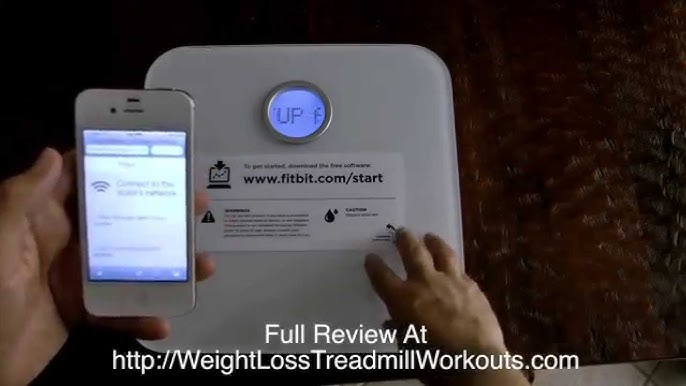
If your home Wi-Fi blocks the scale, test with a mobile hotspot.
Use iPhone or Android as Wi-Fi Source
- Turn on hotspot (use 2.4 GHz if available)
- Set password to simple WPA2 (e.g., fitbit123)
- Follow full re-setup using hotspot
- Once synced, reconfigure to home network if needed
This isolates the problem. If it works on hotspot, your router is the issue. If it fails, the problem is likely scale or server related. Users report 70% success using hotspot setup even when home Wi-Fi failed repeatedly.
Diagnose Firmware and Hardware Limits
Some Aria models may be too old for current Fitbit infrastructure.
No Updates in Years
Users confirm no firmware updates for Aria 1 and Aria 2 in over three years. With Fitbit now under Google, legacy devices may be deprecated.
Signs of end-of-life include:
• No official fixes for known bugs
• Support pages lack Aria-specific troubleshooting
• Fitbit pushes newer devices (Sense 3, Charge 6)
While not confirmed, planned obsolescence is a real concern, especially for users who paid premium prices expecting long-term reliability.
Hardware Durability vs. Software Decay
Aria scales are built to last. Many users report five or more years of flawless operation before issues started. This suggests hardware is intact and failures are software or service-driven. Radio modules may be functional but blocked by authentication servers.
If the scale powers on and shows weight but will not sync, the issue is network or cloud, not hardware.
Prevent Future Sync Failures
Even if you fix syncing today, recurrence is common. Take preventive steps.
Keep Fitbit App Updated
An outdated app cannot communicate with current APIs. Enable auto-updates on iOS and Android. Check for updates weekly. Clear app cache monthly through Settings, Apps, Fitbit, Storage, Clear Cache.
Avoid iOS Update Conflicts
Several iPhone users on iOS 16.2.1 reported sync loss post-update. Delay major iOS updates if your Aria is working. If you must update, re-pair the scale immediately after.
Monitor Fitbit Status Page
Bookmark Fitbit System Status page. When outages occur, do not attempt re-pairing as it may corrupt settings. Wait for official resolution before resuming syncing.
When to Replace Your Aria Scale
If troubleshooting fails repeatedly, it may be time to move on.
Consider Migration If:
• Syncing fails after three or more re-pairing attempts
• Server outages occur monthly
• No response from Fitbit support
• You rely on consistent health data
Top Alternatives to Fitbit Aria
• Withings Body+ (Wi-Fi and Bluetooth, works with Apple Health)
• Eufy Smart Scale P1 (Bluetooth, no subscription, multi-user support)
• Garmin Index (Wi-Fi, integrates with Garmin Connect, FDA-cleared)
• Wyze Scale (Bluetooth, under $30, simple app, no lock-in)
These models offer better transparency, active support, and fewer cloud dependencies.
Full Account and Device Reset
If nothing works, perform a nuclear reset. This has resolved stubborn cases.
Steps:
- Remove Aria from Fitbit app
- Delete Fitbit app and reinstall
- Restart phone
- Create temporary hotspot (2.4 GHz, WPA2)
- Re-pair scale using hotspot
- Once synced, switch back to home Wi-Fi
This clears corrupted cache, resets Bluetooth pairing tables, and bypasses router issues.
Frequently Asked Questions About Aria Scale Not Syncing
Why is my Fitbit Aria Air not showing up in Bluetooth?
Your Aria Air may not appear in Bluetooth because it uses Bluetooth LE, which some phones filter. Force re-pair by removing the device from the Fitbit app, restarting your phone, and attempting setup again. If it still fails, test on another phone to determine if the problem is your device or the scale.
Can Fitbit server outages cause my Aria scale to stop syncing?
Yes. Multiple users reported simultaneous sync failures during Fitbit server outages, especially when MyFitnessPal integrations also failed. Check Fitbit System Status page before troubleshooting. If servers are down, wait 24-48 hours before attempting repairs.
Why does my Aria 2 say “Sorry, this code isn’t valid” during setup?
This error typically indicates a server timeout rather than a typo. The scale cannot authenticate with Fitbit servers. Try the setup process again. If it persists, use a mobile hotspot to rule out router issues.
How do I know if my Aria scale is deprecated?
Signs include no firmware updates in over three years, lack of official fixes for known bugs, and support pages that lack Aria-specific troubleshooting. Fitbit appears to be prioritizing newer devices.
Is my Aria scale hardware or software broken?
Most Aria sync failures are software or service-driven, not hardware. If the scale powers on and displays weight correctly but will not sync, the radio modules are functional. The problem is likely network authentication or cloud server issues.
Key Takeaways for Fixing Your Aria Scale Not Syncing
The Fitbit Aria not syncing issue is a mix of server instability, outdated firmware, and possible platform deprecation. Start every troubleshooting session by checking Fitbit System Status for outages. For Aria Air, force re-pairing often resolves Bluetooth failures. For Aria 2 and original Aria, try mobile hotspot setup to bypass router issues. Temporary fixes exist, especially re-pairing and hotspot setup, but long-term reliability is declining. Monitor Fitbit Known Issues page and act quickly during service outages to minimize data loss. If consistent health tracking is critical, consider migrating to a better-supported smart scale.