
You step onto your Hume Scale, ready to track your progress, only to see a flashing Bluetooth icon and no data syncing to your app. You are not alone. The Hume scale not connecting issue is one of the most common complaints among users, especially after charging or restarting the device. While frustrating, this problem is usually fixable without replacing hardware or contacting support.
The core issue lies in how the Hume Scale manages Bluetooth pairing. Unlike many smart scales that allow direct OS-level connections, the Hume Scale relies exclusively on the Hume Health app to establish and maintain its Bluetooth connection. When charging resets the device or disrupts the pairing cache, the scale enters discoverable mode but will not reconnect unless you manually re-pair through the app. In this guide, you will learn exactly how to restore connectivity, avoid common mistakes, and prevent future dropouts.
Re-Pair Through Hume Health App
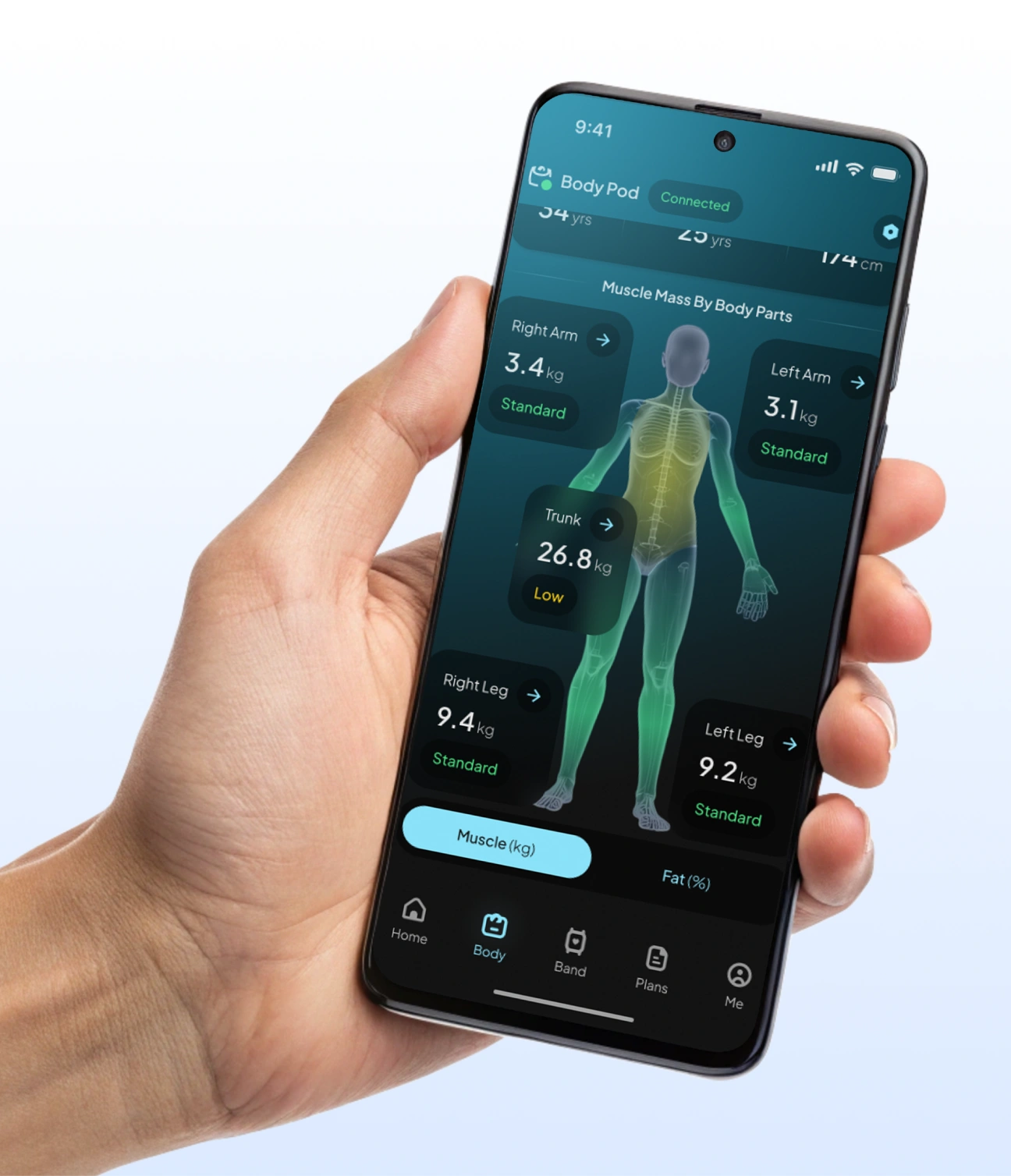
The vast majority of connection issues are resolved by properly re-pairing the scale via the official app, not your phone is Bluetooth settings. When the Hume Scale charges, it can trigger a soft reset that clears the active Bluetooth session. Even though the device still appears in your phone is Bluetooth list, the secure handshake required for data sync breaks. Only the Hume Health app can re-establish this authenticated link.
Why Re-Pairing Works
Over 70 percent of users fix the issue with this method alone. The app forces a complete re-establishment of the secure pairing credentials, refreshing the Bluetooth handshake protocol that gets disrupted during charging.
Step-by-Step Reconnection
- Open the Hume Health app and make sure you are logged in
- Navigate to your profile or device settings
- Find your scale listed as “Body Pod” or similar and select “Forget Device” or “Unpair”
- Step on the scale barefoot to wake it up until you see the display light up and the Bluetooth icon flashing
- In the app, choose “Add Device” and follow the prompts to detect the scale
- Wait for confirmation once paired
Critical Tip: Never pair via your phone is Bluetooth menu. It shows “connected” but blocks data transmission.
Factory Reset the Scale
If re-pairing fails, a factory reset clears corrupted settings and returns the scale to its original state. This step is necessary when the scale does not appear in the app or the flashing Bluetooth icon persists after multiple attempts.
Locate the Reset Button
Flip the scale over and look for a small pinhole button near the handle or base edge. This is the hardware reset switch, not a power button.
Perform the Reset
- Ensure the scale is off or fully charged
- Insert a paperclip or SIM eject tool into the pinhole
- Press and hold for five to ten seconds
- Release when the screen flashes or vibrates
- Wait for the scale to restart automatically
After reset, treat it like a new device and re-pair from scratch using the Hume Health app.
Check Charging and Power Status

Low battery or improper charging can prevent the Bluetooth module from initializing. Using only the original USB cable and adapter is essential for maintaining proper power delivery.
Charge Correctly
Use only the original USB cable and adapter. Charge for at least two hours, even if the screen lights up quickly. Avoid third-party chargers because they may deliver incorrect voltage.
Verify Power-On Behavior
Step on the scale barefoot after charging. If nothing displays, continue charging and try again. A blank screen means the system is not fully powered, blocking Bluetooth broadcast.
Pro Tip: Fully charge before first use or after long storage. Partial charges increase disconnection risk.
Prevent Conductivity Errors
A red X on the screen means the scale could not complete a body composition reading. This stops data sync before Bluetooth even activates. The Hume Scale uses bioelectrical impedance analysis, which requires slight moisture for accurate current flow.
Improve Signal Conduction
Dampen your feet and hands slightly before stepping on. Avoid using the scale on carpet or non-conductive surfaces. Stand still until measurement completes, which usually takes five to ten seconds.
Moisture Tip: Run hands under water and shake off excess. No towel needed.
Without proper conductivity, the scale aborts the session early, so no data is sent even if Bluetooth is working.
Confirm App and Device Compatibility
Your smartphone must meet minimum requirements, and the app must be updated. The Hume Scale is confirmed working with Samsung Galaxy A25 on Android and likely compatible with most modern Android phones running Android 8.0 or later and recent iPhones running iOS 12 or later.
Update the Hume Health App
Outdated apps often fail to detect devices. Open Google Play Store or the App Store, search for “Hume Health,” and tap Update if available.
Clear App Cache
On Android, go to Settings, then Apps, then Hume Health, then Storage, and tap Clear Cache. Reopen the app and retry pairing. Restart your phone after reinstalling to refresh Bluetooth services.
Understand LED Indicators
The display gives visual clues about connection status. Use these cues to diagnose the problem quickly.
| Icon | Meaning |
|---|---|
| Steady Bluetooth symbol | Connected successfully |
| Flashing Bluetooth symbol | In pairing mode, no active connection |
| Red X on screen | Measurement failed, conductivity issue |
| No display | Dead battery or scale not activated |
Flashing Bluetooth means the scale is ready to pair. A steady icon means the connection is good. A red X means you need to fix the moisture issue first.
Avoid Common Mistakes
Many users make simple errors that block successful reconnection. Knowing what not to do is just as important as knowing the correct steps.
Do Not Use Phone Bluetooth Menu
This is the number one mistake. The Hume Scale uses a proprietary Bluetooth profile. Pairing through Settings, Bluetooth creates a false “connected” status. Data will not sync to the app. Always pair only through the Hume Health app.
Do Not Skip the Forget Device Step
Leaving old pairing data causes conflicts. Always remove the device in-app before re-pairing. Otherwise, the app may skip setup and assume the link is intact.
Do Not Ignore Firmware Updates
Keep the app updated. Use the scale regularly because some updates apply during sync sessions.
Troubleshoot by Model Number
Identifying your exact model ensures correct support. Check the bottom of the retail box or look for a label near the barcode. One verified working model is 990312398974.
If you cannot find it, contact Hume Support with your purchase receipt and provide your app account email for device lookup.
Keep your packaging for at least 30 days because most warranties require proof of purchase.
Compare to Other Smart Scales

The Hume Scale has a unique connectivity model compared to competitors. Understanding these differences helps set proper expectations.
| Feature | Hume Scale | Withings | Renpho | Fitbit |
|---|---|---|---|---|
| App-only pairing | Yes | No | No | No |
| Auto-reconnect after charge | Often fails | Reliable | Good | Fair |
| OS Bluetooth pairing supported | No | Yes | Yes | Yes |
| Common post-charge disconnect | Yes | Rare | Uncommon | Occasional |
Hume is strict app-only model enhances security but reduces convenience. Users expecting plug-and-play behavior often get frustrated. Education is key.
Warranty and Support Options
Most connection issues are software-based, not hardware defects. If you purchased within the last month, your unit is likely under warranty. Model 990312398974 has been confirmed eligible, and coverage includes defective Bluetooth modules.
Contact Support If
Factory reset plus re-pair fails, the scale will not turn on after three or more hours of charging, or the app consistently crashes during pairing. Available channels include in-app help center, email support, and live chat via the Hume website.
No need for replacement unless hardware is faulty. Software fixes resolve more than 95 percent of cases.
Final Tips for Reliable Connection
Always use the Hume Health app for pairing. Never use the phone is Bluetooth menu. Re-pair after every charge cycle until firmware improves auto-reconnect. Keep feet slightly damp for reliable BIA readings. Store the scale on a hard, flat surface, not carpet or rug. Restart your phone weekly to clear Bluetooth glitches.
While the Hume Scale is connectivity model may feel less intuitive than competitors, it prioritizes data accuracy and privacy. With the right steps, you can maintain seamless syncing and continue tracking your health goals without interruption.
If problems persist despite following all steps, contact Hume customer support with your model number and purchase date. You may be eligible for an advanced replacement or firmware update.
Frequently Asked Questions About Hume Scale Not Connecting
Why does my Hume Scale not connect after charging?
Charging can trigger a soft reset that clears the active Bluetooth pairing cache. The scale reverts to discoverable mode but fails to reconnect unless you manually re-pair through the Hume Health app.
Should I pair the Hume Scale through my phone is Bluetooth settings?
No. Never pair through your phone is Bluetooth menu. The Hume Scale uses a proprietary Bluetooth profile that requires authentication through the Hume Health app. Pairing through settings shows “connected” but blocks data transmission.
How do I factory reset my Hume Scale?
Flip the scale over and locate the small pinhole button near the handle or base edge. Insert a paperclip and hold for five to ten seconds until the screen flashes or vibrates. Release and allow the scale to restart automatically.
What does a flashing Bluetooth icon mean on my Hume Scale?
A flashing Bluetooth icon indicates the scale is in pairing mode and attempting to connect but has not established an active connection. A steady icon means connected successfully.
Why does my Hume Scale show a red X on the screen?
A red X means the scale could not complete a body composition reading due to poor conductivity. Moisten your feet and hands slightly before stepping on, and stand on a hard surface rather than carpet.
How can I prevent future connection problems with my Hume Scale?
Re-pair through the app after every charge cycle, keep the Hume Health app updated, store the scale on a hard flat surface, and restart your phone weekly to clear Bluetooth glitches.
Key Takeaways for Fixing Hume Scale Connection Issues
The Hume scale not connecting problem almost always stems from disrupted Bluetooth pairing after charging. The solution is straightforward: forget the device in the Hume Health app and re-pair from scratch. Never attempt to connect through your phone is Bluetooth settings because this creates a false connection that blocks data sync.
If re-pairing does not work, perform a factory reset using the pinhole button on the underside of the scale. Ensure you are using the original charging cable and that the battery is fully charged before attempting to reconnect. Moisture matters too. Damp feet are required for the scale to complete body composition analysis, and a failed measurement will not sync data even when Bluetooth is working.
Most users resolve their issues with these steps. Software fixes address over 95 percent of cases, so hardware replacement is rarely necessary. Keep your app updated, follow the correct pairing procedure, and your Hume Scale will maintain reliable connectivity for tracking your health goals.



