
You step on your FitTrack scale, expect a smooth sync, and nothing happens. No data appears in the app. No connection. Just silence. This is a common problem reported by thousands of FitTrack Dara and Dara-1 users. The good news is that over 90% of pairing problems can be fixed in under 10 minutes with the right steps.
This guide provides proven troubleshooting methods pulled from real user reports and official FitTrack support protocols. You will learn how to wake the scale, reset Bluetooth, clear app glitches, and re-pair successfully.
Wake the FitTrack Scale First
A sleeping scale will not pair. The FitTrack Dara enters deep sleep to conserve battery. If it has been idle, it may not respond to connection attempts.
Step on the Scale Barefoot
Stand barefoot on the glass platform and apply light pressure for 2 to 3 seconds. Watch for the display to light up and show 0.0. Shoes, socks, or standing too lightly will not activate the sensors. Bare feet are required for both power-up and body composition analysis.
Press the Glass Surface
If stepping does not work, use your palm to firmly press the center of the scale. Hold for 2 seconds and look for the LED to illuminate. The scale uses weight and pressure sensors, so a soft touch will not trigger it. Apply enough force to simulate stepping.
Replace or Reset the Batteries

Low or unstable power is the number one cause of pairing failure. Even if the scale lights up, weak batteries can block Bluetooth transmission.
Remove and Reinsert Batteries
This resets the internal circuit and clears glitches. Flip the scale and open the battery compartment. Take out all 4 AAA batteries. Wait 30 seconds, which is critical for a full reset. Reinsert batteries with correct polarity. Step on the scale to confirm it powers on. Use brand-new alkaline batteries. Rechargeables often do not provide stable voltage.
Check for Corrosion
Inspect the battery contacts for white or green residue. Clean with a dry cotton swab or eraser. Ensure metal tabs are making solid contact. Corroded terminals prevent consistent power and lead to failed Bluetooth handshakes.
Reset Bluetooth on Your Phone
Cached Bluetooth data or interference can block the connection, even if the scale is ready.
Turn Bluetooth Off and On
Open Settings and tap Bluetooth. Toggle OFF and wait 5 seconds. Toggle ON again. This refreshes the device list and clears temporary pairing conflicts.
Keep Other Devices Away
Bluetooth interference from headphones, smartwatches, routers, and microwaves can disrupt the signal. Move your phone and scale away from other electronics during pairing. For Android devices, ensure Location Services are on because Android requires location access to scan for Bluetooth devices.
Disconnect and Re-Pair in the App
Old or corrupted pairings cause silent failures. You must remove the device and start fresh.
For FitTrack MyHealth or Hume App
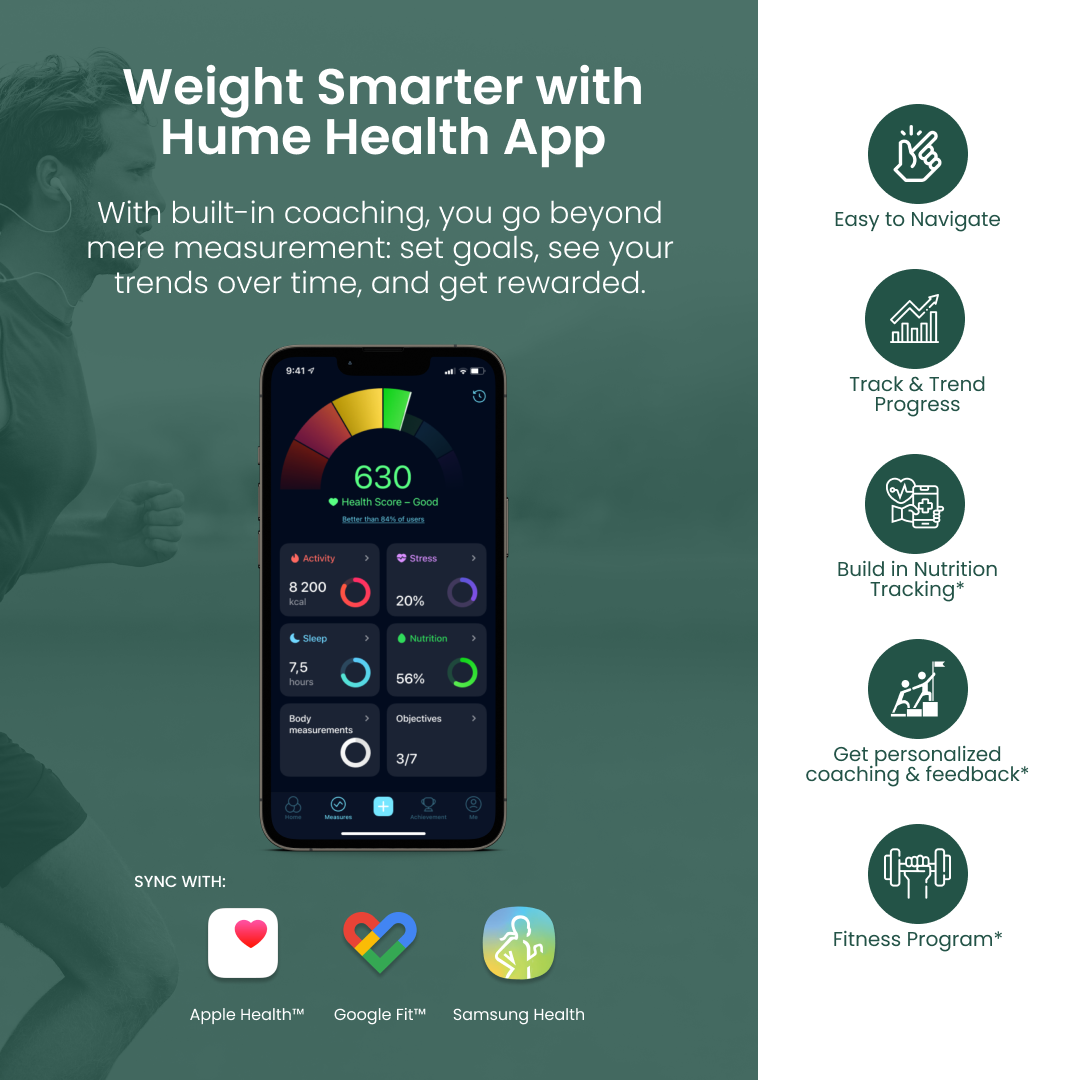
Open the app and go to Profile, which is the bottom right tab. Tap Connected Devices. Select Dara Scale and tap Disconnect Device. After disconnection, close the app completely and reopen it.
For FitTrack Pro App (iOS)
Open the app and tap Me on the bottom tab. Go to My Devices and tap Disconnect next to Dara. Close the app completely and reopen it before attempting to reconnect.
Reconnect the Scale
Automatic Sync (Fastest)
Keep the app open in the foreground. Step on the scale barefoot and wait for weight and body analysis to finish. Data should appear in the app within 10 seconds.
Manual Search (If Auto Fails)
In FitTrack MyHealth, tap Add Device on the My Day screen. Select Search, choose Dara Scale, and tap Connect to Device. In FitTrack Pro, go to Me, then My Devices, tap Connect, and step on the scale to trigger pairing. The device should appear as Dara in the Bluetooth list. If it does not, repeat the battery and Bluetooth resets.
Verify the Connection Worked
Do not assume it is fixed. Test it with a full measurement cycle.
Step on the Scale Again
Stand barefoot and wait for the full measurement cycle. Watch for the lights to come on, then show 0.0, flash zeros during analysis, and display the final weight.
Open the App Immediately
Check for a new weight entry, body fat, muscle mass, and other metrics. Verify the timestamp is correct. If data appears, you are synced. If not, repeat the battery reset and re-pairing steps.
Fix Common App Issues
Even with a working scale, the app can block pairing.
Update to the Latest Version
Outdated apps have known bugs that affect Bluetooth connectivity. For iOS, go to the App Store and search for FitTrack MyHealth or FitTrack Pro. For Android, go to Google Play Store and search for FitTrack MyHealth or Hume. Install updates even if the app seems to work because Bluetooth fixes are often silent.
Reinstall the App (Nuclear Option)
If pairing still fails, delete the app and restart your phone. Reinstall from the official store and log in with your FitTrack account. Re-pair the scale. This clears corrupted cache and resets permissions.
Avoid These Common Mistakes
Users waste time on fixes that do not work. Avoid these traps.
Using the wrong app is a common error. Only use FitTrack MyHealth, FitTrack Pro, or Hume. Third-party apps will not connect, and older versions may not support Dara-1.
Pairing with shoes on is another mistake. The scale uses barefoot conductivity for BIA, and shoes block the electrical signal. The scale may not even power on properly.
Standing on carpet causes problems too. Soft surfaces absorb weight, the scale will not register the correct load, and pairing may fail or data will not sync. Always use a hard, flat surface like tile or wood.
When to Contact FitTrack Support
If you have done everything, battery reset, Bluetooth reset, app re-pair, and it still will not connect, contact support.
What to Include in Your Request
Go to support.fittrack.com and submit your model number, which is Dara or Dara-1. Check under the scale if you are unsure. Include the app name and version. List your phone OS, such as iOS 17 or Android 14. Provide photos of the scale display powered on, the app screen during pairing, and the battery compartment. A short video showing the full process is optional but helpful. Support often responds within 24 hours and will offer a replacement or refund if the scale is defective.
Keep Your Scale Working Long-Term
Prevent future issues with simple habits.
Use Fresh Batteries Proactively
Replace batteries every 6 to 12 months. Do not wait for low-battery signs. Weak power causes silent sync failures.
Clean and Calibrate Monthly
Wipe with a damp cloth and avoid harsh cleaners. Step on and off once to recalibrate.
Re-Pair After Long Breaks
If unused for 2 or more weeks, do a battery reset and re-pair in the app. Test with a measurement. This prevents ghost connections and sync delays.
Frequently Asked Questions About FitTrack Scale Pairing
Why does my FitTrack scale not show up in the app?
The scale may be in sleep mode. Wake it by stepping barefoot or pressing the glass surface firmly. Ensure Bluetooth is enabled on your phone and the app has necessary permissions.
Do I need to use specific batteries for my FitTrack scale?
Use brand-new alkaline AAA batteries. Rechargeable batteries often do not provide stable voltage, which can cause pairing failures.
Can I use my FitTrack scale on carpet?
No. Always place the scale on a hard, flat surface like tile or wood. Carpet absorbs weight and prevents accurate measurements and successful pairing.
Which app should I use with my FitTrack Dara scale?
Use FitTrack MyHealth, FitTrack Pro, or the Hume app. Download from the App Store or Google Play Store. Third-party apps will not work.
What should I do if nothing fixes the pairing issue?
Contact FitTrack support with photos of the scale, app screen, and battery compartment. They typically respond within 24 hours and can replace defective units or issue refunds.
Key Takeaways for Fixing Your FitTrack Pairing Issues
The FitTrack scale won’t pair issue is almost always fixable. Start with a battery reset by removing the batteries for 30 seconds and using fresh alkaline AAA batteries. Wake the scale by stepping barefoot or pressing the glass surface firmly. Clear the app connection by disconnecting the device in the app settings, then re-pair from scratch. Keep your app updated and ensure you are using the correct companion app for your model. If all else fails, FitTrack support will replace your scale with no questions asked. Keep your health data flowing with these simple, proven fixes.



