
You’ve just purchased the Omada wireless scale and want it working fast. Whether you’re joining a health program or tracking weight on your own, setting up this scale is designed to be straightforward. The best part? No Wi-Fi, router, or technical know-how is required. This guide walks you through every step from unboxing to your first successful weigh-in, with tips to avoid common mistakes. You’ll learn how to install batteries, position the scale correctly, trigger accurate readings, and confirm your data syncs to your Omada account.
Install Batteries and Power On the Omada Scale

Flip your scale over and locate the battery compartment on the back. Open it carefully and insert the four AA batteries provided in the box. Match the polarity markings inside the compartment to ensure each battery is seated correctly. Poor contact from misaligned batteries is the number one reason the scale fails to turn on.
To activate the scale for the first time, place it on a hard, flat surface. Step lightly on the center of the scale with one foot and wait for dashes to appear on the display. Step off immediately and watch for the display to cycle to “0.0,” which signals the scale is ready. If nothing happens, press down more firmly or replace the batteries with fresh ones.
Position the Scale on the Right Surface

The Omada scale requires a flat, rigid floor for accurate readings. Soft or uneven surfaces like thick carpet, rugs, or vinyl can compress under pressure and lead to inconsistent measurements. Tile, hardwood, and concrete work perfectly.
If you must place the scale on carpet, attach the included carpet feet to the bottom of the scale first. These extensions stabilize the platform and prevent wobbling. Once powered on, the display should show “0.0” without flickering. If numbers appear random or the display resets repeatedly, the surface is likely unstable.
Complete Your First Weigh-In
When the screen reads “0.0,” step onto the scale barefoot and stand still in the center. Hold your position until your weight blinks on the display, you hear a beep, and the word “Sent” appears. The “Sent” message confirms your data has been transmitted via the built-in cellular connection.
Bare feet are required because the scale uses bioelectrical impedance to estimate body composition. This technology only works through direct skin contact. If you’re standing off-center, arrows will light up in the corners of the display. Lean slightly in the opposite direction of the arrows until they disappear, then stand still to complete the measurement.
Verify Data Sync to Your Omada Account
One major advantage of the Omada scale is that it requires no home network. The scale connects automatically to AT&T or T-Mobile cellular networks using its embedded SIM card. After you see “Sent,” your weight appears in your Omada account within five minutes.
Open the Omada app or log into your account online to confirm the data reached your profile. If “Sent” appeared but the weight is missing after 24 hours, contact Omada Support with your last known weight and date. Avoid placing the scale in basements or metal-heavy rooms that can block cellular signals.
Set Up Multiple User Profiles
If more than one person uses the scale, it supports multiple user profiles. After stepping on, the scale may prompt you to choose a profile. Lean left to select the left profile or lean right to select the right profile. Hold your lean until the selection locks in, which usually takes one to two seconds.
If the wrong profile appears, step off completely and wait for the display to reset to “0.0.” Step back on and lean early to guide the selection. The scale uses initial weight range and user calibration to match you correctly.
Connect Omada Scale to Health Apps
You can sync your Omada weight data to external health platforms for broader tracking.
For iOS users, open the Omada app and navigate to Settings. Tap Health Integration and toggle on “Share with Health App.” Select which data types to share, such as weight and BMI, then confirm the permissions when prompted. Make sure background app refresh is enabled for Omada to keep syncing automatically.
For Android users, go to Settings in the Omada app and tap “Sync with Google Fit” or “Sync with Samsung Health.” Sign in and authorize the connection. Once linked, your latest weight appears in the chosen app within minutes. Reauthorize these connections annually to prevent access from expiring.
Fix Common Omada Scale Problems
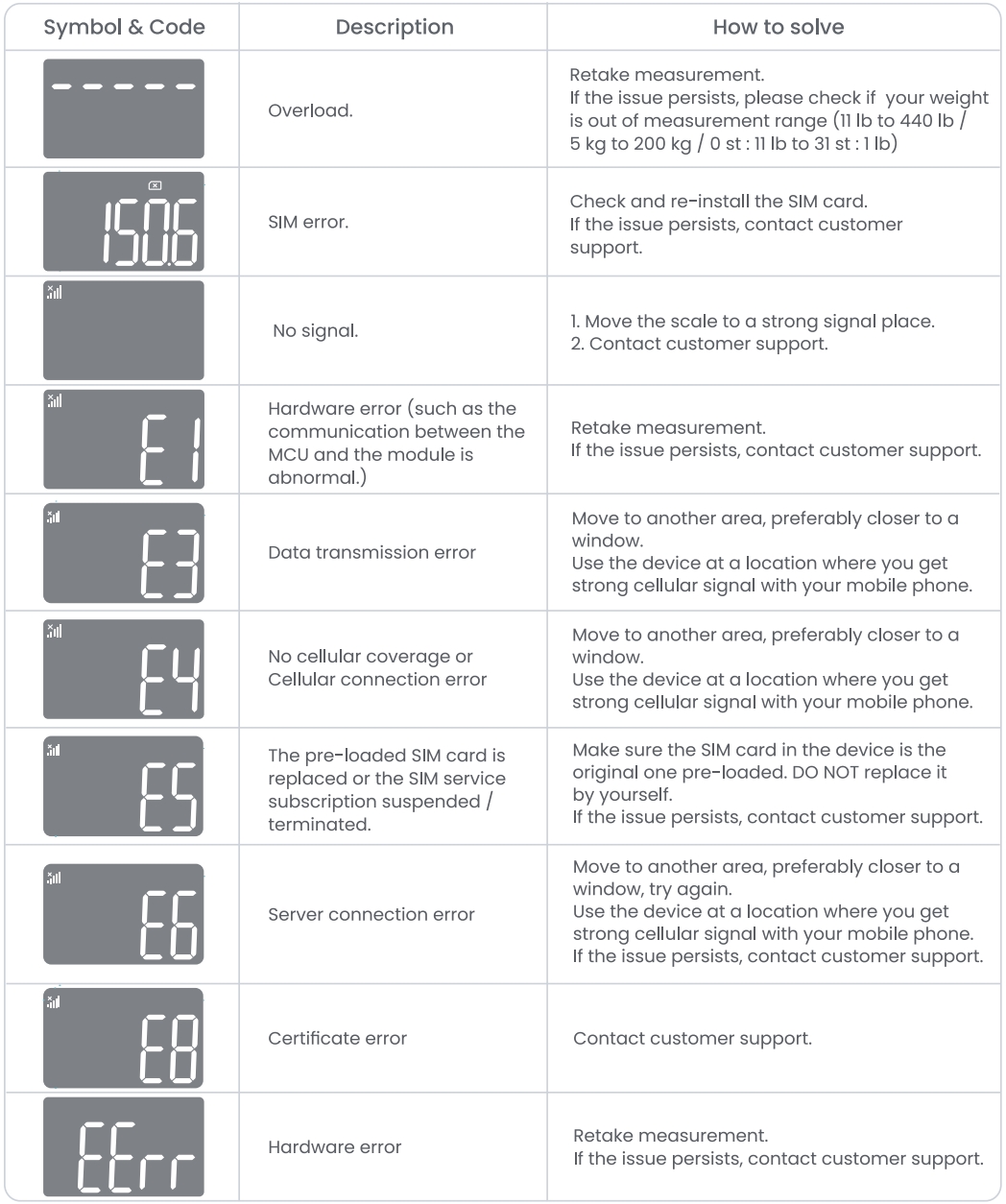
If the scale doesn’t turn on or show weight, check several things. Verify batteries are inserted correctly and replace them with fresh alkaline AA batteries. Confirm the scale is on a hard, level surface with carpet feet attached if needed. Press down firmly in the center and ensure the glass surface is clean and dry.
The “Step Off” message means the scale detected motion or imbalance. Step off completely, wait for “0.0” to reappear, then step back on slowly while standing still in the center. This error often occurs from stepping on too fast, shifting weight, or wearing socks.
If “Sent” appears but data doesn’t reach your account, wait five minutes for sync to complete. Check that you saw “Sent” on the screen and confirm you’re logged into the correct account. If the data is still missing after 24 hours, contact support with the date and approximate weight of your reading.
Daily Tips for Accurate Readings
Weigh yourself at the same time every day for reliable trends. Morning is ideal after using the bathroom and before eating or drinking. Consistency reduces noise in your data since weight can fluctuate up to five pounds daily due to hydration and food intake.
Always step on with bare, clean, dry feet. Socks, shoes, or lotion on your skin blocks the electrical signal the scale uses for body composition measurements. Stand with feet shoulder-width apart, centered on the metal electrodes, and avoid shifting your weight during the reading.
Maintain Your Omada Scale Long-Term
Wipe the glass surface with a slightly damp cloth after use, especially in humid bathrooms. Never soak or spray water directly on the scale and avoid harsh cleaners like bleach or ammonia. Water damage isn’t covered under warranty.
With daily use, batteries typically last six to twelve months. Replace all four AA batteries at once when the low-battery icon appears. Never mix old and new batteries, as this can cause leakage or poor performance.
Get Help with Omada Scale Setup
Omada offers a downloadable PDF Quick Start Guide through their support portal. This one-megabyte document includes illustrated setup steps, diagrams of components, a troubleshooting flowchart, and contact information. Visit support.omadahealth.com and search for Omada Scale Setup to find the attachments section.
A step-by-step video tutorial is also available in the Omada Help Center or app. It covers battery installation, carpet foot attachment, first weigh-in, profile selection, and sync confirmation. This visual guide is helpful for anyone who prefers watching the process before attempting it themselves.
Frequently Asked Questions About Omada Scale Setup
Do I need Wi-Fi to set up the Omada scale?
No, the Omada scale uses cellular networks (AT&T or T-Mobile) and requires no Wi-Fi. It connects automatically using its embedded SIM card, so you can set it up anywhere with cellular service.
Why does the scale need bare feet?
The scale uses bioelectrical impedance analysis, which sends a safe, low-level electrical signal through your feet to estimate body composition. This technology only works with direct skin contact, so socks or shoes will prevent accurate readings.
How long does it take for weight data to sync?
Weight data typically syncs to your Omada account within five minutes of stepping off the scale. If “Sent” appeared but data is missing after 24 hours, contact Omada Support with your reading details.
Can multiple people use the same Omada scale?
Yes, the scale supports multiple user profiles. After stepping on, lean left or right to select your profile. The scale uses weight range and calibration to match you correctly.
What should I do if the scale shows “Step Off”?
Step off completely and wait for the display to reset to “0.0.” Step back on slowly, stand still in the center, and avoid shifting your weight during the reading.
Key Takeaways for Setting Up Your Omada Scale
The Omada scale is built for simplicity with no Wi-Fi required and automatic cellular syncing. Setting it up correctly starts with proper battery installation, placing it on a hard flat surface, and stepping on barefoot for accurate readings. Multi-user support lets you lean to select your profile, while integration with Apple Health, Google Fit, or Samsung Health expands your tracking options.
For long-term success, weigh yourself daily at the same time, keep the surface stable, and replace batteries every six to twelve months. If issues arise, verify battery contact, surface stability, and cellular signal strength before contacting support. Now you’re ready to step on, see “Sent,” and stay on track with your health goals.



