
You just unboxed your new Garmin scale, probably the sleek Index S2 or the reliable Index Smart Scale, and now you are staring at a glass platform wondering, “How do I even start?” You are not alone. Setting up a Garmin smart scale is not just about inserting batteries and stepping on. It is about syncing data, managing users, and ensuring every reading is accurate. And if done right, this scale becomes a powerful hub for tracking weight, body fat, muscle mass, and more, seamlessly integrated with your Garmin watch or fitness goals.
This guide walks you through every step of setting up your Garmin scale, from physical placement to multi-user invitations and Wi-Fi pairing. No fluff, no jargon. Just clear, actionable steps based on official specs and real-world usage. Whether you are a solo user or setting it up for the whole family, you will learn how to avoid common mistakes, troubleshoot issues before they happen, and get the most accurate body composition readings possible.
Let us get your Garmin scale up and running, right the first time.
Install Batteries Correctly
Before anything else, power up your scale. The process differs slightly between models, so follow the steps for your specific device.
Garmin Index S2: Use AAA Batteries
Flip the scale over carefully. Open the battery compartment with light pressure. Insert four AAA alkaline batteries following the polarity markings. Close the compartment securely.
Never use rechargeable batteries. They often output lower voltage, which can cause connectivity drops or inaccurate readings.
Once installed, the scale turns on automatically. The display lights up briefly.
Garmin Index Smart Scale: AA Batteries Included
Remove the battery cover by pressing the latch. Insert four AA alkaline batteries, which are included in the box. After insertion, look for a wrench icon and blinking wireless signal. This means the scale is powered and ready for setup.
Pro Tip: Replace batteries as soon as the low battery icon appears. Leaving dead batteries inside can lead to leakage and permanent damage.
Choose Your Weight Unit
Your weight display depends on a physical switch under the scale. This setting overrides any unit preferences in the Garmin Connect app, so choose carefully.
Set lb, kg, or st with the Slider
On the underside, locate the unit selection slider. Slide it to lb for pounds, kg for kilograms, or st for stone.
Note: Your scale displays only this unit. The change takes effect immediately after you place the scale upright.
Place the Scale Properly
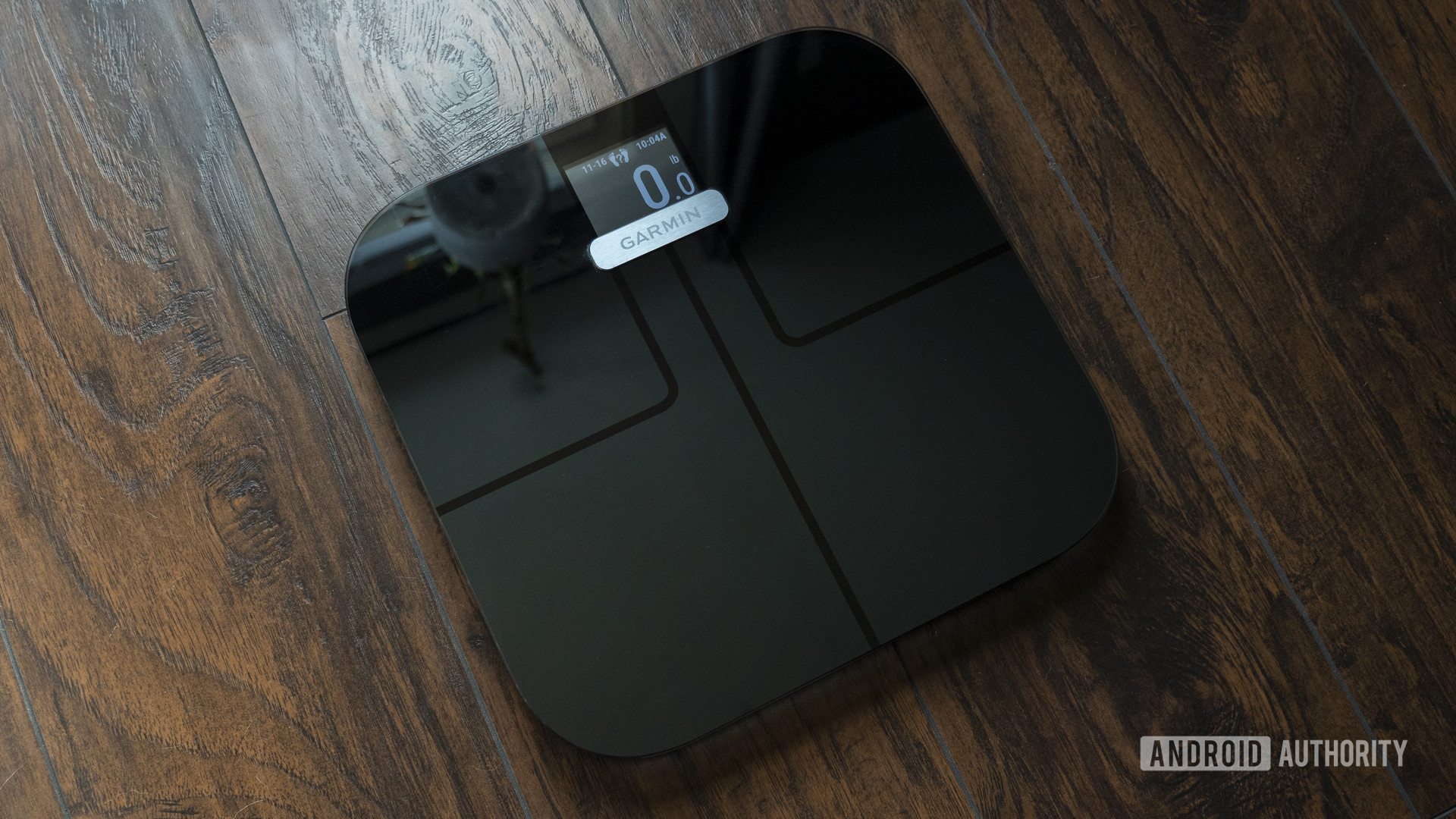
Where you put your scale matters more than you think, especially for body composition accuracy.
Use a Hard, Flat Surface
Best surfaces include tile, hardwood, and concrete. Avoid carpet, rugs, and uneven floors. Soft surfaces absorb impact and disrupt the bioelectrical impedance analysis used to measure body fat and muscle.
On Carpet? Use the Risers
Attach the four included risers to each foot of the scale. These lift it above the carpet fibers, ensuring stable contact and proper conductivity.
Never place the scale in a wet bathroom or near water. It is not waterproof.
Pro Tip: Keep the scale in the same spot every day. Moving it frequently can affect calibration and Wi-Fi signal strength.
Pair with Garmin Connect App
Your scale needs Garmin Connect to sync data, manage users, and update firmware. This is the central hub for all your health data.
Check Device Compatibility First
Make sure your phone supports iOS 10 or later (iPhone 5 or later) or Android 6.0 or later with Bluetooth 4.0. Also install the Garmin Connect app from the App Store or Google Play Store and enable Bluetooth and Wi-Fi on your phone.
Update the app before starting. Outdated versions cause most failed pairing issues.
Create or Log Into Your Account
If you are new to Garmin, open Garmin Connect and tap Create Account. Enter your name, date of birth, gender, height, initial weight (optional), and email with password. If you already have an account, simply log in.
Why height matters: BIA estimates body composition using your height, age, and gender. Inaccurate inputs lead to misleading results.
Add Your Scale to the App
Now it is time to connect your scale to the app.
Start the Pairing Process
From the app home screen, tap Garmin Devices. Select Add Device. Wait for the app to scan nearby devices. Choose Garmin Index S2 or Index Smart Scale when it appears.
If the scale does not show up, tap the scale lightly with your foot to wake it. Restart Bluetooth on your phone. Close and reopen the app. The scale enters pairing mode automatically on first power-up and stays active for several minutes.
Connect to Wi-Fi (2.4 GHz Only)
Your scale uses Wi-Fi to auto-sync data, so you do not need a daily phone connection. Here is the catch: it only supports 2.4 GHz networks. 5 GHz will not work.
Use Mobile App Method (Easiest)
During setup, tap Wi-Fi Setup in the app. Select your 2.4 GHz network from the list. Enter the Wi-Fi password. Keep your phone connected to the same network. The app sends credentials to the scale via Bluetooth.
Signal Tip: Place the scale within 15 feet of your router. Thick walls or metal furniture can block signals.
Try WPS If Your Router Supports It
This method is faster and password-free. Press the WPS button on your router. Within two minutes, activate WPS on the scale via the app. Done. No typing required.
WPS must be enabled in your router settings. Check the manual if unsure.
Computer Method (For Advanced Users)
You might need this if you do not have a compatible phone. Download Garmin Express for Windows or macOS. Buy a USB ANT Stick (sold separately). Connect the stick, launch Garmin Express, and follow prompts.
Wait for Firmware Update
Right after pairing, your scale may update its firmware. This takes 2 to 5 minutes.
What Happens During Update
Do not move the scale, exit the app, disable Bluetooth, or walk away. Keep your phone within 3 feet. The display may flicker or show progress bars.
Why update? New firmware improves accuracy, fixes bugs, and may add features.
Once complete, the app confirms your device is ready. Future updates happen automatically when the scale is powered, connected to Wi-Fi, and a paired phone is nearby.
Perform First Weigh-In Barefoot
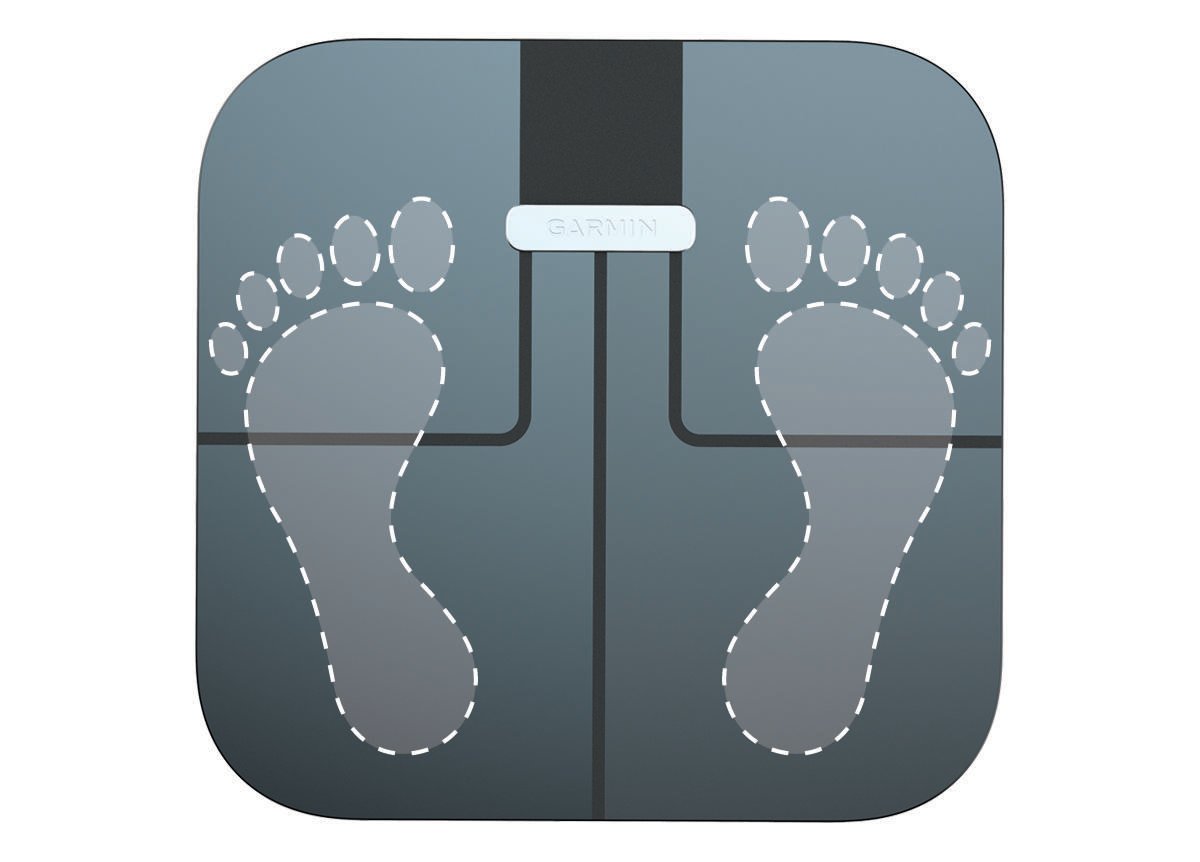
Time to step on, but not in socks.
Step-by-Step Measurement
Wake the scale by tapping it lightly. It shows “0.0”. Step on barefoot, placing one foot on each metal electrode (front and back of glass). Distribute weight evenly. Wait for your initials to appear. This confirms user ID.
If someone else’s initials show, tap the scale again to cycle through users. Stop when yours appear, then step back on fully. Hold still for 15 to 20 seconds while metrics display in rotation.
Never wear socks or shoes. They block the BIA current. Clean, dry feet mean best conductivity. Wipe soles if needed.
Understand What the Screen Shows
The display cycles through key health metrics every few seconds.
Core Metrics Explained
The scale shows weight, weight trend (up/down/stable versus recent average), BMI, body fat percentage, skeletal muscle mass, bone mass, body water percentage, and weather forecast (pulled from your phone).
On the Index model, tap the screen to advance manually. The S2 does not support manual advance.
Invite Family Members
Your Garmin scale supports up to 16 users, great for households.
How to Add More Users
In Garmin Connect, go to Devices, select your scale, and tap Manage People. Choose Invite Connections. Select contacts from your list. They must have Garmin accounts. They will get a notification and must accept to activate.
Each user sees only their own data in their Garmin profile.
Auto Recognition: How It Works
The scale uses weight range and usage patterns to identify you. When you step on, initials appear for confirmation. If the wrong person shows, tap to cycle.
Accuracy drops if multiple users have similar weights. Enter accurate personal data (height, age, activity level) for better recognition.
Troubleshoot Common Issues
Even with perfect setup, problems happen. Here is how to fix them.
Scale Will Not Turn On
Cause: Dead or reversed batteries. Fix: Replace with fresh alkaline batteries. Check polarity.
Pairing Fails
Cause: Bluetooth off, app outdated, poor signal. Fix: Update Garmin Connect. Restart phone. Tap scale to wake it.
Wrong User Detected
Cause: Similar weights. Fix: Tap to cycle users until correct initials appear.
Data Not Syncing
Cause: Weak Wi-Fi, background app restrictions. Fix: Move scale closer to router. Disable battery optimization for Garmin Connect.
“No Signal” Error
Cause: Poor foot contact. Fix: Step on barefoot, clean dry feet, full electrode contact.
Still stuck? Perform a factory reset in Garmin Connect: Device Settings, Reset, Factory Reset.
Maintain Accuracy Over Time
Your scale is not set and forget. Long-term accuracy depends on habits.
Best Practices for Reliable Readings
Weigh at the same time daily, ideally morning, after bathroom, before eating. Avoid weighing after workouts, meals, or showers. Fluid shifts affect results. Stay hydrated, but do not chug water right before.
Focus on trends, not single numbers. Daily fluctuations are normal.
Clean and Care for the Scale
Wipe with a damp cloth and mild soap. Dry immediately with a lint-free towel. Never use abrasive cleaners. Replace batteries promptly. Remove them during long storage.
Final Setup Checklist
Before you call it done, verify these items.
Fresh AAA (S2) or AA (Index) alkaline batteries installed. Unit selected via physical slider (lb/kg/st). Placed on hard, level surface (with risers on carpet). Paired with Garmin Connect app. Connected to 2.4 GHz Wi-Fi network. Completed firmware update. Entered accurate height, age, gender in profile. Performed first barefoot weigh-in. Invited household members via Connections.
Key Limitations to Know
The Garmin scale is powerful but not perfect.
What It Cannot Do
It cannot work on 5 GHz Wi-Fi. It cannot measure bone density (only estimates bone mass). It cannot provide medical-grade diagnosis. It cannot disable the weather widget (on S2). It cannot use Ethernet or hotspot connections.
Why Readings Fluctuate
BIA results depend on hydration, food intake, hormonal cycles (especially in women), and recent exercise. Use trend analysis in Garmin Connect, not daily spikes.
Maximize Your Results
Now that it is set up, go further.
Use Garmin Connect Features
View graphs of weight, body fat, and muscle over time. Set goals for weight or body fat percentage. Use Compare Mode to track fat loss versus muscle gain. Sync with Garmin watches for holistic health tracking.
Power Tip: Combine scale data with activity logs to see how workouts affect body composition.
Frequently Asked Questions About Setting Up Garmin Scale
Can I use rechargeable batteries in my Garmin scale?
No, you should use alkaline batteries. Rechargeable batteries often output lower voltage, which can cause connectivity drops or inaccurate readings. Replace with fresh alkaline batteries when the low battery icon appears.
Why does my Garmin scale only connect to 2.4 GHz Wi-Fi?
The Garmin Index S2 and Index Smart Scale only support 2.4 GHz networks. This is a hardware limitation. 5 GHz networks will not work. Make sure your router broadcasts a 2.4 GHz signal and select it during setup.
How do I add another person to my Garmin scale?
Open Garmin Connect, go to Devices, select your scale, and tap Manage People. Choose Invite Connections and select contacts who have Garmin accounts. They must accept the invitation to activate their profile on the scale.
Why is my body fat percentage different from other scales?
BIA technology estimates body composition based on electrical resistance. Results vary between brands because each uses different algorithms and electrode placements. Hydration, food intake, and timing also affect readings. Focus on trends over time rather than comparing absolute numbers across different devices.
Do I need to update my Garmin scale firmware?
Yes, firmware updates improve accuracy, fix bugs, and may add new features. Updates happen automatically when the scale is powered, connected to Wi-Fi, and a paired phone is nearby. You will receive a notification in Garmin Connect when an update is available.
Can I use my Garmin scale on carpet?
Yes, but you must attach the four included risers to each foot. These lift the scale above carpet fibers to ensure stable contact and proper electrical conductivity for body composition measurements.
Key Takeaways for Setting Up Your Garmin Scale
Setting up your Garmin scale properly is essential for getting accurate, reliable body composition data. Start by installing fresh alkaline batteries (AAA for S2, AA for Index), choosing your preferred unit via the physical slider, and placing the scale on a hard, flat surface. Use the included risers if setting it up on carpet.
Pairing with the Garmin Connect app is the critical next step. Make sure your phone is compatible, update the app first, and enter accurate personal details (height, age, gender) because BIA accuracy depends on these inputs. Connect to Wi-Fi using the 2.4 GHz band, wait for the firmware update to complete, then perform your first barefoot weigh-in to confirm everything works.
The scale supports up to 16 users, making it perfect for families. Invite household members through Garmin Connect Connections, and the scale will automatically recognize each person based on weight and usage patterns. For long-term accuracy, weigh at the same time daily (ideally morning), keep the scale in one spot, and focus on trends rather than daily fluctuations.
Now that your scale is set up, explore Garmin Connect features like goal tracking, trend graphs, and Compare Mode to get the most out of your data. Combine this with your Garmin watch activity logs for a complete picture of your health progress.



