You place your digital scale on the counter, press the power button, and instead of reading “0.00,” it shows a strange number like 0.03, -0.05, or maybe it just flickers. What now? Setting a digital scale to zero is the essential first step to accurate measurements, whether you’re weighing ingredients, shipping packages, or conducting lab tests. A scale that hasn’t been properly zeroed can throw off results by grams or even ounces, leading to costly errors. The good news is that zeroing your scale is quick and simple if you know the right steps. In this guide, you’ll learn exactly how to reset your digital scale correctly, avoid common mistakes, troubleshoot issues, and understand the critical difference between zeroing and taring. By the end, you’ll be able to get reliable, repeatable results every time.
Choose the Right Surface for Zeroing Your Scale
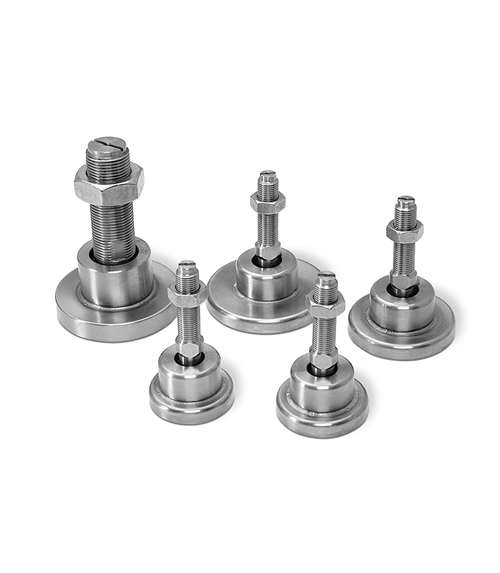
Before powering on your scale, placement matters more than you might think. An unstable or tilted surface is one of the top reasons a digital scale won’t zero properly.
Use a Hard, Level Surface
Place your scale on a solid, flat surface like a granite countertop, hardwood floor, or metal workbench. Avoid soft or uneven areas like carpets, rubber mats, or wobbly tables. These can compress under pressure, causing the load cells, the internal sensors that measure weight, to register false readings.
Check for Levelness
Even slight tilting can skew results. Use a small spirit level to confirm the surface is perfectly flat. If the scale itself has built-in leveling feet, adjust them until the bubble is centered. Some precision scales include a digital level indicator, so use it.
Pro Tip: If your scale constantly drifts or refuses to zero, recheck the surface. A 1-degree tilt can introduce measurable error in sensitive models.
Start Your Scale Properly Before Zeroing
Once the scale is positioned correctly, it’s time to start the zeroing process.
Turn On the Scale
Press the power or On/Zero button gently. Do not hold it down, as this may turn the device off instead. Wait for the display to boot up completely. This usually takes 5 to 30 seconds, depending on the model.
Let It Auto-Zero
Many digital scales automatically attempt to zero themselves during startup if the platform is empty and stable. Watch the display: it should cycle through self-checks and settle at 0.00 or equivalent like 0.0 g or 0.000 kg.
Note: Auto-zero only works within a small tolerance, for example plus or minus 2d, where d is the display resolution. If the scale detects even a slight load or instability, it may display an error or fail to reset.
Press the Zero Button Correctly
If the scale does not auto-zero, or if you want to manually confirm the baseline, use the Zero function.
Locate the Zero Button
On most models, this is labeled clearly as Zero. On some scales, especially compact kitchen versions, the Tare button doubles as Zero when the platform is empty. Check your manual if unsure.
Tap, Do Not Hold
Press the button once briefly. Holding it down may trigger a power-off or calibration mode. Wait for the display to update to 0.00.
Visual Cue: A stable 0.00 reading with no flashing or error codes means the scale is ready.
Zero vs. Tare: Understanding the Difference

Confusing Zero and Tare is one of the most common user errors. They are not interchangeable.
When to Use Zero
Use Zero only when the platform is completely empty. This resets the internal reference point to true zero, correcting for minor electronic drift, temperature changes, or static. Use Zero before every weighing session and use it after moving the scale. Never use Zero with a container on the platform.
When to Use Tare
Use Tare after placing a bowl, bag, or envelope on the scale. It subtracts the container’s weight so you can measure only the contents. For example, place a 150g bowl on the scale and it reads 150g. Press Tare and the display shows 0.00. Add flour and the display shows only the flour’s weight.
Expert Note: Tare creates a floating zero. Zero sets the absolute baseline.
Can You Use Tare to Zero
Yes, but only if the scale is empty. On many models, pressing Tare with nothing on the scale performs the same function as Zero. However, never press Zero with a container on it, as it may trigger overload errors.
Fix Common Problems When Your Scale Will Not Zero
If your scale will not zero, do not panic. Most issues are simple to fix.
Scale Shows Non-Zero at Startup
The problem is that the display reads 0.02, -0.05, or fluctuates. Ensure the platform is empty and clean. Recheck surface stability. Power off, wait 10 seconds, and restart. Press Zero manually.
Warning: If the value is outside plus or minus 2d, for example plus or minus 0.02g on a 0.01g scale, the scale may need recalibration.
Low Battery Warning
The symptom is that the display shows LO, a battery icon, or erratic behavior. Replace batteries immediately. Weak power destabilizes sensor readings and can prevent zeroing.
Pro Tip: Use high-quality alkaline or lithium batteries. Avoid rechargeables unless specified, as lower voltage can cause issues.
Debris or Obstruction
The problem is that the scale will not zero even when empty. Clean the platform with a soft, dry cloth. Inspect under the scale for dust, paper, or debris. Ensure no part of the scale is touching the wall or cabinet. Even a speck of dust can interfere with load cell movement in precision models.
Environmental Interference
Air currents from fans, vents, or open windows create dynamic forces. Move the scale away from airflow or use a draft shield, which is common in lab scales. Temperature changes, like moving a scale from a cold garage to a warm kitchen, cause thermal drift. Let the scale acclimate for at least 30 minutes before zeroing.
Fact: Sudden temperature shifts can cause temporary zero drift until internal components stabilize.
Overload or Error Codes
The symptoms are Err, E, O-Ld, or the display freezes. Causes include previous overloading, for example placing 15kg on a 10kg scale, dropping or physical shock, or a damaged load cell. Power off, remove batteries for 1 minute, reinsert and restart, then try zeroing again. If the error persists, the scale may require professional servicing.
Advanced Features and Settings
Some digital scales offer smart functions to maintain accuracy.
Auto Zero Tracking
Found on lab and industrial models, Auto Zero Tracking automatically adjusts the zero point during stable conditions to compensate for slow drift from temperature changes. It is active only within a narrow range, for example plus or minus 1 to 2 divisions. It cannot fix large shifts or physical disturbances. Auto Zero Tracking is usually enabled by default, so check your manual to disable it if needed.
Factory Reset Is Not the Same as Zeroing
A factory reset restores default settings like units, language, and backlight, but it does not recalibrate the scale. How to reset often requires holding Mode plus Zero for 5 seconds, though this varies by brand. When to use it is after software glitches or incorrect settings. After resetting, always re-zero before use.
Warning: A factory reset does not replace calibration. Accuracy must still be verified.
Why Zeroing Differs From Calibration

Many users think zeroing recalibrates the scale. It does not. Zeroing corrects baseline drift, is done daily or before use, requires no tools, and is user-friendly. However, it is not a substitute for calibration. Calibration adjusts full-scale accuracy, is done weekly, monthly, or after impact, requires certified test weights, and requires a trained operator.
Example: You zero your scale every morning. You calibrate it every 30 days using a 1000g certified weight.
Key Insight: Zeroing keeps your scale honest. Calibration keeps it accurate.
Get Consistent Results With These Zeroing Tips
Follow these habits to ensure consistent performance.
Zero Before Every Use
Even if the scale read zero yesterday, re-zero today. Temperature, humidity, and minor vibrations can shift the baseline overnight.
Stay in One Location
Frequent moving increases zeroing issues. If possible, dedicate a permanent spot for your scale.
Avoid Touching During Zeroing
Do not lean on the counter or touch the platform while zeroing. Even slight pressure can throw off the reading.
Watch for Auto-Off
Many scales power down after 1 to 2 minutes of inactivity. When you turn them back on, re-zero, because they do not always auto-reset.
Train All Users
In labs, kitchens, or warehouses, ensure everyone understands where the Zero button is, when to use Tare versus Zero, and how to spot and fix common issues.
Pro Tip: Post a simple zeroing checklist near the scale for quick reference.
Frequently Asked Questions About Setting a Digital Scale to Zero
Why does my digital scale show a number other than zero when it’s empty?
This usually happens because of minor electronic drift, temperature changes, or residual static. Place the scale on a stable surface, ensure the platform is clean and empty, then press the Zero button to reset the baseline.
Can I use the Tare button instead of the Zero button?
On many models, pressing Tare with nothing on the scale performs the same function as Zero. However, never press Zero with a container on the platform, as it may trigger an overload error.
How often should I zero my digital scale?
Zero your scale before every weighing session. Even if it read zero yesterday, environmental factors like temperature and humidity overnight can shift the baseline.
What should I do if my scale shows an error code when trying to zero?
Power off the scale, remove the batteries for 1 minute, reinsert them, and restart. Try zeroing again. If the error persists, the scale may have been overloaded previously or may have a damaged load cell requiring professional service.
Does zeroing my scale also calibrate it?
No. Zeroing corrects minor baseline drift, but it does not adjust the scale’s accuracy across its full range. Calibration requires certified test weights and should be performed periodically, for example weekly or monthly, or after any impact or movement.
Why does my scale need to acclimate before zeroing?
Moving a scale from a cold environment to a warm one causes thermal expansion in the internal components, leading to temporary zero drift. Allowing at least 30 minutes for thermal acclimatization ensures accurate zeroing.
Key Takeaways for Properly Zeroing Your Digital Scale
Setting a digital scale to zero takes seconds but ensures every measurement you make is trustworthy. The process is simple: place the scale on a hard, level surface, ensure the platform is completely empty, power on and wait for startup to complete, then press Zero until the display reads 0.00. Remember that Zero and Tare serve different purposes: Zero resets the absolute baseline on an empty platform, while Tare subtracts container weight for net measurements. Troubleshoot common issues by checking battery level, cleaning the platform, ensuring stable placement, and allowing thermal acclimatization when needed. Combine daily zeroing with periodic calibration using certified weights, and your scale will deliver reliable results for years to come.