
Is your Withings scale measuring weight but not sending data to your Health Mate app? You are not alone. Many users experience syncing issues where the scale displays accurate measurements but fails to upload them to the cloud. The good news: you can force sync your Withings scale using several proven methods. This guide walks you through manual sync triggers, troubleshooting steps, and advanced fixes to restore reliable data flow to your account.
Trigger Manual Sync on Wi-Fi Scales
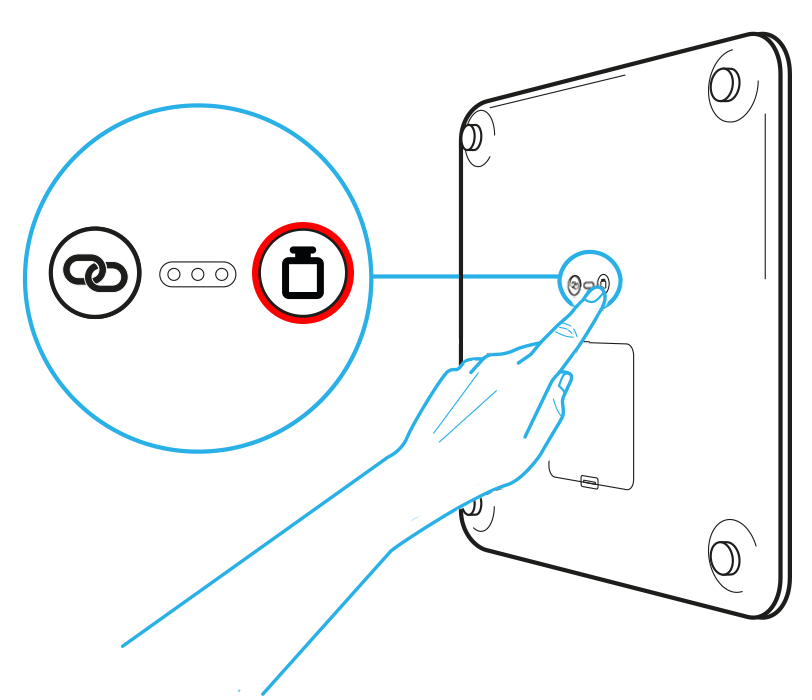
Wi-Fi enabled Withings scales like the Body+ and WBS01 can sync directly to the cloud without requiring your phone nearby. When automatic syncing fails, a built-in manual option forces an immediate data upload.
Press Back Button for 8 Seconds
To force a sync on any Wi-Fi-enabled Withings scale:
- Step on the scale barefoot and wait for your weight to display
- As soon as the measurement ends, press and hold the button on the back of the scale
- Hold it for 8 full seconds
- Look for a spinning icon or Wi-Fi symbol indicating the scale is attempting to sync
If successful, your latest measurement will appear in the Health Mate app within minutes. This method bypasses normal timing delays and forces an immediate upload of stored data.
Works on: Withings Body+, Body Scan, WBS01
Does not work on: Bluetooth-only models that require phone proximity
Use Scale Diagnostic Mode
If the sync still fails, run a self-test to uncover hidden issues:
- With the scale off, press and hold the back button for 8 seconds
- The display will cycle through diagnostic checks
- If there is a network or hardware problem, you will see an error code starting with 000-XXX such as 000-102
Write down the code and check Withings support site or contact customer service. These codes identify specific problems like Wi-Fi handshake failures, DNS errors, or firmware corruption.
Pro Tip: Some users report that seeing 000-000 means no error. Your scale passed the test.
Reset and Re-Pair Your Withings Scale
When forced syncing does not work, the issue may be corrupted settings. A factory reset clears all network data and lets you start fresh.
Perform a Factory Reset
Follow these steps carefully:
- Remove the batteries from the scale
- Wait at least 60 seconds to drain residual power
- Reinsert the batteries
- Immediately press and hold the back button for 5 to 10 seconds
- Stop when you see a gear icon or Wi-Fi symbol flash on-screen
Your scale is now reset. All user profiles, Wi-Fi passwords, and pairing info are erased.
Warning: After resetting, you must re-add the scale in the Health Mate app.
Reinstall Scale in Health Mate App
To re-pair your scale:
- Open the Health Mate app
- Tap Devices then select your scale
- Choose Dissociate this product
- Go to your phone Bluetooth settings and Forget the scale
- Return to Health Mate and tap Add device then Scale
- Follow prompts to reconnect to Wi-Fi and enter your password
For Android users, ensure the following during setup:
– Location permission set to Allow all the time
– Bluetooth enabled
– Battery optimization turned off for Health Mate
Why location matters: Android uses Bluetooth scanning tied to location services to detect the scale. Without it, background syncing fails.
Fix User Profile and Data Assignment Issues
Even if the scale syncs, data might not show up under your profile, especially in shared households.
Confirm Correct Trigram Display
During weighing, watch the scale screen:
– It should display your 3-letter user ID trigram like ANN or JON
– If multiple IDs flash, stand still until your correct one locks in
Data uploads to the account linked to the selected trigram. If the wrong ID appears, the weight goes to another profile.
Tip: Make sure each household member has a unique body profile set up in Health Mate with accurate height, age, and gender.
Check for Unassigned Measurements
Missing data may not be lost. It could be unassigned:
- Open Health Mate
- Go to Weight then More then Unassigned measurements
- Review any pending weights
- Tap and assign them to the correct user
This happens when the scale detects a new or uncalibrated user. Assigning manually ensures no data is lost.
Optimize Wi-Fi for Reliable Syncing
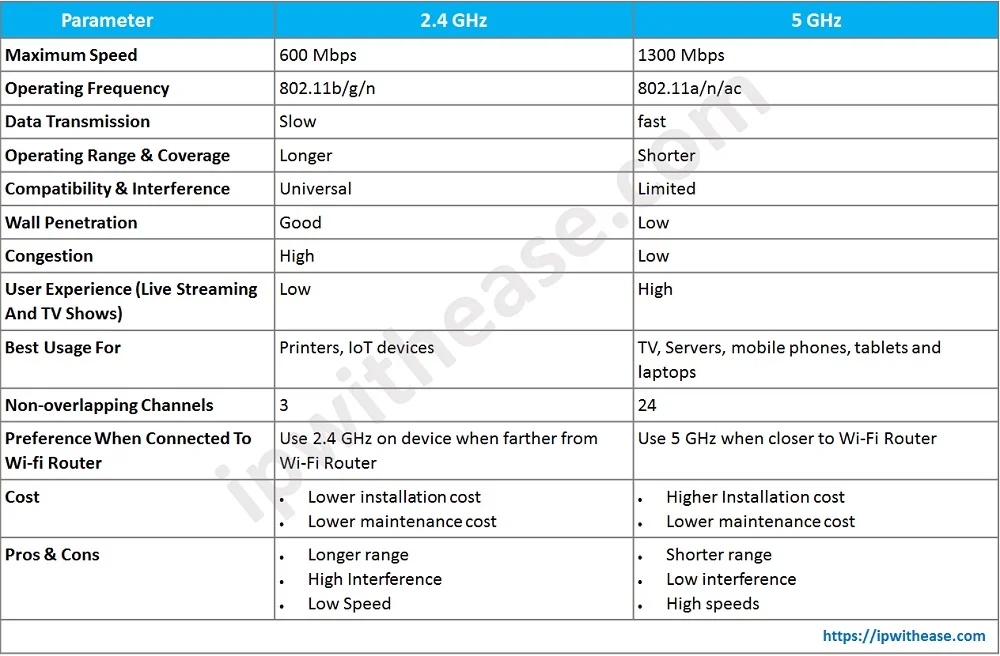
Your home network plays a big role in syncing success. Most Withings scale issues stem from Wi-Fi problems, not the device itself.
Ensure 2.4 GHz Network Compatibility
Withings scales only support 2.4 GHz Wi-Fi. They cannot connect to 5 GHz bands.
- Check your router settings
- If your network uses a combined SSID, split them into two separate networks
- Connect the scale to the 2.4 GHz version only
Signal Strength Tip: Place the scale within 10 feet of your router. Avoid thick walls, metal floors, or appliances like microwaves.
Adjust Router Settings
Some router features block smart scales:
- Reboot your router by unplugging for 30 seconds then restarting
- Disable MAC filtering as it may block your scale unique address
- Turn off firewall restrictions temporarily to allow unknown devices
- Use WPA2-Personal encryption and avoid WEP or open networks
For advanced users: Assign a static IP address to your scale to prevent DHCP conflicts.
Update Software and Firmware
Outdated software is a common cause of sync failures. Keeping everything current ensures compatibility and fixes known bugs.
Update Health Mate App
An old app version may miss data or fail to communicate with servers.
- iOS: Open App Store, search Health Mate, tap Update
- Android: Open Play Store, search Health Mate, tap Update
Current stable version is v7.8 or higher. Regular updates include sync stability improvements, better error reporting, and enhanced Bluetooth handling.
Check Scale Firmware Version
Firmware updates improve performance and fix connectivity bugs.
- In Health Mate, go to Devices then your scale name then Firmware
- If an update is available, the app will prompt you
- Keep the scale powered and within Bluetooth range during installation
Note: Firmware updates happen automatically. No manual trigger exists, but re-pairing the device often initiates pending updates.
Replace Batteries and Test Hardware
Low power can prevent syncing even if the scale turns on.
Monitor Battery Level
In Health Mate:
– Go to Devices then your scale then Battery level
– Replace batteries when below 20 percent
Even working batteries may lack the voltage needed for wireless transmission.
Use High-Quality Alkaline Batteries
Withings recommends 1.5V alkaline batteries such as Duracell or Energizer. Avoid:
– Rechargeable NiMH batteries that output 1.2V
– Expired or off-brand cells
User Report: Some users resolved sync issues by switching from rechargeable to alkaline even with full charge.
Perform Physical Power Reset
Clear internal memory with a hard reset:
- Remove all batteries
- Wait 1 to 2 minutes
- Insert fresh batteries
- Step on the scale to turn it on
This forces a clean boot and can resolve temporary glitches.
Advanced Fixes for Stubborn Sync Problems
When basic steps fail, try these deeper troubleshooting methods.
Clear App Cache and Data on Android
Corrupted local storage can break syncing:
- Go to Settings then Apps then Health Mate then Storage
- Tap Clear Cache then Clear Data
- Reopen the app and log in
- Re-pair the scale
Warning: Clearing data removes preferences and login info. You will need to re-authenticate.
Log Out and Back Into Health Mate
Use this if data appears on the web dashboard but not your phone:
- Open Health Mate
- Tap Profile then Log out
- Close the app completely
- Reopen and log in
This refreshes your session token and re-establishes the connection to Withings servers.
Result: This often pulls in missing data that was already synced to the cloud.
Verify Sync Success
After any fix, confirm your scale is working properly.
Check App for New Measurements
Wait up to 5 minutes after syncing:
– Open Weight then Timeline
– Look for your latest reading
– Check for a Wi-Fi icon or checkmark next to the entry
Cross-Check with Web Dashboard
Visit health.withings.com and log in:
– Compare data with your mobile app
– If data appears online but not on your phone, the issue is device-specific
– If no data anywhere, the problem is scale-to-server transmission
Key Insight: Syncing to the server and syncing to your phone are two separate steps.
Contact Withings Support When All Else Fails
If nothing works, reach out to official support.
Visit https://within.gs/help
Include these details:
– Scale model and serial number found on back label
– Firmware version from app
– Error codes such as 000-102
– List of steps already tried
– Phone model, OS, and app version
– Screenshots of errors or missing data
Support typically responds within 24 to 48 hours, especially when troubleshooting steps are documented.
Key Takeaways for Force Syncing Your Withings Scale
Syncing problems with Withings scales are usually fixable with a combination of button presses, resets, and permission checks. The key is knowing which model you have and following the correct path. Wi-Fi models support manual sync via the back button, while Bluetooth models require phone proximity. Start with the simplest fixes like battery replacement and manual sync triggers before moving to factory resets. Android users must grant location permissions for background sync to work properly. By optimizing your network, keeping software updated, and checking for unassigned measurements, you can maintain seamless health tracking without data gaps.
Frequently Asked Questions About Force Syncing Withings Scale
How do I manually sync my Withings scale?
Step on the scale barefoot, wait for weight to display, then press and hold the back button for 8 seconds. Look for a spinning icon or Wi-Fi symbol indicating sync is in progress.
Why is my Withings scale not syncing to the app?
Common causes include weak Wi-Fi signal, outdated app version, low batteries, incorrect user profile selection, or router security settings blocking the device. Try the manual sync button first, then check battery levels and app permissions.
Does Withings Body+ support manual sync?
Yes. The Body+ supports manual sync by pressing and holding the back button for 8 seconds after weighing. This forces an immediate data upload to the Health Mate app.
What does error code 000-102 mean on my Withings scale?
Error code 000-102 indicates a network or Wi-Fi handshake failure. Check your router connection, ensure you are using 2.4 GHz Wi-Fi, and verify the password is correct.
How do I reset my Withings scale to fix syncing issues?
Remove batteries, wait 60 seconds, reinsert them, then press and hold the back button for 5 to 10 seconds until you see a gear icon. You will need to re-pair the scale in the Health Mate app after resetting.
Can I use rechargeable batteries in my Withings scale?
No. Withings recommends 1.5V alkaline batteries. Rechargeable NiMH batteries output only 1.2V, which may not provide sufficient power for wireless transmission and can cause sync failures.



