
If your Withings scale isn’t turning on, syncing, or recognizing you, you’re not alone. Many users face issues like blank screens, setup failures, inaccurate readings, or data that won’t upload. The good news? Most problems, whether software glitches, connectivity hiccups, or battery issues, can be fixed at home without replacement. This guide gives you step-by-step fixes confirmed by real users and technical troubleshooting workflows. You’ll learn how to revive a dead scale, reset it properly, fix Bluetooth pairing, correct upside-down displays, and ensure accurate body composition readings, all in one place.
Let’s get your scale working again.
Replace Batteries First
Weak or old batteries are the top cause of startup failures with any Withings scale. Even if batteries were changed recently, weak voltage can prevent full boot-up.
Check for Power Failure Signs
Look for these indicators that your scale needs fresh batteries:
- Flickering lights or a brief checkmark that disappears
- No response when stepping on the scale
- Screen goes dark immediately after showing startup graphics
- The “Lo” error message appears
💡 Pro Tip: Some users report revival after replacing “good” batteries with fresh ones. Don’t skip this step even if current batteries seem fine.
Battery Replacement Guidelines
- Use 4 brand-new AAA alkaline batteries
- Avoid rechargeable batteries, as they often don’t provide stable voltage
- Replace every 6 to 12 months, or immediately if the “Lo” error appears
Force Restart a Dead Scale
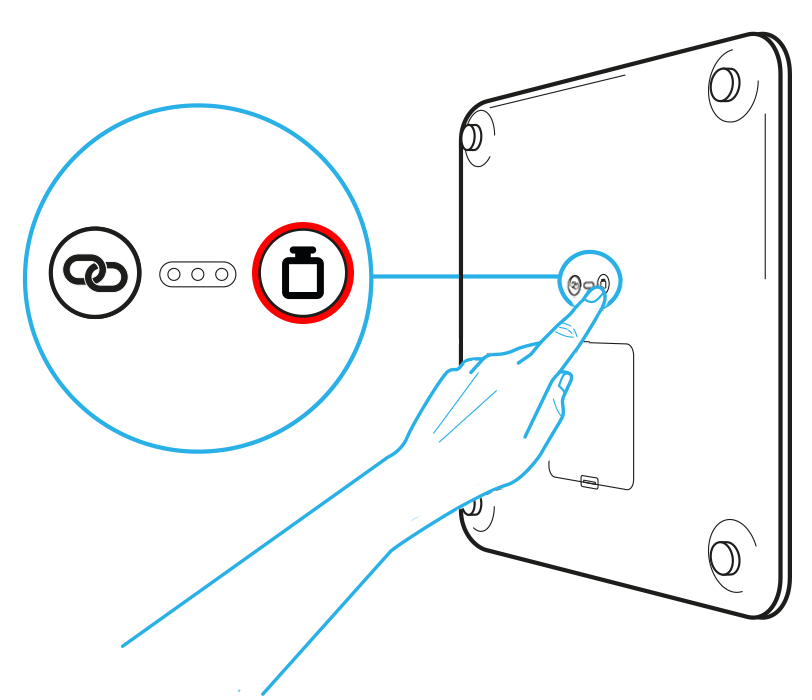
When the scale won’t turn on, a forced restart can revive it. This method bypasses firmware hangs and has revived non-responsive WBS01 and Body+ models.
Hold Reset While Inserting Battery
Follow these steps exactly:
- Turn the scale upside down
- Remove one battery
- Press and hold the reset button (tiny hole on bottom of the scale)
- While holding, reinsert the battery
- Keep pressing for 10 to 15 seconds until the screen flickers or shows symbols
- Release the button
If successful, the scale will boot normally.
⚠️ Warning: If nothing happens, repeat with all batteries removed and wait 30 seconds before trying again.
Fix Upside-Down Display After Restart
A forced reboot can occasionally flip the screen orientation. Here’s how to correct it:
- Remove all batteries from the scale
- Wait 30 seconds completely
- Reinsert batteries and power on
- The display should correct itself automatically
Fix Setup Failed Errors
Stuck in a “Hello!” loop or seeing “Setup Failed”? Here’s how to break it and get your Withings scale connected properly.
Remove Scale from Bluetooth and App
Residual connections block new pairing. You must clear all previous associations:
- Go to your phone’s Bluetooth settings
- Find your Withings scale in the paired devices list
- Tap Forget This Device
- Open the Withings Health Mate app
- Tap Devices > Your Scale > Dissociate This Product > Remove
Now the scale is fully disconnected from your phone and account.
Perform Full Factory Reset
Clear firmware glitches with a hardware reset:
- Turn the scale upside down
- Press and hold the reset button for 8 seconds
- Turn the scale upright. Screen shows
mac,upgrade,reset - Tap the button to highlight reset
- Let the scale restart
- When “Hello!” appears, the reset is complete
Re-Pair the Scale
Set it up fresh after resetting:
- Open the Withings Health Mate app
- Enable Bluetooth and Location services (required on Android)
- Follow the setup prompts on screen
- Step on the scale when asked during pairing
💬 User Hack: If setup still fails, use the battery-insertion reset method from the previous section before re-pairing. This fixes hidden boot issues that standard resets miss.
Fix Bluetooth Sync Problems
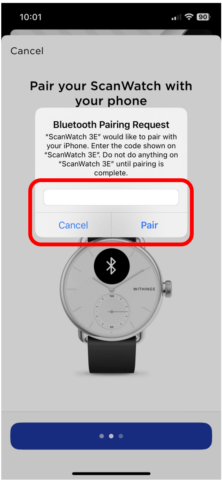
No data syncing to your app? Bluetooth connectivity is likely the culprit. Here’s how to fix Withings scale sync issues.
Ensure Proper Connection Range
- Keep your phone within 3 meters (10 feet) of the scale
- Avoid walls, mirrors, or metal objects between devices
- Don’t use the scale while it’s on carpet, as this can block the signal
Enable Background Sync
Without background access, your data won’t upload automatically:
- iOS users: Go to Settings > Withings > Background App Refresh = ON
- Android users: Go to Battery optimization > Withings app > Set to Unrestricted
Manually Sync Your Scale
Force a data upload when automatic sync fails:
- Open Withings Health Mate app
- Tap the Sync icon (circular arrow button)
- Step on the scale barefoot
- Wait for the confirmation tone and cloud icon to appear
If sync fails repeatedly, dissociate and re-pair the scale using the steps from the previous section.
Restore User Recognition
Withings scale showing “Unknown User”? It can’t identify you properly, which means your data gets mixed up or lost.
Enable Auto Recognition
- Open the Withings Health Mate app
- Go to Devices > Your Scale > Settings
- Turn on Automatic User Recognition
Set Unique Weight Ranges
The scale uses weight to tell different users apart. Each user must have a distinct weight range:
- User 1: 150 to 170 lbs
- User 2: 175 to 195 lbs
Avoid any overlap between users. Update weights in the app if you’ve gained or lost significant weight.
Step Barefoot on Electrodes
Socks, dry skin, or carpet reduce conductivity and prevent accurate user detection:
- Always step barefoot onto the scale
- Ensure full foot contact with the metal electrode pads
- Moisturize dry feet if needed to improve conductivity
Improve Weight and Body Composition Accuracy
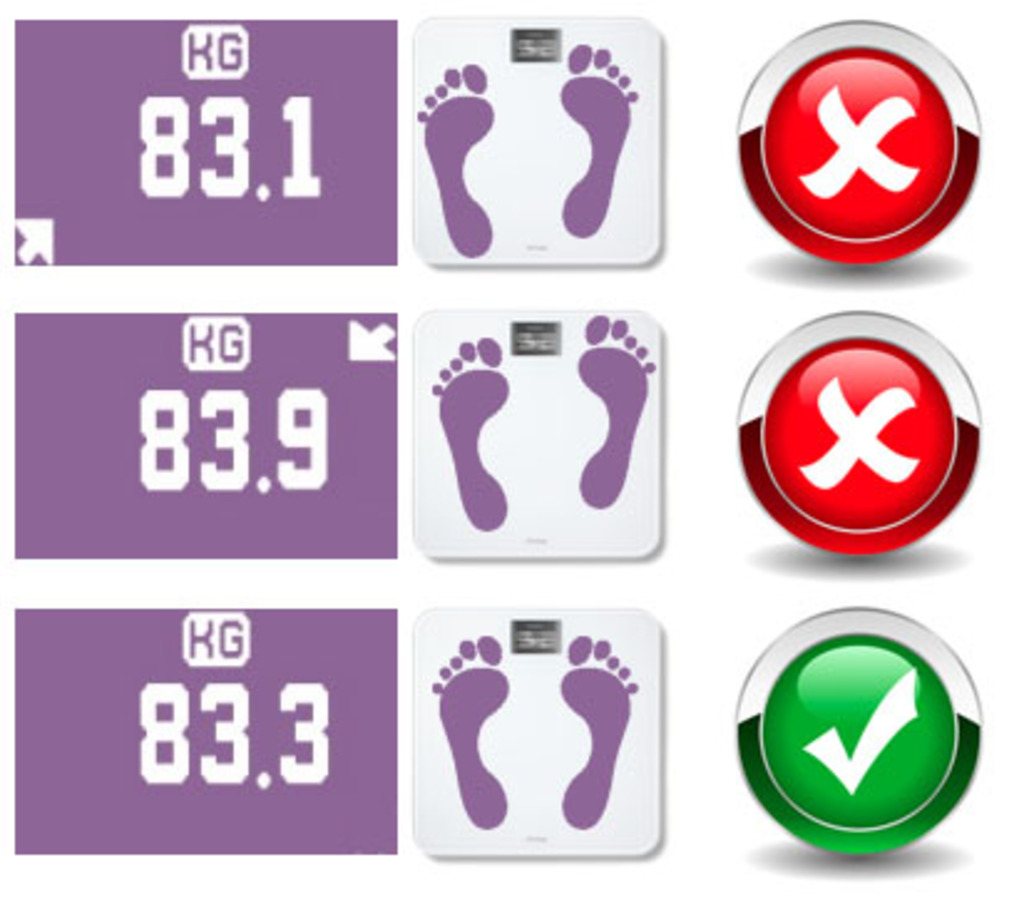
Inaccurate fat percentage, muscle mass, or weight readings? Fix the root causes to get reliable data from your Withings scale.
Place on Hard, Flat Surface
Soft floors cause instability and wrong readings:
- Use the scale on tile, wood, or concrete
- Avoid bathroom mats, rugs, or carpet
- If the “Stb” error appears, reposition on firmer ground
Calibrate the Scale
Recalibrate after moving the scale or replacing batteries:
- Step on briefly. Don’t stand still
- Watch for flashing lines or numbers on the display
- Wait until the display shows steady zero or weight
Ensure Correct Body Composition Setup
BIA (bioelectrical impedance analysis) requires proper configuration:
- In the app, confirm Body Composition is enabled
- Your user profile must include height, age, and gender
- Pacemaker users: The scale disables BIA for safety. You’ll see a “Pac” error, and only weight will show
Clean Electrodes Regularly
Dirt and dead skin block conductivity:
- Wipe the metal pads with a dry or slightly damp cloth
- Do this weekly for best results
- Never use harsh chemicals or submerge the scale
Decode Common Error Messages
Know what errors mean and how to fix them:
Err — General System Error
- Cause: Software crash or sensor fault
- Fix: Perform factory reset. If it persists, contact support
Lo — Low Battery
- Action: Replace all 4 AAA batteries immediately
Stb — Instability Detected
- Cause: Uneven or soft surface
- Fix: Move to hard, level floor and retest
USt — User Not Recognized
- Cause: Weight not matching any profile
- Fix: Set accurate weight ranges and step barefoot
Pac — Pacemaker Mode Active
- Cause: User profile marked with pacemaker
- Result: Body composition disabled for safety. Only weight will show
❗ If errors return after a reset, hardware damage may be present.
Reset Language and Display Settings
Wrong language showing on screen? It’s tied to your phone’s regional settings.
Change Phone Language Before Setup
- Go to your phone’s System Settings > Language
- Switch to your desired language
- Dissociate and re-pair the scale
- During setup, the scale will adopt your phone’s language
Manual Language Selection (Some Models)
During setup, use button taps to navigate:
- Tap to select the language option
- Confirm before pairing completes
Perform a Complete Factory Reset
Use this when selling, transferring, or performing deep troubleshooting on your Withings scale.
Step-by-Step Reset
- Sync all data first. Unsynced entries will be lost permanently
- Forget the device in your phone’s Bluetooth settings
- Dissociate in the Withings app (Devices > Scale > Remove)
- Turn the scale upside down
- Press the reset button for 8 seconds
- When the menu appears (
mac,upgrade,reset), select reset - Wait for “Hello!” to confirm the reset is complete
🔒 Note: This erases all local settings and user data on the device. Make sure you’ve saved everything first.
Maintain Your Scale Long-Term
Keep your Withings scale accurate and responsive for years.
Battery and Storage Tips
- Replace batteries every 6 to 12 months
- Remove batteries if storing longer than one month
- This prevents corrosion and sudden power loss
Cleaning Best Practices
- Wipe the surface with a dry or slightly damp cloth
- Never use bleach, alcohol, or submerge in water
- Clean electrodes weekly for reliable BIA readings
Optimal Placement
- Always use on hard, flat, dry floor
- Avoid high humidity unless your model is rated for it
- Keep away from heaters or cold drafts, as temperature affects sensors
Enable Firmware Updates
Updates improve performance and fix bugs:
- Sync regularly with the Withings app
- Ensure automatic updates are enabled in app settings
When to Contact Withings Support
Some issues can’t be fixed at home. Reach out to Withings support if:
- Scale remains dead after battery and reset attempts
- Glass is cracked or electrodes are damaged
- “Err” or other codes persist after multiple resets
- You’re within the 1-year warranty period
📞 Have ready: Your scale’s serial number (found on the back), proof of purchase, and a detailed description of the issue.
Frequently Asked Questions About Fixing Withings Scales
Why won’t my Withings scale turn on?
The most common cause is weak or depleted batteries. Replace all 4 AAA batteries with fresh alkaline ones. If that doesn’t work, try the forced restart method by holding the reset button while reinserting a battery.
How do I fix a “Setup Failed” error on my Withings scale?
First, remove the scale from your phone’s Bluetooth settings and dissociate it from the Withings Health Mate app. Then perform a factory reset by holding the reset button for 8 seconds. Re-pair the scale fresh with Bluetooth and location enabled.
Why is my Withings scale showing upside-down text?
This usually happens after a forced restart. Fix it by removing all batteries, waiting 30 seconds, then reinserting them. The display should correct itself on reboot.
How do I get my Withings scale to recognize me?
Enable Automatic User Recognition in the app settings. Make sure each user has a unique weight range with no overlap, and always step barefoot on the electrodes for proper conductivity.
Why is body composition not working on my Withings scale?
Body composition (fat%, muscle mass, water%) requires bare feet on the electrodes. Make sure Body Composition is enabled in your app settings, your profile includes height, age and gender, and you have no medical devices like pacemakers (which disable BIA for safety).
How often should I replace batteries in my Withings scale?
Replace batteries every 6 to 12 months, or immediately when you see the “Lo” low battery error. Remove batteries if storing the scale for more than a month to prevent leakage.
Key Takeaways for Fixing Your Withings Scale
Most Withings scale problems are software or battery-related and can be fixed in minutes. Start with fresh batteries and a forced restart, then move through pairing, sync, and calibration steps. Remember to always use the scale on hard, flat surfaces and keep electrodes clean for accurate readings. If you encounter persistent errors like “Err” or “Stb,” try a full factory reset after backing up your data. With proper care, your scale can last years. If all else fails, Withings offers reliable support and replacement options. Keep this guide handy, as it covers every fix you’ll ever need for your Withings scale.



