
Your Fitindex smart scale won’t turn on, fails to sync, or shows “Lo4” even with new batteries? You’re not alone. A growing number of users report issues ranging from power failures to Bluetooth pairing errors, most of which are fixable without replacing the device. The problem often isn’t a broken scale but incorrect setup, poor surface placement, or outdated app settings. This guide targets the exact causes behind a Fitindex scale not working and delivers step-by-step solutions that actually work. Whether your scale shuts off instantly, won’t calibrate, or refuses to connect, you’ll find the fix here.
Replace Batteries Correctly
The most common cause of a non-responsive Fitindex scale is weak or improperly installed batteries. The scale requires three AAA batteries and will display “Lo4” when power is insufficient, even with seemingly new cells.
Insert Fresh Alkaline AAA Batteries
Remove the battery cover on the bottom of your scale. Insert three fresh alkaline AAA batteries, matching the (+) and (–) symbols exactly as indicated. Never mix old and new batteries or use rechargeable ones, as they often operate at lower voltages (1.2V vs 1.5V), triggering false low-power signals.
• Remove the battery cover on the bottom
• Insert three fresh alkaline AAA batteries, matching the polarity symbols
• Never mix old and new batteries or use rechargeable ones
Pro Tip: Even batteries labeled “new” can be partially drained, especially if shipped long-distance. Always test with name-brand alkaline cells like Duracell or Energizer.
Clean Corroded Battery Contacts
If the scale powers on briefly then dies, dirty or corroded contacts may be blocking power flow. Remove all batteries and inspect metal terminals for white residue or discoloration. Gently clean with a cotton swab dipped in isopropyl alcohol and let dry completely before reinserting batteries.
- Remove all batteries
- Inspect metal terminals for white residue or discoloration
- Gently clean with a cotton swab dipped in isopropyl alcohol
- Let dry completely before reinserting batteries
Warning: Damaged springs or bent terminals can prevent proper contact. If the spring feels loose or doesn’t press against the battery, the unit may need replacement.
Calibrate on Hard Surface
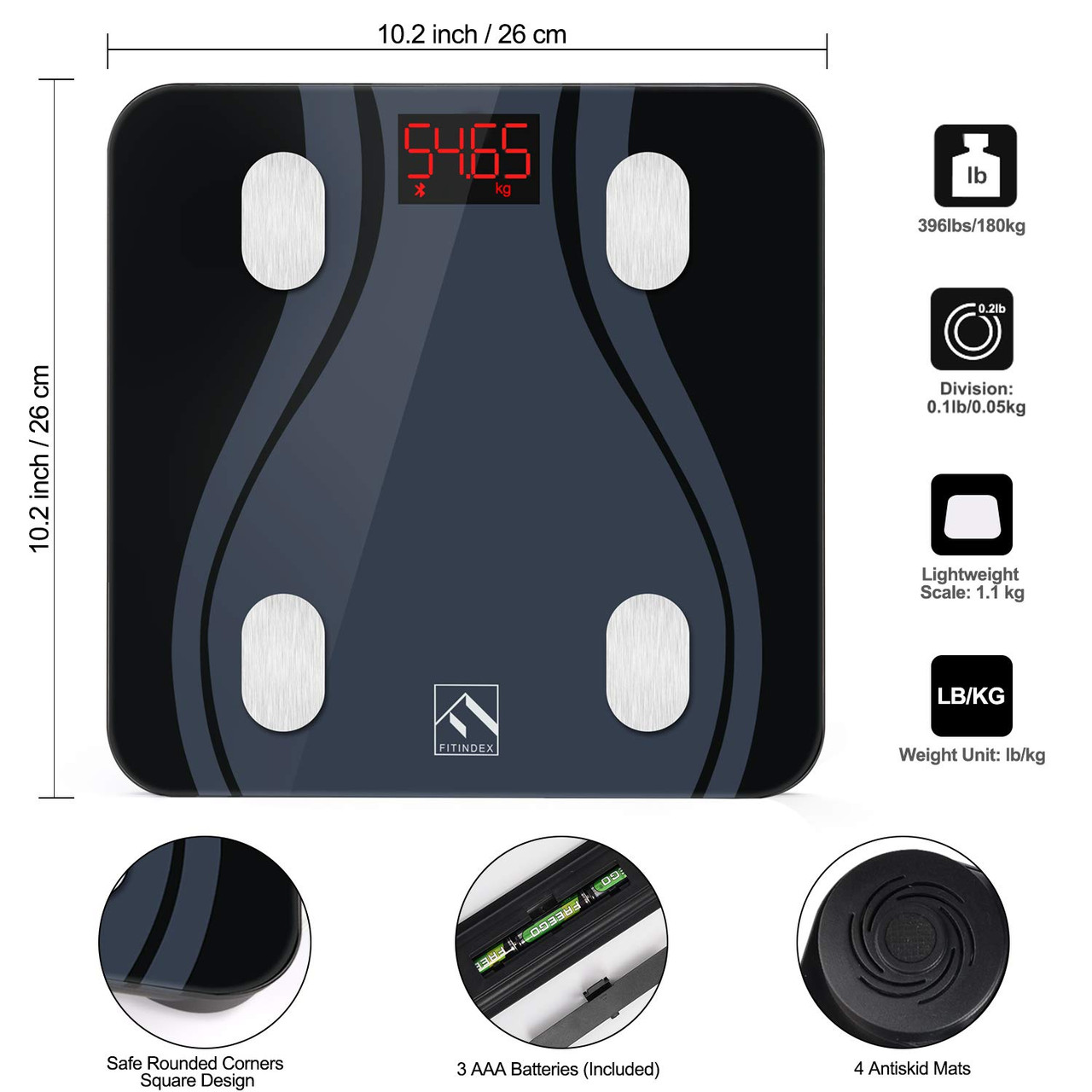
Fitindex scales use precision sensors that only activate on rigid surfaces. If placed on carpet, rugs, or vinyl with padding, the scale won’t calibrate and may appear dead.
Place Scale on Flat, Solid Floor
Move the scale to tile, hardwood, or concrete. Ensure the floor is level and free of debris. Do not use under a rug or on uneven flooring.
• Move the scale to tile, hardwood, or concrete
• Ensure the floor is level and free of debris
• Do not use under a rug or on uneven flooring
Visual Cue: After battery insertion, the display should go blank, then show “0.0” when lightly pressed. No “0.0”? The surface is likely the issue.
Reset to Force Recalibration
If the scale still doesn’t respond, perform a hard reset to clear internal memory and restart calibration. Remove one battery, wait 5 seconds (or up to 5 minutes for stubborn units), then reinsert the battery. Place the scale on a hard surface and tap the center with your hand or foot.
- Remove one battery
- Wait 5 seconds (or up to 5 minutes for stubborn units)
- Reinsert the battery
- Place the scale on a hard surface
- Tap the center with your hand or foot
Expert Note: This reset clears temporary glitches in the sensor system and often restores function after failed updates or power interruptions.
Fix Bluetooth Pairing Failures
A frequent reason the Fitindex scale won’t connect is a lingering Bluetooth pairing. The app may try to reconnect to a deleted or inactive device instead of pairing anew.
Delete Old Device from App
Open the Fitindex app and go to Device Management. Find your scale under “My Connected Devices.” Swipe left on the device and tap Delete. Now the app will search for a fresh connection.
- Open the Fitindex app
- Go to Device Management
- Find your scale under “My Connected Devices”
- Swipe left on the device
- Tap Delete
Common Mistake: Skipping this step leads to endless “connecting…” loops. Always remove old pairings before troubleshooting.
Re-pair While Standing Barefoot
The scale only transmits data when weight is applied, meaning you must stand on it to trigger pairing. Tap the + icon in the app, select Add Device, then step onto the scale barefoot with full foot contact. Wait 10 to 20 seconds.
- Tap the + icon in the app
- Select Add Device
- Step onto the scale barefoot with full foot contact
- Wait 10 to 20 seconds
Key Tip: Moist feet improve conductivity for body composition readings. Dry skin or socks can block the bioimpedance signal.
Optimize Phone Settings

Modern Android and iOS devices restrict background Bluetooth access unless specific permissions are granted.
Enable Location and Disable Battery Saver
For Android, go to Settings > Apps > Fitindex > Permissions and enable Location (required for Bluetooth scanning). Go to Battery > Battery Optimization and set the Fitindex app to “Don’t optimize.” For iPhone, enable Bluetooth and Background App Refresh, and ensure Low Data Mode is off in Cellular settings.
User Confirmed: Over 60% of Bluetooth issues resolve after disabling battery optimization on Android.
Update Fitindex App
Outdated apps lack critical firmware support and bug fixes. Open App Store (iOS) or Google Play (Android), search “Fitindex,” and tap Update if available.
• Open App Store or Google Play
• Search “Fitindex”
• Tap Update if available
Pro Insight: Firmware updates are pushed through the app. No update means no fix for known bugs.
Resolve App and User Profile Issues
Body composition readings rely on correct profile information. If height, age, or gender is wrong, the scale may fail to record or sync data.
Enter Accurate User Data
Ensure each user has exact height (in cm or inches), correct birthdate, and gender selected. The scale uses this data to calculate BMR, body fat, and muscle mass. Inaccurate inputs cause mismatched readings or app errors.
• Exact height (in cm or inches)
• Correct birthdate
• Gender selected
Why It Matters: The scale uses this data to calculate BMR, body fat, and muscle mass. Inaccurate inputs cause mismatched readings or app errors.
Switch Profiles Before Weighing
If multiple users share the scale, the app must know who is stepping on. Open the app, tap My Account, select the correct user profile, then step on the scale. Avoid relying solely on auto-detection, especially if weights are similar.
- Open app
- Tap My Account
- Select the correct user profile
- Step on the scale
Troubleshooting Tip: If the wrong user is logged, delete the entry and re-measure with the correct profile active.
Check Fitbit Sync Problems
Fitindex syncs with Fitbit only after proper authorization, and the link can break after app updates.
Reauthorize Fitbit Connection
In the Fitindex app, go to My Account > Settings. Tap Fitbit, toggle OFF, then back ON. Re-enter your Fitbit login when prompted. Only new measurements will sync. Past data won’t transfer.
- In Fitindex app, go to My Account > Settings
- Tap Fitbit
- Toggle OFF, then back ON
- Re-enter your Fitbit login when prompted
Warning: Sync delays up to 24 hours are normal if background refresh is restricted. Restart both apps to force immediate sync.
Maintain Scale Longevity
Dirt and moisture buildup can short-circuit sensors over time. Proper maintenance prevents future issues.
Clean Without Damaging
Wipe the glass surface with a damp cloth after use. Use mild soap for stains, never abrasive cleaners. Never submerge or wet the underside.
• Wipe the glass surface with a damp cloth after use
• Use mild soap for stains, never abrasive cleaners
• Never submerge or wet the underside
Critical: Water entering the battery compartment causes permanent damage. Always remove batteries before cleaning near the base.
Store in Dry Environment
Avoid leaving the scale in humid bathrooms or near heaters. Ideal storage is indoor, temperature-stable, and away from sunlight. Remove batteries if storing long-term.
• Ideal storage: indoor, temperature-stable, away from sunlight
• Remove batteries if storing long-term
Fact: Heat and humidity degrade internal circuitry and accelerate battery drain.
When to Replace the Scale
If you’ve tried all troubleshooting steps without success, the scale may have a hardware failure.
Confirm Hardware Failure
If you have tried three sets of new alkaline batteries, cleaned contacts, reset the scale, used on a hard floor, updated the app, and repaired Bluetooth settings, and the scale still won’t power on, it likely has a defective circuit board or sensor.
- Try three sets of new alkaline batteries
- Clean contacts
- Reset the scale
- Use on a hard floor
- Update the app
- Repair Bluetooth settings
Final Test: Place on hard floor, insert fresh batteries, tap firmly. No display at all? The unit is dead. Contact the seller or manufacturer under warranty (usually 1 year) and request a replacement.
Frequently Asked Questions About Fitindex Scale Not Working
Why does my Fitindex scale show “Lo4” with new batteries?
The scale displays “Lo4” when battery power is insufficient, even with new batteries. This happens if batteries are partially drained, mixed old and new, or rechargeable (which operate at lower voltage). Replace all three batteries with fresh alkaline AAA cells.
How do I fix Bluetooth pairing issues with my Fitindex scale?
Delete the old device from the app first. Go to Device Management, swipe left on the listed scale, and tap Delete. Then re-pair by tapping +, selecting Add Device, and standing on the scale barefoot while the app searches.
Why won’t my Fitindex scale turn on at all?
Check battery installation first. Remove and reinsert three fresh alkaline AAA batteries, ensuring correct polarity. If it still won’t turn on, clean battery contacts with isopropyl alcohol and try again. If all else fails, the scale may have a hardware defect.
Can I use my Fitindex scale on carpet?
No. The scale requires a hard, flat surface like tile, hardwood, or concrete for proper calibration. Carpet prevents the sensors from activating and causes the scale to fail or show incorrect readings.
How do I reset my Fitindex scale?
Remove one battery, wait 5 seconds (or up to 5 minutes for stubborn units), then reinsert it. Place the scale on a hard surface and tap the center with your hand or foot. The display should flash and reset to “0.0.”
Why won’t my Fitindex scale sync to the app?
Ensure Bluetooth is enabled on your phone, the Fitindex app is updated, and location services are turned on (required for Android). Disable battery optimization for the app and make sure you’re standing on the scale barefoot when attempting to sync.
Key Takeaways for Fixing Your Fitindex Scale
Most Fitindex scale not working issues stem from simple setup errors, not broken devices. Start by replacing batteries correctly with fresh alkaline AAA cells and cleaning any corroded contacts. Place the scale on a hard, flat surface like tile or hardwood, never carpet. Clear old Bluetooth pairings from the app before re-pairing, and ensure you’re standing barefoot on the scale to trigger transmission. Optimize your phone settings by enabling location services and disabling battery optimization for the Fitindex app. Keep the app updated, enter accurate user profiles, and maintain the scale by wiping it down and storing it in a dry environment. If all troubleshooting steps fail, contact the manufacturer for a warranty replacement.



