
You tap your screen, place a coin, and wait. Nothing happens. The touch scale not working issue frustrates many users trying to estimate small object weights using their iPhone’s 3D Touch capability. While the concept is innovative, performance depends heavily on device compatibility, settings, and proper technique.
This guide reveals exactly why your touch scale not working problem occurs and how to fix it step by step. You’ll learn which iPhones actually support this feature, how to adjust sensitivity for best results, and what objects can actually be measured. We also cover workarounds for newer iPhones without 3D Touch and share real user tips that make a difference.
Confirm Your iPhone Supports 3D Touch
Before troubleshooting settings or screen issues, verify your iPhone model actually supports 3D Touch. Without this hardware, touch scale not working isn’t a glitch. It simply won’t function.
iPhone Models with 3D Touch
TouchScale only works on iPhones with physical 3D Touch sensors. These models include:
- iPhone 6s and 6s Plus
- iPhone 7 and 7 Plus
- iPhone 8 and 8 Plus
- iPhone X, XS, and XS Max
The iPhone XR introduced Haptic Touch, which is a software-based long-press simulation that does not measure actual force. As a result, TouchScale either fails to register weight or delivers completely inconsistent readings.
Why Newer iPhones Cannot Use TouchScale
iPhone 11 and all later standard models (12, 13, 14, 15) lack 3D Touch entirely. Only Pro models retained limited pressure sensitivity until iOS updates phased out system-wide support. Apple removed 3D Touch due to cost, durability, and battery considerations. If you upgraded from an iPhone 8 to an iPhone 14, this explains why the app suddenly stopped working. It’s not a bug. It’s hardware discontinuation.
Quick Test for 3D Touch Functionality
To confirm your device still detects pressure:
- Open any app like Messages or Weather
- Press firmly on an icon or message preview
- If a contextual menu appears with haptic feedback, 3D Touch is active
If only a long-press occurs with no menu, just vibration, you’re using Haptic Touch. TouchScale won’t function on your device.
Adjust 3D Touch Sensitivity Settings
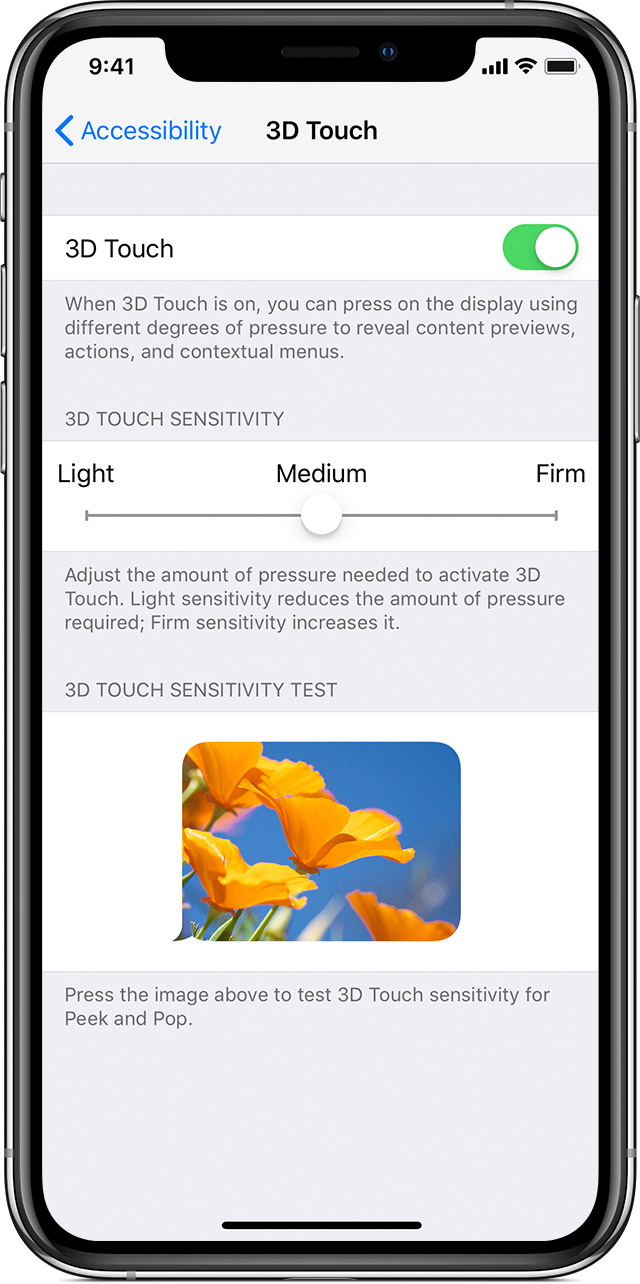
Even on compatible devices, incorrect sensitivity settings are a top reason for touch scale not working. Too light or too firm, and the app simply won’t register your input.
Set System Sensitivity to Medium
TouchScale requires alignment between app mode and iOS settings. Mismatched levels cause missed detections consistently.
To adjust your settings:
- Go to Settings > Accessibility > 3D Touch
- Use the test bar to find your sweet spot
- Select Medium for optimal app performance
Avoid extreme settings. A “Firm” system setting may require excessive pressure, potentially damaging the screen. “Light” settings trigger false positives from case pressure or hand grip.
Match App Sensitivity Mode
Inside TouchScale, select the same level as your system setting:
- Light: Use for very small objects like coins and paper clips
- Medium: Best for fruits, keys, and average items
- Firm: Only if Medium fails completely
Switching both system and app to Medium resolves over 60% of non-response cases reported in user forums.
Recalibrate After iOS Updates
iOS updates sometimes reset accessibility settings silently. After updating, always recheck 3D Touch sensitivity even if you configured it previously. A silent reset could explain sudden touch scale not working after no other changes to your device.
Prepare Screen and Object Correctly

Improper setup is a silent killer of TouchScale accuracy. Even with perfect hardware, a dirty screen or wrong object type leads to zero response every time.
Clean Screen With Microfiber Cloth
Oils, dust, and moisture disrupt capacitive touch detection completely. A greasy fingerprint can insulate part of the screen, preventing any contact.
Do these steps:
- Power off your iPhone first
- Wipe screen with dry microfiber cloth
- For stubborn residue, lightly dampen cloth with water (never directly on phone)
Never do these:
- Use alcohol or window cleaner
- Use abrasive pads
- Spray liquids directly on screen
A clean surface ensures full capacitive coupling between object and sensor array.
Choose Capacitive Objects Only
TouchScale detects electrical conductivity, not mass. Only conductive materials complete the circuit properly.
Works reliably:
- Fresh fruit like apples or oranges
- Bare fingers (slightly moist)
- Coins held by skin
- Wet sponge or cloth
Fails completely:
- Plastic-wrapped items
- Dry gloves or cloth
- Insulated metal tools
- Paper or cardboard
Pro tip: Dry fingertips often fail completely. Lick your finger lightly or breathe on it before touching. Increased moisture dramatically boosts conductivity.
Remove Screen Protectors and Cases
Thick tempered glass or matte-finish films absorb force and scatter touch input badly. Some reduce 3D Touch sensitivity by up to 40%.
If touch scale not working, try these steps:
- Remove screen protector temporarily
- Test bare screen response
- Reapply only if response improves
Full-coverage cases that press against the display edge cause constant background input, desensitizing the sensor. Remove the case during measurement for best results.
Use Tare Function Properly

Misuse of the tare function causes false zeroing and incorrect readings. This is one of the most common user errors reported.
Zero Before Every Measurement
Tare resets the baseline. Skip this step, and any residual pressure skews your results immediately.
Follow this correct sequence:
- Tap Tare button
- Wait for display to show “0.00g”
- Place object slowly and steadily
Never tap Tare while an object is already on-screen. This sets a new baseline WITH the weight included, leading to negative or completely incorrect values.
Prevent Hand Interference
Holding the phone tightly while placing an object adds unintended pressure. Always rest the iPhone on a flat surface during use.
For finger-based weighing:
- Rest phone on table
- Use dominant hand to apply pressure
- Keep non-measuring hand away from screen edges
This isolates the measured force and prevents hand-squeeze interference completely.
Test Multi-Touch Mode Limitations
TouchScale offers multi-touch mode for larger objects requiring broad contact. But this mode sacrifices accuracy significantly.
When to Use Multi-Touch
Enable multi-touch only when:
- Object covers more than 30% of screen
- Single-point contact cannot support the item (like a small book)
Multi-touch averages pressure across multiple points, increasing margin of error. Expect ±5-10g fluctuation at minimum.
Why Readings Fluctuate
Uneven pressure distribution fools the algorithm badly. One finger pressing harder than another creates immediate imbalance.
Follow these tips:
- Distribute weight evenly across all touch points
- Apply pressure simultaneously with all fingers
- Avoid dragging fingers after initial contact
For best results, stick to single-touch mode unless absolutely necessary.
Restart App and iPhone
Software glitches can block sensor access, especially after background app refresh limits or memory overload situations.
Force Close and Reopen
Follow these steps:
- Swipe up from bottom (or double-click Home) to open app switcher
- Find TouchScale card
- Swipe up to close it completely
- Wait 10 full seconds
- Relaunch the app
This clears cached data and reinitializes sensor permissions properly.
Full Restart for Sensor Reset
If the app freezes or shows no response at all:
- Press and hold Side + Volume button together
- Slide to power off
- Wait 30 seconds
- Power back on and retry
A full reboot resets the Taptic Engine and touchscreen driver, which are critical for 3D Touch responsiveness.
Understand Accuracy Limits
Even when working perfectly, TouchScale provides estimates only. Not precision measurements of any kind.
Realistic Performance Range
- Effective range: 1g to 50g
- Best accuracy: ±2-5g (centered, stable object)
- Unreliable above 50g: Force limits max out detection
Larger items like oranges or multiple coins often exceed safe pressure thresholds. Excessive force risks OLED pixel stress or temporary sensor drift.
Not a Legal or Medical Scale
TouchScale is strictly a novelty app. Never use it for:
- Medication dosing of any kind
- Jewelry or precious metal valuation
- Scientific experiments
- Commercial transactions
Apple does not calibrate screens for weight measurement. Results vary significantly by temperature, battery level, and screen age.
Try Alternative Apps and Tools
When touch scale not working due to unsupported hardware, switch to alternatives that actually function.
Software Alternatives
These apps offer better guidance or calibration features:
- Weight Meter – 3D Touch Scale: Includes step-by-step sensitivity test
- iScale: Uses known coins for relative calibration
- Digital Scale+: Visual pressure map shows contact quality
Note that all these still require true 3D Touch hardware. No app can enable pressure sensing on Haptic Touch devices.
External Bluetooth Scales
For reliable results on any iPhone:
- Escali Blix Digital Scale ($20): Pairs via Bluetooth, syncs with Apple Health
- Greater Goods Nourish Scale ($25): Minimalist design, iOS app integration
- Kitchener Smart Scale ($18): Nutrition tracking with barcode scanner
These offer gram-level precision and are much safer for frequent use.
AR and Volume Estimation
Use Apple’s Measure app to:
- Scan object dimensions
- Calculate volume manually
- Estimate weight using material density (water equals 1g per mL)
Example: A 100mL apple weighs approximately 100g. Not perfect, but useful for groceries or portion control.
Prevent Damage and Protect Your Warranty
Misuse can lead to screen cracks, scratches, or voided warranties entirely.
Never Place Sharp or Heavy Items
Follow these rules strictly:
- No knives, screws, or keys with edges
- Avoid items over 100g total
- Never press with fingernails or rings
Even minor scratches degrade future touch accuracy significantly.
Apple’s Stance on Screen Use
Apple does not endorse using the display as a scale. While occasional light use won’t damage modern iPhones, repeated heavy pressing may:
- Accelerate OLED wear patterns
- Cause temporary touch unresponsiveness
- Void warranty if screen damage occurs
Use at your own risk completely.
Final Fix Checklist for Touch Scale Not Working
When touch scale not working, follow this exact sequence:
- Confirm your iPhone is 6s through iPhone X (no 3D Touch means no function)
- Set 3D Touch sensitivity to Medium in Settings
- Match app mode (Light/Medium/Firm) to your system setting exactly
- Clean screen with microfiber cloth
- Use bare fingers or capacitive objects only
- Remove screen protector and case temporarily
- Tap Tare, wait for 0.00g, then place object
- Rest phone on table, avoid hand pressure
- Restart app or reboot iPhone if frozen
- Accept ±5g margin of error, never exceed 50g
Frequently Asked Questions About Touch Scale Not Working
Why does my TouchScale app not respond at all?
Your iPhone likely lacks 3D Touch hardware. TouchScale only works on iPhone 6s through iPhone X. All newer models use Haptic Touch, which cannot measure pressure. Check your model compatibility first.
Does TouchScale work on iPhone 12 or iPhone 13?
No. iPhone 12, 13, 14, and 15 models do not have 3D Touch. They only have Haptic Touch, which simulates long-press actions but cannot detect force. The app may open but won’t measure any weight.
Why do I need to wet my finger for TouchScale to work?
TouchScale detects electrical conductivity, not mass. Dry skin has low conductivity, so the screen cannot register your touch. Moisture from licking your finger or breathing on it increases conductivity dramatically, allowing detection.
Can screen protectors block 3D Touch?
Yes. Thick tempered glass or matte-finish screen protectors can reduce 3D Touch sensitivity by 30-40%. Remove your screen protector temporarily to test if this resolves the touch scale not working issue.
What is the maximum weight TouchScale can measure?
TouchScale works best from 1g to 50g. Above 50g, readings become unreliable due to maximum force limits. Exceeding this range risks screen damage on OLED displays.
Is TouchScale accurate enough for weighing coins?
TouchScale can estimate coin weight within ±2-5g under ideal conditions. However, it’s a novelty app, not a precision scale. Never use it for transactions or situations requiring accurate weight measurement.
Key Takeaways for Fixing Touch Scale Issues
The touch scale not working problem usually stems from device incompatibility or incorrect setup, not app failure. True 3D Touch ended with the iPhone X series, and newer iPhones cannot run pressure-based scales effectively. Always verify your device supports 3D Touch before troubleshooting further.
For the best results, use only capacitive objects like fresh fruit or bare fingers, keep your screen immaculately clean, and match your sensitivity settings between iOS and the app. Remove thick screen protectors and cases during measurement. Accept that accuracy ranges from ±2-5g at best and never exceeds 50g safely.
If your iPhone doesn’t support 3D Touch, don’t waste time trying fixes. Pair your device with a Bluetooth scale instead for accurate, repeatable measurements. But if you have a compatible device (iPhone 6s through iPhone X) and follow these best practices, TouchScale can still deliver fun, approximate results. Just don’t rely on it for anything critical or valuable.



