You just unboxed your new Withings smart scale and want to start tracking your weight and body composition. Setting up a Withings scale is designed to be quick and intuitive, yet many users hit snags during pairing, Wi-Fi connection, or multi-user setup. Whether you own a Withings Body, Body+, Body Cardio, Body Smart, or Body Scan, this guide walks you through every step from battery insertion to syncing with Apple Health.
We’ll cover model-specific differences, avoid common setup traps like forgetting to remove the activation tab, and show you how to customize your display, add family members, and troubleshoot issues. By the end, your scale will be fully operational and ready for daily use.
Remove Plastic Activation Tab Before Setup
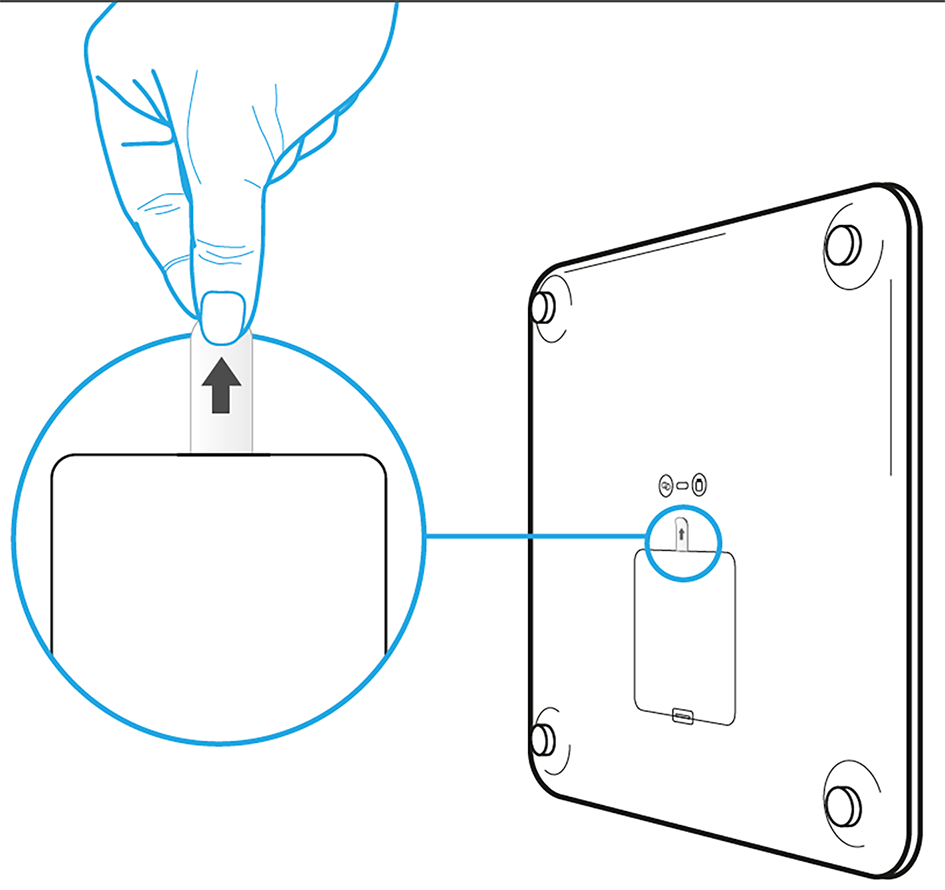
Before turning on your scale, check the battery compartment for a small plastic tab, especially if you have a Body or Body+ model.
Why This Step Matters
The plastic tab blocks the internal circuit and prevents the scale from powering on. If you skip this step, your phone won’t detect the scale during setup, leading to frustrating “scale not found” errors. This is one of the top reasons users struggle with initial setup.
How to Remove the Tab
Flip the scale over and open the battery cover. Pull out the plastic strip between the batteries, then close the compartment securely. Only remove the tab when you’re ready to set up, as it cannot be reinserted once removed.
Install Batteries and Power On Your Scale
Withings scales run on four AAA batteries, which are included with most models.
Battery Installation Steps
Insert batteries according to the plus and minus markings inside the compartment. Use alkaline or lithium batteries and avoid rechargeable options, as lower voltage may cause accuracy issues. Replace the battery door firmly.
Power On the Scale
Press and hold the pairing button for three seconds until the screen lights up. The button location varies by model: Body and Body+ have it on the back, Body Cardio and Body Smart on the side, and WS-30 on the top edge.
What you should see depends on your model. Body and Body+ show “SET UP” or weight display. WS-30 shows a QR code with “Open Withings App.” Body Smart displays “HELLO” after setup. Wait up to 60 seconds for the app to detect the device.
Download and Launch the Health Mate App
The Withings Health Mate app is essential for setup, user management, and long-term tracking.
Install the App
Open the App Store on iOS or Google Play on Android. Search for “Health Mate” and download the app. Open it and tap Get Started.
On Android, ensure Location permissions are enabled, as Bluetooth scanning requires it.
Start Device Setup
Tap Join Withings or Start Installing My Device. Select Scales, then choose your specific model: Body, Body+, Body Cardio, Body Smart, or Wireless Scale WS-30. Selecting the correct model ensures the proper setup flow and firmware compatibility.
Pair Your Scale Via Bluetooth
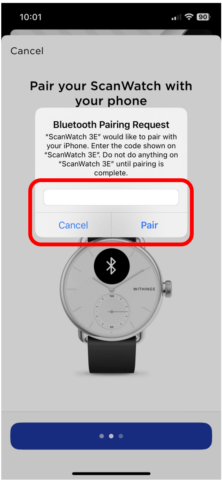
Once the app detects your scale, Bluetooth pairing begins automatically.
Standard Pairing Process
A popup appears asking to pair with your scale name. Tap Pair or Connect, then tap Next in the app to proceed.
WS-30 Exception
The WS-30 displays a six-digit code on the screen. Enter this code manually in the app and tap Pair. Newer models like Body+ and Body Smart pair without codes.
Create Your Withings Account
If this is your first time using Withings, you need to create an account.
Required Information
Provide a valid email address and create a password. You also need to enter your first and last name, date of birth, height, biological sex, and time zone. Target weight is optional but recommended.
These details are critical for accurate body composition calculations using Bioelectrical Impedance Analysis.
Finalize Account Setup
Tap Allow to grant app permissions. Press and hold the scale button for three seconds to confirm, then tap Next and Pair. Your account syncs data across devices and supports up to eight users.
Connect to 2.4 GHz Wi-Fi Network
Wi-Fi enables automatic syncing after each weigh-in, so you never need to open the app manually.
Wi-Fi Setup Options
Choose Quick Setup to auto-connect using your phone’s current network. Use Manual Entry if Quick Setup fails. Scan QR Code for re-setup or shared networks. Select No Wi-Fi to enable Bluetooth-only mode, though data will only sync when you open the app.
Avoid 5 GHz networks, as Withings scales only support 2.4 GHz Wi-Fi.
During Connection
Firmware updates install automatically and take one to two minutes. The screen may show progress like “1/4” or “2/4.” Do not move or step on the scale during this update.
Success is confirmed when the screen changes from “SET UP” to “HELLO 1.”
Customize Display and Set Goals
After setup, personalize what appears on your scale screen.
Choose Visible Metrics
On Body+ and Body Smart models, go to Devices, select your scale, then Display Settings. Choose which metrics to show: weight, body fat percentage, muscle mass, bone mass, water percentage, BMI, BMR, metabolic age, visceral fat, weather, or target weight.
Reorder metrics using drag-and-drop or toggle them on and off. Tap OK when finished.
Set Your Target Weight
In your Profile, enter your target weight. It appears on the scale or in the app as motivational feedback to help you stay on track.
Take Your First Measurement Correctly
Now that setup is complete, take your first reading with proper technique for accurate results.
Steps for Accurate Results
Stand on the scale barefoot, as socks block the BIA electrical current. Place feet on the metal electrodes and stand still without shifting or looking down. Wait three to five seconds until the display flashes or beeps, then step off. Data syncs automatically via Wi-Fi.
For best trend tracking, weigh yourself daily at the same time, ideally in the morning after using the bathroom.
Add Family Members or Child Profiles
One Withings scale supports up to eight users, perfect for couples, families, or roommates.
Add an Adult User
In Health Mate, tap Devices, select your scale, then Share Device. Tap Invite a Relative and choose your method: email, SMS link, QR code, or direct app invite. The user accepts via their own Health Mate app.
Each adult should have their own account for privacy and data control.
Create a Child Profile
Tap Create a Child Profile and enter the child’s name and date of birth. Add an optional photo and confirm guardianship, then tap Declare. Children under 16 are managed by the primary user.
Manage and Remove Users
Need to edit or delete a user? Here’s how.
Edit or Delete a User
Go to Devices, select your scale, then Share Device. Choose the user and select either Edit Profile to update details or Remove User to delete them.
Archive Data Before Deletion
When you delete a user, an email is sent with a seven-day link to download their data. Click Save this data, start the archive, and download as a CSV file. To undo deletion, click “It’s a mistake, please reactivate” in the email.
Attach Carpet Feet If Needed
Using the scale on thick carpet? Use the included carpet feet for stability.
Peel off the protective tabs and press onto the peg mounts on the bottom of the scale. Ensure full contact with the floor to prevent wobbling and inaccurate readings on soft surfaces.
Troubleshoot Common Setup Issues
Even with careful setup, problems can occur. Here’s how to fix them fast.
Scale Not Detected
Bluetooth may be off, location access denied, or the plastic tab still in place. Enable Bluetooth and Location on Android, remove the activation tab, and restart both the app and your phone.
Wi-Fi Connection Fails
You may have entered the wrong password or used a 5 GHz network. Re-enter your Wi-Fi password, ensure you’re using a 2.4 GHz network, and move the scale closer to your router.
Stuck on SET UP or HELLO 1/4
Firmware may have frozen or residual pairing exists. Forget the scale in your phone’s Bluetooth settings, remove and reinstall the device in the app, or power cycle by removing batteries for 30 seconds.
Inconsistent Readings
Wet feet, socks, or uneven stance cause inaccurate results. Dry feet thoroughly, stand barefoot and centered, and recalibrate after moving the scale.
No Body Composition Data
Your user profile may be incomplete. Ensure height, age, and sex are entered in the app, then retake the measurement.
Maintain Accuracy Over Time
Your scale stays reliable with simple maintenance.
Regular Cleaning
Wipe the glass surface with a damp cloth and avoid harsh cleaners or submersion. Clean foot pads regularly to maintain sensor conductivity.
Replace Batteries
Batteries last 12 to 18 months under normal use. A low battery icon appears when replacement is needed. Use alkaline or lithium batteries and avoid rechargeable ones.
Keep Firmware Updated
Firmware updates install automatically via Wi-Fi. Keep the app open occasionally to trigger checks. Updates improve accuracy, security, and features.
Sync With Apple Health, Google Fit, and More
Automatically share data with your favorite fitness apps.
Enable Integrations
Open Health Mate, go to Settings, then Connected Services. Tap Apple Health, Google Fit, MyFitnessPal, Strava, or Samsung Health. Toggle on sync for weight, BMI, BMR, and other metrics.
Data flows seamlessly without manual entry.
Use Special Modes for Specific Needs
Tailor your experience with built-in modes.
Athlete Mode
This mode adjusts BIA calculations for people with high training volume over eight hours per week and low resting heart rate under 60 bpm. Enable it in Device Settings.
Eye-Closed Mode
This mode hides numerical weight and shows only trend arrows. It’s ideal for eating disorder recovery. Turn it on in Device Settings.
Weight-Only Mode
This mode disables the BIA electrical current. It’s required for users with pacemakers, ICDs, or other implanted medical devices. It’s safe and compliant with medical device guidelines.
Pregnancy Mode
This mode tracks progress, offers nutrition tips, and visualizes changes. Access it via the Pregnancy section in the app.
Final Setup Checklist
Verify everything is working with this checklist.
Remove the plastic tab from Body or Body+ models. Install four AAA batteries. Download and update the Health Mate app. Create a Withings account with your full profile. Enable Bluetooth and complete pairing. Connect to 2.4 GHz Wi-Fi. Confirm firmware updated successfully. Customize your display with preferred metrics. Take your first barefoot measurement. Verify data appears in the Health Mate app. Add additional users up to eight total. Enable Apple Health or Google Fit sync.
Get Support If Needed
Still having issues? Withings offers reliable help.
Support Resources
Visit the Help Center at support.withings.com or contact Customer Support. Support hours are Monday through Friday, 3:00 AM to 10:00 PM EST. You get a one-year limited warranty when you register in the app. Video guides are available for setup, sharing, and troubleshooting.
For persistent issues, a factory reset or device reinstall often resolves problems.
Key Takeaways for Setting Up Your Withings Scale

Setting up a Withings scale takes less than 15 minutes when you follow the right steps. From removing the activation tab to connecting to Wi-Fi and syncing with Apple Health, each action ensures accurate, automatic tracking. Once configured, your scale works silently in the background, recording weight, body fat, muscle mass, and more. Keep it on a hard, flat surface, weigh daily at the same time, and let the data tell your health story over time. If you encounter issues, the troubleshooting steps cover most common problems, and Withings support is available seven days a week.
Frequently Asked Questions About Setting Up a Withings Scale
How long does it take to set up a Withings scale?
The full setup process takes 10 to 15 minutes, including account creation, Bluetooth pairing, Wi-Fi connection, and firmware updates. First-time users may need an additional few minutes to customize display settings.
Can I use a Withings scale without Wi-Fi?
Yes, you can use Bluetooth-only mode. The scale will store up to 16 readings offline and sync when you open the Health Mate app near the scale. However, Wi-Fi is recommended for automatic syncing.
Why is my Withings scale not being detected?
Common causes include Bluetooth being turned off, Location permissions disabled on Android, or the plastic activation tab still in place. Remove the tab, enable Bluetooth and Location, then restart the app.
How do I add another person to my Withings scale?
Open Health Mate, go to Devices, select your scale, then tap Share Device. Choose Invite a Relative and send an invitation via QR code, email, or SMS. The new user accepts via their own app.
Do I need to remove the plastic tab on all Withings scales?
No, only Body and Body+ models have a plastic activation tab. Body Cardio, Body Smart, Body Scan, and WS-30 do not require this step.
What Wi-Fi network does a Withings scale require?
Withings scales only support 2.4 GHz networks, not 5 GHz. Ensure your Wi-Fi is set to 2.4 GHz during setup, or the connection will fail.