
Setting up your Fitbit Aria scale transforms your bathroom into a smart health hub that automatically tracks weight, body fat, and BMI every time you step on. Whether you have the original Aria or the newer Aria 2, getting started takes just a few minutes when you know exactly which steps to follow. This guide covers everything from confirming your Wi-Fi network type to adding up to eight household members, so your entire family can benefit from automatic body composition tracking.
The process differs slightly between models: the original Aria uses a computer-based setup tool, while the Aria 2 pairs entirely through the Fitbit mobile app. Both require a 2.4 GHz Wi-Fi network and careful attention to password entry. Let’s walk through each phase of setup to ensure your scale connects reliably and begins syncing data to your Fitbit dashboard right away.
Prepare Your Environment for Successful Setup
Before powering on your scale, verify that your home network and physical location support reliable connectivity. The Fitbit Aria series demands specific conditions to function properly, and skipping this preparation leads to the most common setup failures.
Confirm Your Wi-Fi Network Type
The Fitbit Aria and Aria 2 connect exclusively to 2.4 GHz Wi-Fi networks, never to 5 GHz or Ethernet connections. Most modern routers broadcast both bands under a single network name, but you must select the 2.4 GHz option during setup. Check your router settings or look for “2.4G” or “2.4GHz” in your available networks list. If your router separates the bands with different names, ensure you choose the lower frequency option.
Keep your router within 10 to 15 feet of the scale location with minimal obstructions. Thick walls, mirrors, and metal objects interfere with the signal and cause sync failures.
Gather Required Materials
Collect these items before starting your setup process. You will need four AA batteries, your smartphone for Aria 2 or a computer with USB access for the original Aria, your Wi-Fi password, and the email addresses of everyone who will use the scale. Place the scale on a hard, flat surface such as tile or hardwood. Never place it on carpet, rugs, or uneven flooring, as this affects both accuracy and connectivity.
Install Batteries and Power On
Flip your scale over and locate the battery compartment on the underside. Insert four AA batteries, matching the positive and negative symbols exactly. If your scale came with pre-installed batteries, check for a plastic pull-tab that must be removed before the batteries will make contact. Close the compartment securely once the batteries are in place.
The display will briefly flash once powered on, indicating the scale is ready for configuration. For the original Fitbit Aria, you now need to manually enter setup mode before proceeding.
Initialize Setup Mode on Fitbit Aria
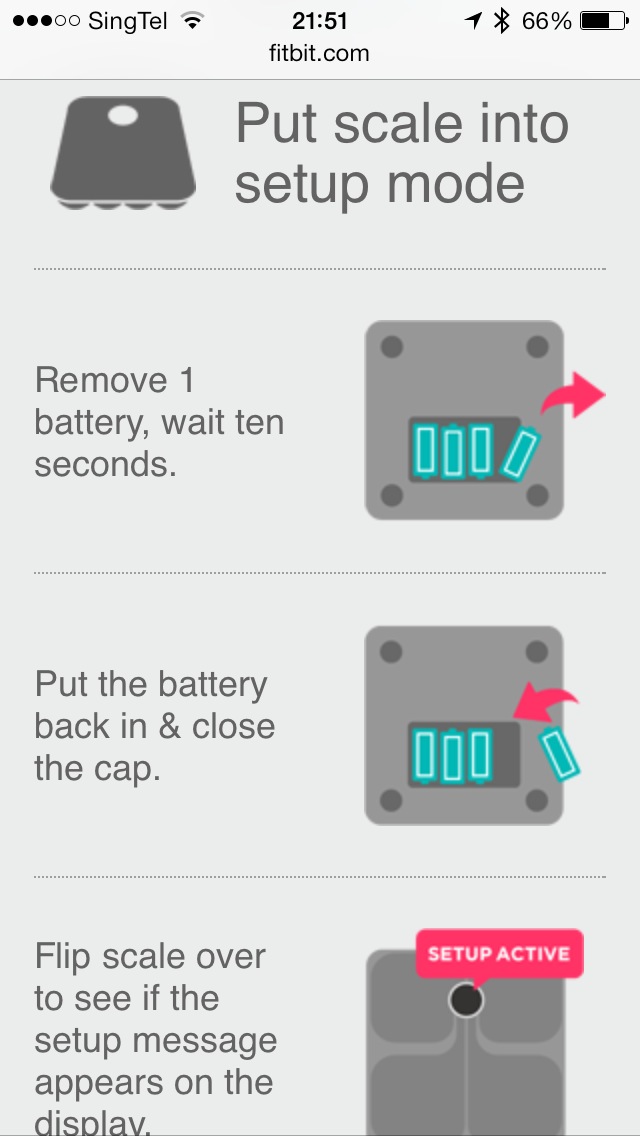
The original Aria requires a specific activation sequence to enter setup mode. This step is unnecessary for Aria 2, which enters setup automatically when detected by the app.
Remove one battery from the compartment and wait exactly ten seconds. Reinsert the battery, then quickly press the corners of the scale with your fingers. The display should show “Setup Initialized,” confirming the scale is ready for Wi-Fi pairing. If this message does not appear, repeat the process with fresh batteries.
Connect Original Aria Using Computer
The original Fitbit Aria requires the desktop setup utility to configure Wi-Fi and user accounts. Visit fitbit.com/scale-setup on your Windows or Mac computer and download the appropriate installer file for your operating system.
Launch the installed application and sign in with your Fitbit account or create a new one. Select “Add up to 8 users” when prompted, then enter a custom name for your scale such as “Bathroom Scale” to help identify it in your account. Choose your 2.4 GHz Wi-Fi network from the list and enter your password carefully, noting that it is case-sensitive. Wait for the connection confirmation before proceeding.
Set Up Fitbit Aria 2 with Mobile App
The Aria 2 uses the Fitbit app exclusively, eliminating the need for a computer. Download the Fitbit app from the App Store or Google Play, ensure Bluetooth is enabled on your phone, and open the app to sign in.
Tap the account icon in the top right corner and select “Set up a new device.” Choose “Aria 2” from the device list. Step on the scale barefoot to power it on, then enter the four-digit code that appears on the scale display into the app. Select your 2.4 GHz Wi-Fi network and enter your password to complete the connection. A green checkmark on the scale display confirms successful pairing.
Add Multiple Users to Your Scale
Both Aria models support up to eight household members. During or after setup, select “Add user” or “Invite additional users” and enter the email address linked to each person’s Fitbit account. Invited users receive an email with instructions to accept the invitation and complete their profile setup.
Once configured, the scale automatically recognizes users based on weight patterns after just two or three weigh-ins. No manual selection is required during daily use. To remove a user, open the app, navigate to Account, select your scale, tap “People,” and remove the individual. Removing the final user triggers a factory reset that unlinks the scale from all accounts.
Manage Scale Settings Through the App
After setup, adjust preferences anytime through the Fitbit app. Navigate to Account, select your scale, and choose from available options including renaming the scale, switching between pounds and kilograms, checking battery status, and reconnecting to Wi-Fi if you change networks.
Battery life typically spans six to twelve months with regular use. The app displays real-time battery levels and alerts you when replacement is needed. Use alkaline AA batteries rather than rechargeables, as the lower voltage from rechargeables can cause sync issues.
Understand Your Health Metrics
Your Fitbit Aria automatically tracks weight, BMI, body fat percentage, and lean mass on the Aria 2 model. Weight displays in your selected units, while BMI calculates from your height profile setting. Body fat percentage uses bioelectrical impedance to estimate composition through a safe signal passed through your feet.
View all metrics in the Today tab of the Fitbit app under the Weight and Body Fat sections. Track progress through daily logs, weekly averages, and monthly graphs to monitor weight loss, muscle gain, or hydration changes over time.
Troubleshoot Common Setup Problems
Wi-Fi connection failures are the most frequent issue during setup. Most problems stem from accidentally selecting a 5 GHz network or entering the password incorrectly. Double-check that you are choosing the 2.4 GHz band and re-enter your password carefully, ensuring caps lock is off and special characters match exactly.
If connection fails repeatedly, restart your router by unplugging it for thirty seconds, then remove and reinstall the scale batteries. Wait one minute before attempting the setup again. For Aria 2 specifically, ensure Bluetooth is enabled on your phone and that location services are turned on, as Android requires this for Bluetooth detection.
Inaccurate readings often result from placing the scale on carpet or uneven surfaces. Always use a hard, flat floor and clean the glass surface weekly with a dry or slightly damp microfiber cloth. Recalibrate after moving the scale by stepping on gently until “0.0” appears, then stepping off.
Maintain Your Scale for Long-Term Accuracy
Clean the tempered glass surface weekly to prevent oils and residue from interfering with bioelectrical impedance measurements. Store the scale in a dry area and avoid humid bathroom environments when possible.
Replace batteries promptly when the app alerts you. Mark your calendar when installing new batteries to track lifespan, expecting six to twelve months of use. The Aria 2 receives automatic firmware updates when connected to Wi-Fi and near a logged-in Fitbit app.
Key Takeaways for Setting Up Your Fitbit Aria Scale
:max_bytes(150000):strip_icc()/FitbitAria2step-5ae7d66f18ba01003764eece.jpg)
Successful setup requires confirming your 2.4 GHz Wi-Fi network before beginning and choosing the correct setup method for your model. The original Aria needs the computer-based utility from fitbit.com/scale-setup, while the Aria 2 pairs entirely through the mobile app using Bluetooth and a four-digit code. Adding multiple users expands tracking to eight household members with automatic recognition after just a few weigh-ins. Keep your scale on a hard, flat surface, replace batteries annually, and weigh yourself at the same time each morning for consistent results.
Frequently Asked Questions About Setting Up Fitbit Aria Scale
Why won’t my Fitbit Aria connect to Wi-Fi during setup?
The scale only connects to 2.4 GHz networks, not 5 GHz. Verify you are selecting the correct band and re-enter your password carefully, as it is case-sensitive. Restart both your router and scale if problems persist.
Do I need a computer to set up Fitbit Aria 2?
No, the Aria 2 uses the Fitbit mobile app exclusively. Download the app, enable Bluetooth, and follow the in-app instructions to pair using the four-digit code displayed on the scale.
How many users can use one Fitbit Aria scale?
Both Aria and Aria 2 support up to eight household members. Each user must have their own Fitbit account and accept an invitation to sync their data separately.
What happens if I remove all users from my Fitbit Aria?
Removing the last user triggers a factory reset that unlinks the scale from all accounts and clears all settings. You will need to repeat the setup process from scratch.
How do I fix inaccurate weight readings on my Fitbit Aria?
Place the scale on a hard, flat surface rather than carpet. Clean the glass surface with a dry microfiber cloth and recalibrate by stepping on gently until “0.0” displays, then stepping off.
Can I use rechargeable batteries in my Fitbit Aria scale?
Alkaline AA batteries are recommended. Rechargeable batteries may output lower voltage, which can cause sync issues and unreliable performance.



