
Is your digital scale showing a blank screen, flickering numbers, or erratic readings? You are not alone. A malfunctioning display can turn the most accurate scale into a useless device. The good news: most digital scale display problems are fixable without replacing the entire unit. Most issues stem from simple causes like dead batteries, calibration drift, or environmental interference rather than permanent hardware failure. This guide walks you through proven troubleshooting steps to revive your display, whether it is a bathroom scale, kitchen scale, or precision lab scale.
Power Reset and Soft Reboot
A frozen or unresponsive display often results from a temporary software glitch. A simple power reset clears the scale memory and restores normal operation.
Perform a Soft Reset
- Turn off the scale using the power button if functional.
- Remove all batteries or unplug from AC power.
- Wait 30 seconds to 5 minutes to discharge internal capacitors.
- Reinsert fresh batteries or reconnect power.
- Power on the scale.
This process is similar to rebooting a smartphone. It works effectively for flickering, frozen, or non-responsive displays. If the scale shows 0.0 and responds to weight after the reset, recalibrate it for accuracy.
Replace Batteries and Clean Contacts
Low or unstable power is the most common cause of display failure. Even if batteries appear functional, weak voltage can prevent proper screen operation.
Install Fresh Batteries
- Open the battery compartment on the underside or back.
- Remove old batteries.
- Check for white or green corrosion on metal contacts.
- Dip a cotton swab in isopropyl alcohol and scrub contacts gently.
- Let dry completely for 10 to 15 minutes.
- Insert new CR2032 coin cells, which are standard in most digital scales.
- Ensure correct polarity with plus to plus and minus to minus.
Do not mix old and new batteries because this causes voltage imbalance and can damage circuitry. If the scale remains unresponsive, test with a different battery or AC adapter if supported.
Fix Flickering or Dim Display
A dim or flashing screen usually indicates unstable power delivery or moisture exposure.
Diagnose Power Instability
- Replace batteries even if they test okay because digital scales need steady voltage.
- Check the battery compartment for bent or corroded contacts.
- Avoid cheap or expired batteries because they deliver inconsistent current.
Address Moisture Damage
This problem is common in bathroom scales.
- Remove batteries immediately.
- Wipe the exterior with a dry cloth.
- Place the scale in a dry, warm room for 24 to 48 hours.
- Use a dehumidifier to speed up drying.
- Never use a hairdryer or oven because heat can warp plastic and damage internal components.
If the display returns after drying, moisture was the culprit.
Repair Partial or Missing Digits

Seeing only half of a number indicates segment failure. The LCD is partially disconnected from its connection.
Test for Loose Connection
- Gently press on the LCD surface.
- If digits appear fully when pressed, the flex connector is loose.
Re-Seat the Ribbon Cable
- Power off and remove batteries.
- Open the housing using a small Phillips screwdriver.
- Locate the ribbon cable connecting the LCD to the motherboard.
- Carefully unplug and reinsert the cable, ensuring it clicks into place.
- Reassemble and test.
Do not force the connector. If the cable is torn or frayed, replace the cable or LCD module. If the issue returns, the LCD or motherboard may need replacement.
Resolve Frozen or Unresponsive Display
A static screen that ignores button presses is typically a software lockup.
Force a Hard Reset
- Remove power by taking out batteries or unplugging.
- Wait 1 minute.
- Reconnect power.
- Immediately press and hold TARE or ZERO for 10 seconds, or use a hidden reset button if present.
- Wait for the display to reset to 0.0.
Some models require a button sequence such as pressing 1 plus TARE. Consult your manual for specific instructions. If the scale responds after reset, recalibrate to restore accuracy.
Recalibrate After Display Fixes

Any power interruption or physical shock can throw off calibration, even if the display works properly.
Enter Calibration Mode
- Place the scale on a hard, level surface.
- Turn on and wait for 0.0 to appear.
- Press CAL or MODE until CAL shows on the display.
- Add a certified calibration weight such as 10 kg for bathroom scales or 500 g for kitchen scales.
- Wait for confirmation, which may be a beep or flashing display.
- Remove the weight. The scale should return to zero.
No CAL Button? Try Hidden Mode
- Open the base panel.
- Locate two small metal calibration pins near the battery compartment.
- Use a wire to short the pins together.
- Power on while shorting. The display should show CAL.
- Release and proceed with weight input.
Validate by placing a known weight such as 500 g and confirming the exact reading.
Decode and Fix Error Codes
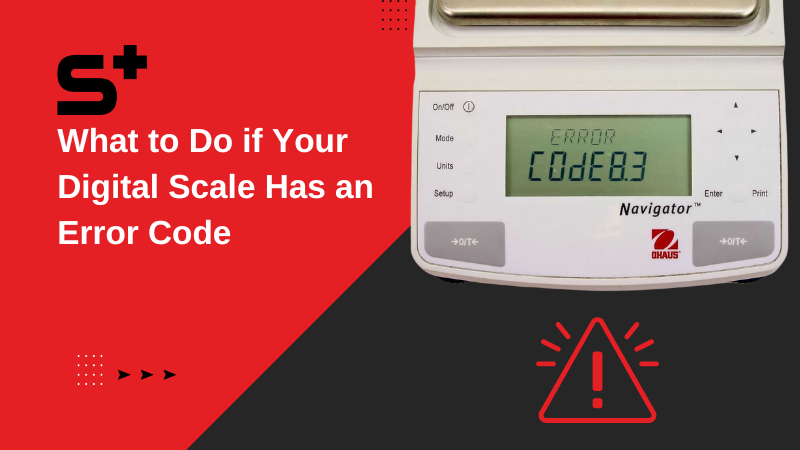
Digital scales use error codes to signal specific problems. Do not ignore them.
Common Error Messages and Fixes
| Code | Meaning | Solution |
|---|---|---|
| O-Ld, Err, EEEEE | Overload | Remove weight. Never exceed maximum capacity. |
| Lo, BAT | Low battery | Replace batteries and clean contacts. |
| UnSt, Err 4 | Unstable surface | Move to a hard, level floor. Avoid rugs. |
| CAL E, Err 1 | Calibration failed | Recalibrate on a stable surface with correct weight. |
| -O-Ld, L | Underload or pan not seated | Reinstall platform and press TARE. |
Overloading damages load cells permanently. Always follow weight limits.
Optimize Placement and Environment
Even a perfectly working scale can display inaccurately due to surroundings.
Use a Stable Surface
- Place on tile, wood, or concrete. Never place on carpet or uneven floors.
- Ensure the surface is level. Use a bubble level if needed.
- Keep 3 feet away from air vents, windows with drafts, and sources of electromagnetic interference like microwaves, phones, and motors.
Reduce Vibrations
Foot traffic or HVAC systems cause fluctuating readings. Use an anti-vibration mat for lab or industrial scales.
Clean Under the Platform
Debris like dust, hair, or dirt can block sensor contact points, causing erratic behavior.
Remove Obstructions
- Turn off and unplug the scale.
- Gently lift the platform if it is removable.
- Use compressed air or a soft brush to clean underneath.
- Wipe contact points with a dry cloth.
- Reassemble and recalibrate.
Clean monthly for best performance.
Diagnose Keypad and Button Issues
Unresponsive buttons prevent access to TARE, CAL, or unit settings, impacting display function.
Test Keypad Response
- Enter calibration mode.
- Press each button and watch for on-screen feedback.
- If no response, clean the membrane keypad with isopropyl alcohol.
- Re-seat the flex cable connecting to the motherboard.
- Replace the keypad assembly if damaged.
Sticky keys often result from moisture or debris under the buttons.
Inspect Internal Hardware
When all else fails, check for physical damage, but only if the warranty allows.
Check Key Components
- Battery contacts: Are they bent or corroded?
- Fuses on AC models: Use a multimeter to test continuity.
- Ribbon cables: Re-seat or replace if loose or damaged.
- Power button: Is it stuck or cracked?
Opening the unit may void the warranty. Do so only if out of warranty or approved by the manufacturer.
Prevent Future Display Problems
Avoid repeat issues with simple maintenance habits.
Maintenance Best Practices
- Replace batteries annually even if they are not dead.
- Clean contacts quarterly.
- Recalibrate every 3 to 6 months or after drops.
- Store properly by removing batteries during long-term storage.
- Use certified weights and never use coins or household items.
Keep a small packet of silica gel inside the battery compartment to absorb moisture.
When to Replace the Scale
Some problems cannot be fixed. Know when to upgrade.
Signs of Permanent Damage
- Blank display after battery and reset fixes
- Cracked screen or internal water damage
- Persistent CAL E or Err codes
- Inaccurate readings despite multiple recalibrations
Choose a Reliable Replacement
Look for precision of ±0.1 lb or ±0.1 kg, tempered glass platform that resists cracking, and Bluetooth syncing for health tracking. Trusted brands include Taylor, Conair, Weight Watchers, and GE.
Final Checklist: Fix in Under 10 Minutes
- Replace batteries
- Clean battery contacts
- Perform soft reset with 30+ seconds power off
- Place on hard, level surface
- Recalibrate with proper weight
If the display still fails, inspect internal connections or consider replacement.
Frequently Asked Questions About Digital Scale Display
Why does my digital scale display keep flickering?
Flickering usually indicates unstable power. Replace the batteries even if they appear functional because digital scales require steady voltage. Check for corroded battery contacts and clean them with isopropyl alcohol. If the problem persists, the scale may have moisture damage. Dry it in a warm room for 24 to 48 hours.
How do I fix a digital scale showing partial digits?
Partial digits mean the LCD is partially disconnected. Gently press on the LCD surface. If digits appear fully when pressed, open the housing and re-seat the ribbon cable connecting the display to the motherboard. Replace the cable if it shows visible damage.
What does error code O-Ld mean on my scale?
O-Ld means overload. Remove weight immediately and do not exceed the maximum capacity listed in your manual. Overloading can permanently damage the load cells. If the code persists after removing weight, try recalibrating the scale on a stable surface.
Can I recalibrate my digital scale at home?
Yes, most digital scales can be recalibrated at home. Place the scale on a hard, level surface, turn it on, and press CAL or MODE until CAL appears. Add a certified calibration weight and wait for confirmation. Remove the weight and verify accuracy with a known weight. Some models require accessing hidden calibration pins on the motherboard.
Why is my digital scale display blank even with new batteries?
A blank display despite fresh batteries usually indicates corroded contacts, a blown fuse in AC models, or internal hardware damage. Clean the battery contacts thoroughly with isopropyl alcohol. Check the fuse with a multimeter if your scale uses AC power. If nothing works, the motherboard or LCD may need replacement.
How do I fix a frozen digital scale that won’t respond?
Force a hard reset by removing all power sources. Wait one minute, then reconnect power. Immediately press and hold the TARE or ZERO button for 10 seconds. If there is a hidden reset button, use that instead. If the scale still does not respond, the keypad or motherboard may be faulty.
Key Takeaways for Fixing Your Digital Scale Display
Most digital scale display problems stem from simple power, calibration, or environmental issues rather than permanent hardware failure. Start with battery replacement and contact cleaning, then perform a power reset to clear software glitches. Recalibrate after any power interruption or physical shock. Optimize placement by using a hard, level surface away from vibrations and electromagnetic interference. Regular maintenance including annual battery changes, quarterly contact cleaning, and periodic recalibration ensures long-term accuracy and reliability. Keep this guide handy for quick fixes whenever your scale acts up. If the display remains unresponsive after all troubleshooting steps, the internal hardware may be damaged and replacement is the best option.



