
Unboxing a new smart scale excites you about tracking your health, but figuring out how to connect Qardio scale to your phone can feel confusing. The good news is that the entire setup process takes most users less than 10 minutes, and the Qardio App guides you through each step. This guide covers everything from downloading the app to troubleshooting common connection issues, so you can start tracking your weight, body composition, and progress right away.
Download and Install the Qardio App
The Qardio App serves as the control center for your smart scale, storing all your measurements and providing insights into your body composition. Before pairing your Qardio scale, you need to install the official app on your smartphone or tablet.
Get the App for Your Device
Download the Qardio App from the official app store for your operating system. The app is available on iOS devices running iOS 10.0 or later through the App Store, and on Android devices with Android 5.0 or higher and Bluetooth 4.0 support via Google Play. Kindle Fire users can find the app in the Amazon Appstore if their device supports Bluetooth 4.0.
Create Your Account
Open the app and tap Sign Up to create your account using your email address or a social media account. During setup, enter your personal details including height, age, gender, and optionally your target weight. These details help the app calculate accurate body composition metrics like BMI and body fat percentage.
Enable Bluetooth and Prepare Your Phone
Bluetooth connectivity is essential for wireless communication between your phone and the Qardio scale. Without Bluetooth enabled, the app cannot detect or pair with your device.
Enable Bluetooth on Your Device
Navigate to your phone’s Settings and turn on Bluetooth. Make sure no other Qardio devices are currently paired with your phone to avoid confusion during the setup process. Close any background apps that might interfere with Bluetooth signals before proceeding.
Launch the Qardio App
Open the Qardio App after enabling Bluetooth. You must complete your profile setup before you can pair the scale. The app will prompt you through the initial configuration, including entering your personal details that enable personalized body composition analysis.
Power On and Pair Your Qardio Scale
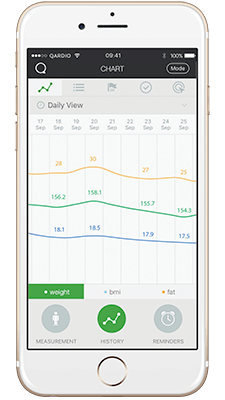
With the app ready and Bluetooth enabled, you can now connect your Qardio scale to your phone. The pairing process uses Bluetooth Low Energy for a fast, secure, and energy-efficient connection.
Activate the Scale
Step barefoot onto the QardioBase scale to power it on automatically. The LED display will illuminate when the scale activates, and first-time users will enter setup mode automatically. You do not need to press any buttons to turn the scale on.
Start Pairing in the App
In the Qardio App, tap Add Device or follow the on-screen onboarding prompt. Wait for QardioBase to appear in the list of nearby devices, then tap to select it. No PIN or password is required for pairing. Confirm the connection when prompted, and the app will display a success message once paired. The entire pairing process typically takes 30 to 60 seconds.
Set Up User Profiles and Measurement Preferences
Personalizing your experience ensures accurate tracking and makes daily weigh-ins more motivating. After pairing, take a moment to configure your profile settings.
Assign Your Profile and Choose Units
Link the scale to your user account by selecting your preferred units of measurement. You can choose between pounds (lb), kilograms (kg), or stones (st). Select your default measurement mode, which can be Full Body Composition for complete analysis, Smart Feedback to see only a smiley face, or Weight Only for pacemaker users.
Enable Helpful Features
Turn on Haptic Feedback in the app settings to receive vibration confirmation after each measurement. Activate Smart Feedback Mode if you prefer to see only a smiley indicator rather than specific numbers, which helps reduce stress around daily weight fluctuations. If you are pregnant, enable Pregnancy Mode to track weekly weight gain and upload bump photos to document your journey.
Configure Multi-User Mode for Family Sharing
One QardioBase scale supports up to eight users, making it perfect for families, couples, or roommates who want to share a single device.
How Automatic Recognition Works
The scale identifies users automatically based on their weight range and usage patterns. When someone steps on the scale barefoot, the device recognizes who they are and syncs data directly to the correct app profile. No manual selection or buttons are required.
Tips for Accurate User Recognition
Maintain at least a 4 to 5 pound difference between users for reliable automatic recognition. Delete inactive profiles from the scale to improve detection accuracy. If the scale misidentifies a user, manually select the correct profile in the app after weighing, and the system will learn from this correction over time.
Ensure Automatic Wireless Sync
Once connected properly, your Qardio scale transmits data to the app automatically after each measurement. Understanding how syncing works helps you get the most from your device.
How Wireless Sync Functions
Measurements transmit via Bluetooth Low Energy directly to your phone. Data appears instantly in the Qardio App as soon as you step off the scale. If you log into the same account on multiple devices, your data syncs to the cloud and becomes available across all your devices.
Conditions for Reliable Sync
Keep your phone within 3 feet of the scale during weighing for consistent connectivity. Allow the Qardio App to run in the background rather than force-closing it. Ensure Bluetooth stays enabled on your phone at all times.
Connect to Apple Health and Samsung Health
Integrating with major health platforms centralizes all your fitness and wellness data in one place.
Link to Apple Health
Open the Qardio App and navigate to Settings, then select Apple Health. Toggle on the categories you want to sync, including weight, BMI, body fat, muscle mass, water percentage, and bone mass. Data flows automatically to Apple Health without any manual input, and the integration works seamlessly with Apple Watch and other Apple health apps.
Connect to Samsung Health
Go to Settings in the Qardio App and select Samsung Health. Enable sync for all body metrics to ensure bi-directional data flow between Qardio and Samsung Health. Both integrations update in real time whenever you take a new measurement.
Optimize Measurement Accuracy
Getting reliable results depends on how you use the scale. Following best practices ensures your data remains consistent and actionable.
Best Practices for Accurate Readings
Stand barefoot on the scale since socks block the bioimpedance signals needed for body composition analysis. Keep your feet clean and dry before stepping on the scale. Measure at the same time each day, preferably in the morning after using the bathroom and before eating. Avoid weighing yourself immediately after exercise, showering, or consuming a large meal.
Understanding Bioimpedance Technology
The QardioBase uses Bioelectrical Impedance Analysis to measure body composition. The scale sends a safe, low-level electrical current through your body via your bare feet. By measuring resistance to this signal, the device calculates your body fat percentage, muscle mass, water content, and bone mass.
Important: Do not use bioimpedance mode if you have a pacemaker or implantable cardioverter defibrillator. Use Weight Only Mode instead for safe operation.
Troubleshoot Connection Problems
Even with reliable design, occasional issues may arise. Here is how to fix common problems quickly.
Scale Not Detected by the App
If your phone cannot find the Qardio scale, try restarting Bluetooth on your device, then close and reopen the Qardio App. Step on the scale to wake it from sleep mode before attempting to pair again. For a more thorough reset, remove the batteries from the scale for 10 seconds and reinsert them. Ensure you are within 3 feet of the scale during pairing and avoid thick carpets or conductive flooring that may interfere with signals.
Sync Fails or Data Does Not Appear
If measurements are not syncing to the app, first confirm that Bluetooth is enabled and the app has background refresh permissions. Update the Qardio App to the latest version from the App Store or Google Play. Re-pair the device if syncing problems persist. Opening the app before stepping on the scale helps prepare for sync and reduces delays.
Wrong User Identified
When the scale confuses between users, manually select the correct profile in the app after measurement to train the system. Delete old or unused profiles to reduce confusion. Ensure each user maintains a weight difference of at least 4 to 5 pounds for clearer automatic recognition.
Haptic Feedback Not Working
If vibration confirmation is not working, verify that Haptic Feedback is enabled in the Qardio App settings. Replace the batteries if vibration feels weak or delayed, using only alkaline batteries rather than rechargeable ones, which often underperform.
Maintain Your Qardio Scale
Regular care keeps your device running accurately for years.
Battery Life and Replacement
The QardioBase runs on 4 AAA batteries that are included in the box. Under normal use of 1 to 2 daily measurements per user, batteries typically last up to 12 months. Replace batteries with high-quality alkaline cells, as rechargeable batteries may cause syncing issues due to lower voltage. A slow startup or dim LED display indicates low battery.
Cleaning and Placement
Wipe the scale surface with a damp cloth and avoid harsh cleaners. Never submerge the scale or expose it to water. Place the scale on a hard, flat surface for accurate measurements, as carpet can affect calibration. Avoid storing the scale in humid bathrooms unless the room is well-ventilated.
Firmware Updates
The QardioBase receives over-the-air firmware updates through the Qardio App. These updates improve performance, fix bugs, and add new features. When prompted, keep the app open and stay near the scale during the update process.
Frequently Asked Questions About Connecting Qardio Scale
Why is my Qardio scale not connecting to my phone?
Bluetooth connectivity issues usually stem from the phone being too far from the scale, Bluetooth being disabled, or interference from other devices. Try restarting Bluetooth, closing and reopening the app, and ensuring you are within 3 feet of the scale during pairing.
Do I need Wi-Fi to connect my Qardio scale?
No, the Qardio scale connects via Bluetooth, not Wi-Fi. However, you need an internet connection for the app to sync data to the cloud and integrate with Apple Health or Samsung Health.
How many users can use the same Qardio scale?
One QardioBase supports up to 8 unique user profiles. The scale automatically recognizes each user based on weight and usage patterns.
Can I use the Qardio scale without the app?
The scale can display weight numbers on its LED display without the app, but you need the Qardio App to access body composition data, track trends over time, and sync with health platforms.
Is the Qardio scale safe for people with pacemakers?
Yes, but you must use Weight Only Mode instead of Full Body Composition mode. The bioimpedance technology sends electrical currents through the body, which may interfere with pacemakers. Weight Only Mode disables this feature while still tracking weight and BMI.
Key Takeaways for Connecting Your Qardio Scale
Connecting your Qardio scale is a straightforward process that unlocks powerful health-tracking capabilities. Download the Qardio App, enable Bluetooth, step on the scale to activate it, and follow the in-app prompts to pair. Once connected, the scale automatically syncs weight and body composition data to your phone, where you can track trends, set goals, and integrate with Apple Health or Samsung Health.
For the best experience, weigh yourself daily at the same time in the morning, keep your app updated, and take advantage of features like Smart Feedback Mode to reduce anxiety around numbers. With proper setup and consistent use, your Qardio scale becomes a valuable tool for achieving your long-term health and fitness goals.



