
If your Omada scale isn’t turning on, showing error codes like Er2, Er4, Er5, or Er6, or displaying “Sent” without syncing weight data to your account, you’re not alone. These are the most common issues users face with this cellular-enabled smart scale. The good news is that most problems can be resolved in under 15 minutes without professional help. This guide walks you through every fix, from battery replacement to signal optimization, so you can get your scale working again fast.
Fix Power and Battery Issues First
A non-responsive Omada scale almost always stems from battery problems. The device runs entirely on AA alkaline batteries, making power issues the top culprit behind startup failures.
Replace Batteries Correctly
Start by swapping out the batteries, even if they seem fine. Low-voltage cells prevent the scale from powering up or completing calibration.
- Remove all 3 or 4 AA batteries from the compartment on the back.
- Wait at least 10 minutes to fully discharge residual power and reset internal memory.
- Insert new alkaline AA batteries, ensuring correct +/- polarity alignment.
- Use Duracell for best performance. Rechargeable batteries often fail because they output 1.2V instead of the required 1.5V.
Never use rechargeable batteries. They provide insufficient voltage for reliable startup or data transmission.
Clean Battery Contacts
Corrosion or dirt on the contact points can block power flow entirely.
- Wipe terminals with a dry cloth or cotton swab.
- Check for rust or residue, cleaning gently if present.
- Ensure batteries fit snugly and make solid contact.
If the scale still won’t turn on after fresh batteries and cleaning, try activating it on a hard, flat surface like tile or hardwood. Press the center firmly with one foot, then step off immediately to trigger startup.
Decode and Fix Error Codes
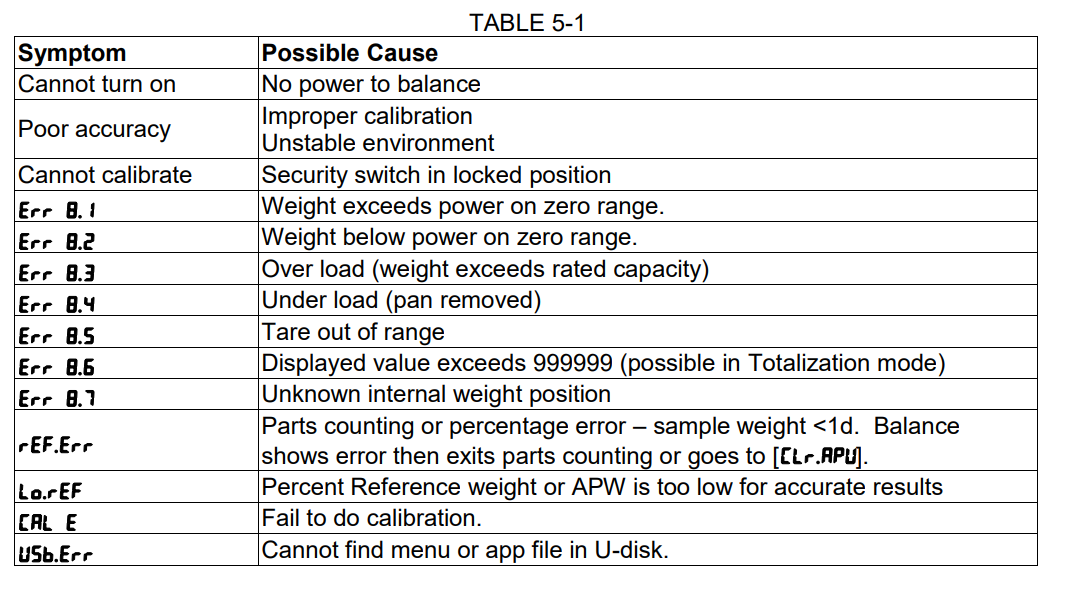
Error codes are your scale’s way of communicating what went wrong. Each code points to a specific issue that you can resolve with the right steps.
Er2: Calibration Failed
Er2 means the scale couldn’t complete its internal calibration process. This typically happens when the scale is placed on an uneven surface or when startup procedures aren’t followed correctly.
Common causes include soft flooring like carpet, movement during startup, weak batteries, or attempting to weigh more than 440 pounds. To fix this, perform a full battery reset by removing batteries for 10 minutes, then place the scale on a hard, level surface. Step on with one foot to wake it, then step off. Wait for “0.0” to appear before stepping on with both feet, and stay still until the weight blinks and you hear a double beep.
If your weight exceeds 440 pounds, contact Omada Support since some models may struggle with higher loads. If Er2 returns after 2 to 3 attempts, there may be a hardware issue requiring professional support.
Er4: No Cellular Signal
Er4 appears when the scale can’t detect a cellular signal strong enough to transmit data. This often happens in basements, interior rooms, or buildings with concrete or metal that blocks reception.
Why it happens: poor signal in basements or interior rooms, building materials like concrete or metal blocking reception, or weather conditions like rain or fog. To fix this, move the scale near a window or to an upper floor. Test your smartphone signal in the same spot since weak phone signal often correlates with scale issues. Wait for better weather since many Er4 cases resolve naturally within hours.
Over 70% of Er4 issues improve with relocation alone. If no signal is available long-term, use manual weight entry in the Omada app as a workaround.
Er5 and Er6: Network Transmission Failed
These codes mean the scale detected a network but couldn’t send data, usually due to temporary outages or network congestion. Your weight is saved on the scale, and data transmits automatically when service returns. No reset is needed, as doing so risks losing unsent weights.
What to do: keep using the scale daily, do not skip weigh-ins, and wait up to 24 hours for sync to resume. Only contact support if transmission fails for more than a few days.
“Batt” Low Battery Warning
This message is straightforward: battery power is too low to operate reliably. Replace with 3 or 4 new Duracell AA alkaline batteries, clean contacts before reinserting, and avoid waiting for “Batt” to appear. Replace batteries every 6 to 12 months proactively.
Resolve Calibration and Startup Errors
Frequent prompts like “Step off,” “Step off redo,” or “Sleep off” usually stem from incorrect setup or user error rather than hardware failure. Over 80% of startup errors resolve with full recalibration.
Perform a Full Recalibration
Follow these steps precisely to restore proper function.
- Remove batteries and wait 10 or more minutes.
- Reinstall with correct polarity.
- Place on hard, level flooring. Never place on carpet or rugs.
- Press center with one foot to wake, then step off.
- Wait for “0.0” or red line movement before stepping on.
- Step on with both feet and remain still.
- Wait for blinking weight and double beep.
Common mistakes include stepping on too early, moving during measurement, and using non-alkaline batteries. Avoid these to ensure successful calibration.
Check Your Flooring
Surface type directly impacts accuracy and calibration success.
| Surface | Safe to Use |
|---|---|
| Tile / Hardwood | Yes – ideal |
| Linoleum | Acceptable |
| Carpet / Rug | No – causes false readings |
| Uneven or springy floors | No – avoid |
Allow 30 seconds for stabilization after moving the scale to a new location.
Fix Data Sync Problems
Seeing “Sent” but no data in your Omada account doesn’t always mean something is broken. This is often a temporary backend delay.
Why “Sent” Doesn’t Mean Immediate Sync
Data typically appears in your account within 5 minutes but can take up to 24 hours during high traffic or outages. Multiple unsent entries during network downtime may cause delays. User profiles with similar weights can also lead to misattribution.
What to do: wait at least 10 minutes after “Sent” appears. Verify you’re logged into the correct Omada account. Check if someone else with a similar weight used the scale recently.
If data still hasn’t appeared, email support@omadahealth.com with the date and time of weigh-in, recorded weight, error messages, and steps already tried. Never reset the scale during sync delays since you’ll lose all stored data.
Improve Cellular Signal Strength
Unlike Bluetooth or Wi-Fi scales, the Omada scale uses a built-in cellular module with a dedicated SIM. You don’t need your phone nearby, but signal strength matters for reliable transmission.
Boost Reception
Place the scale near a window or on an upper floor. Avoid basements, metal rooms, or thick concrete walls. Position away from large appliances that may cause interference.
Monitor Environmental Factors
Rain, fog, and high humidity can weaken RF signals. Regional outages may last hours, but most resolve automatically. If you live in a low-signal area, enable manual weight entry in the app to maintain tracking continuity.
Perform Safe Resets Without Data Loss
Resetting can fix stubborn issues, but it erases all unsent weight data stored on the scale.
When to reset: scale won’t turn on, repeated Er2 errors after multiple attempts, or stuck on dashes or blank screen. When not to reset: Er4, Er5, or Er6 errors since data is stored and will sync later, “Sent” but no app data since you should wait first, or ongoing transmission delays.
Reset steps: remove all batteries, wait 10 or more minutes, clean contacts, insert fresh Duracell AAs, and recalibrate on a hard surface. Only reset as a last resort after confirming no data is pending transmission.
Enable Manual Weight Entry
When cellular service is unavailable, manual entry keeps your progress tracking on track.
For iPhone users: open Omada Health app, go to Progress Tracking or Weight Log, tap Manual Entry, input weight, and save. For Android users: open Omada app, navigate to Weight History, select Add Weight Manually, enter value, and confirm.
Know When to Contact Support
Some issues can’t be fixed at home. Contact Omada Support if weight is missing for over 24 hours after “Sent,” error codes persist for more than a few days, scale won’t power on after battery replacement, an unrecognized error message appears, calibration fails repeatedly despite correct setup, or you suspect hardware damage.
How to reach support: email support@omadahealth.com, use the “Contact Us” button in the Omada app, or visit help.omadahealth.com. Include in your message the date and time of last successful weigh-in, most recent weight, full error code, battery type and installation, scale location and surface, and troubleshooting steps already tried.
Support may offer remote diagnostics or authorize a replacement for confirmed hardware defects.
Maintain Your Scale for Long-Term Use
Prevent future issues with simple routine maintenance.
Routine care includes replacing batteries every 6 to 12 months, cleaning battery contacts monthly, wiping the surface with a damp cloth but never submerging the device, and recalibrating after long storage exceeding two weeks.
Longevity tips: store in a dry, temperature-stable area, avoid drops or moisture exposure, and never disassemble the scale since this voids the warranty. The Omada scale is built to last, but proper care ensures reliable performance for years.
Frequently Asked Questions About Omada Scale Not Working
Why does my Omada scale keep showing Er2?
Er2 indicates calibration failure, usually caused by placing the scale on carpet or uneven flooring, stepping on before “0.0” appears, using weak batteries, or exceeding the 440-pound weight limit. Fix it by performing a full battery reset and recalibrating on a hard, level surface.
How do I fix Er4 on my Omada scale?
Er4 means the scale can’t detect cellular signal. Move the scale near a window or to an upper floor where signal is stronger. Avoid basements or rooms with concrete or metal walls. Wait for weather to improve if rain or fog is affecting signal. Over 70% of Er4 issues resolve with relocation.
What does “Sent” mean on my Omada scale?
“Sent” means the scale successfully transmitted your weight data to the Omada network. However, data may take up to 24 hours to appear in your account. If data doesn’t appear after 24 hours, contact support with your weigh-in details.
Can I use rechargeable batteries in my Omada scale?
No. Rechargeable batteries output 1.2V, which is below the 1.5V required for reliable operation. This can cause startup failures, calibration errors, and transmission problems. Always use fresh alkaline AA batteries like Duracell.
Why does my Omada scale say “Step off” repeatedly?
This error occurs when the scale fails to initialize properly, usually due to incorrect startup sequence or unsuitable flooring. Perform a full battery reset, place on hard flooring, and follow the correct startup sequence: press center with one foot, step off, wait for “0.0,” then step on with both feet.
How often should I replace batteries in my Omada scale?
Replace batteries every 6 to 12 months, or immediately when “Batt” appears. Proactive replacement prevents most power-related issues and ensures reliable calibration and data transmission.
Key Takeaways for Fixing Your Omada Scale
Most Omada scale issues stem from three common causes: battery problems, incorrect placement, or temporary signal loss. By addressing these areas first, you can resolve the vast majority of “not working” cases quickly and safely. Always prioritize data preservation by avoiding resets during transmission delays, since your weight is stored locally and will sync when the network recovers. With proper battery maintenance, correct flooring placement, and attention to signal strength, your Omada scale will deliver accurate, automatic syncing for years to come.



